- 10 -
System Configuration
1. Configuration via Web Console
Main configuration of the unit is done through the web console.
• Default IP Address: 192.168.127.254
• Subnet Mask: 255.255.255.0
Be sure to configure the host PC’s IP address to use the same
subnet as the unit. For example, 192.168.127.253
2. IOxpress Utility
IOxpress is a utility that helps users with mass deployment of,
searching for, and locating units on the local network. This utility
can be downloaded from Moxa’s website.
3. Loading the Factory Default Settings
There are three ways to restore the unit to the factory default
settings:
a. Hold the Reset button inside the front door of the unit for 10
seconds while it is powered on.
b. Select the unit from the IOxpress utility’s Device Library page,
and then choose Load Factory Default.
c. Go to the System tab on the unit’s web console and choose
Load Factory Default in the Configuration section.
Please refer to the user’s manual for information on detailed
configuration and settings.
Downloading Software Packages
Related software packages can be downloaded from the Moxa website.
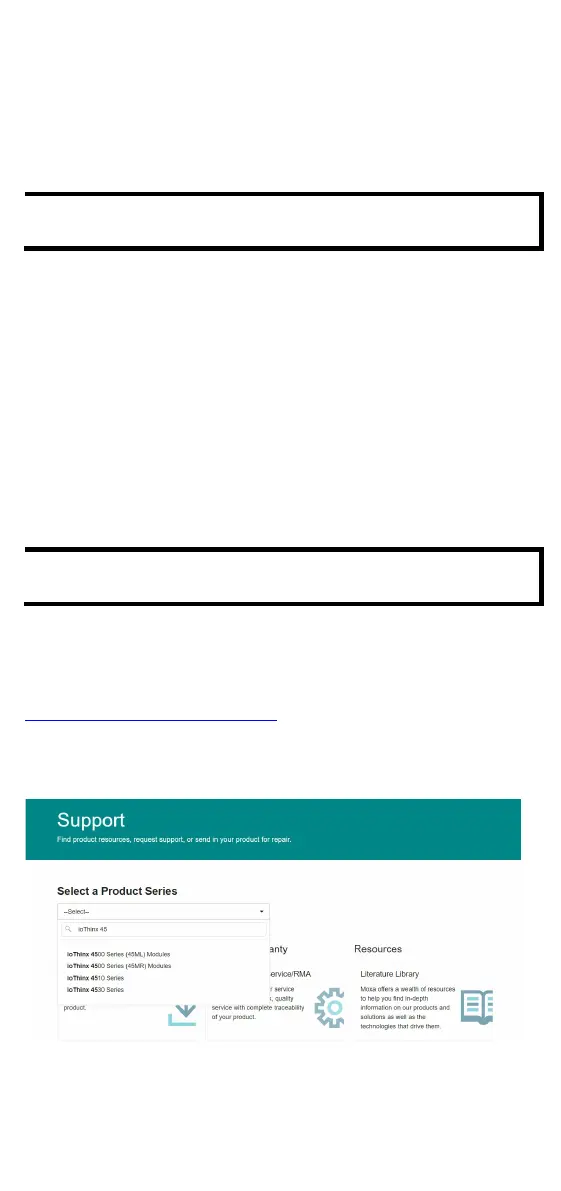
Step 1: Go to the following address:
https://www.moxa.com/en/support
Step 2: Type the model name in the search box or select a product
from the drop-down box and then click Search. The ioThinx 4500
Series is used for the examples below.



 To Next Page
 Loading...
