5
Driver Installation Guide
For USB C Connection
• If USB C is used for connection, no driver installation is required.
Windows Installation Guide
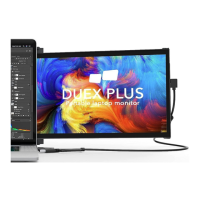
Connect your Windows laptop to the Mobile Pixels Duex Max monitor, wait 20 seconds
and the monitor should turn on. If the monitor does not turn on, please follow the steps
below:
• Download the correct Windows driver from
WWW.MOBILEPIXELS.US/PAGES/DOWNLOAD-DRIVERS.
• Double click and launch the installer, then click "Yes" in the prompted window.
• Click "Next" in the following window.
• Select "I accept the terms of the license agreement" and click "Next."
• Choose "Yes, I want to restart my computer now" and click "Finish."
Apple OS Installation Guide
Note: Do not plug the Mobile Pixels Device into your Mac before executing the driver
installation.
• Download the Mac driver from WWW.MOBILEPIXELS.US/PAGES/DOWNLOAD-
DRIVERS. Run the "Mobile_pixels_3.3-2021-04-19.dmg" file.
• Click on "Mobile_Pixels_Graphics_Driver-3.3-2021-04-19.pkg" and follow the
instructions to install the device driver.
• After installation, if a "System Extension Blocked" screen pops up, click "Open
Security Preference" to go to settings.
Note: Even if not shown, users must "Allow" to install the Mobile Pixels driver and
restart the laptop for new installations.
• After the system reboots, connect the Mobile Pixels device to the Mac. If a screen
recording prompt appears, click "Open System Preferences."
• Go to System Preferences > Security & Privacy > Privacy.
• Click on the "Lock" to make changes.
• Scroll and select "Screen Recording," then check "DJTVirtualDisplayAgent."
• Click on the Lock to save changes, then click "Quit Now" and restart the laptop.



 To Next Page