6
Attachment Guide
Clean the laptop surface with the included alcohol pad. Wait for 10 seconds for the
surface to dry.
Instructions for Laptops Under 16” Monitor
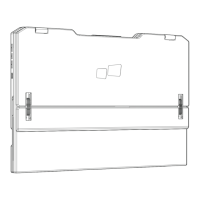
• Center and square the template on the back of your laptop.
• Place/adhere magnet(s) into unfilled holes and press down firmly to ensure
adhesion.
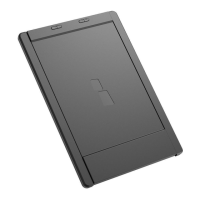
• Remove the template and mount your MP monitor.
Instructions for Laptops Above 16” Monitor
• Decide whether you want the screen to extend left or right.
• Align the edge of the template to the edge of the laptop on the chosen side.
• Place/adhere magnet(s) into unfilled holes and press down firmly to ensure
adhesion. Remove the template and mount your MP monitor.
Monitor Positioning Guide
Attachment Mode
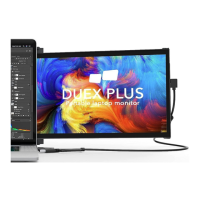
• Open the laptop monitor.
• Slide Duex Max and swivel the screen. *USB Cable omitted
Rotated Monitor
• To use it on the other side, rotate 180 degrees. Snap into the back of the laptop.
• Slide it, and you are ready to work.
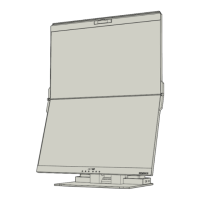
Portrait Mode
• Slide Duex Max and rotate around 110° degrees.
• Connect Duex Max to the PC and use it in portrait mode. Go to Display settings to
rotate the display. *USB Cable omitted
Presentation Mode
• Slide Duex Max and rotate it.
• To access presentation mode, simply swivel Duex Max 180 degrees to the back of
the laptop. *USB Cable omitted
Nintendo Switch & Android Mode (Duex Max Only)
• First, connect the original power cable of your Switch/Android device to Duex
Max, then connect the Switch/Android device to Duex Max.



 To Next Page