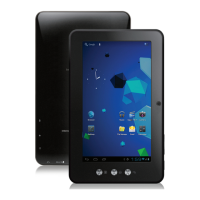
Home screen
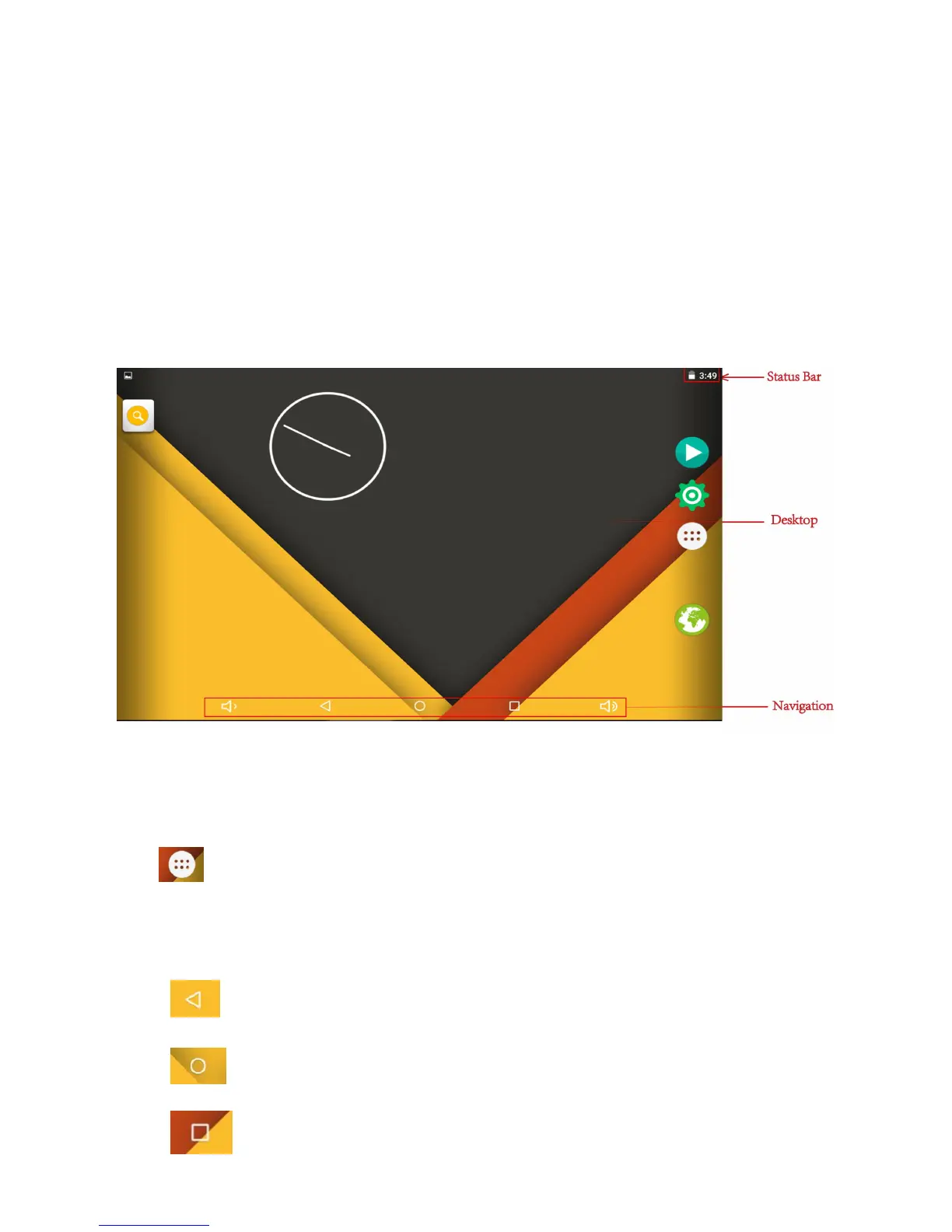
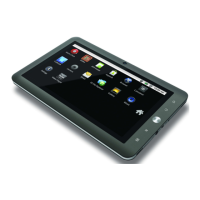
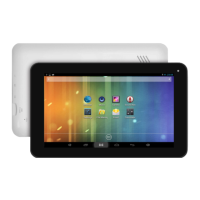
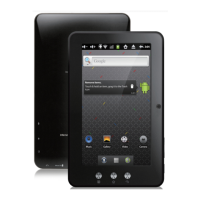
The Home screen will look similar to the picture below. It is actually five
screens, each of which can have a different layout of icons. To switch
between screens, simply slide your finger left or right across the display.
The status bar and navigation buttons are always visible, no matter
which Home screen you can currently viewing.
The Desktop cn contains shortcuts to your most-used applications and widgets
Touch the screen icon to quickly search the World Wide Web using Google.
The icon will launch the Application menu.
The status bar displays system information, such as current time and battery.
Touch to Expand the status bar for more detailed information.
The button moves back one step to the previous menu/page.
The buttons returns immediately to the Android desktop.
The button display a menu of recently opened applications.


 To Next Page