www.element14.com
www.farnell.com
www.newark.com
Page <12> V1.118/06/18
MC-I20 User Manual & Troubleshooting
4. Start printing
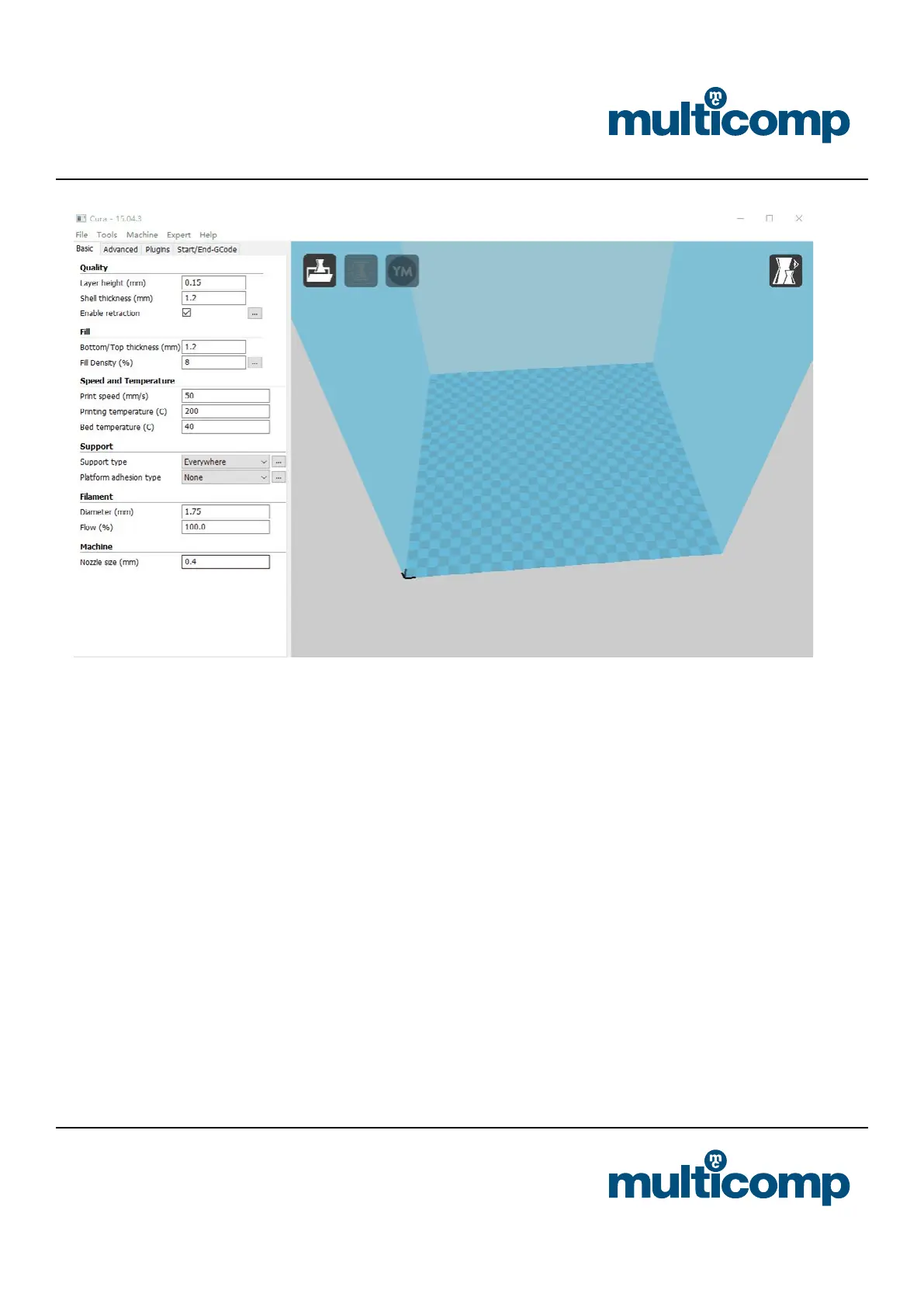
a. Import the model you want to print into the slice software. After setting the parameters, click File - Save GCode to save the
G code. Note that the le name cannot be Chinese or special characters.
b. Before printing, transfer the G code of the model you want to print to the SD card, insert the SD card into the slot on the right
side of the machine, and note the front and back sides of the card.
c. Press the knob to enter the menu, select “print from SD”, nd the le to be printed, press the knob to conrm, the nozzle starts
heating automatically, and the preset temperature starts printing.
Note
Before printing, apply a textured paper on the print plate so that after nish printing, it will be easier to peel the print from the
platform. Make sure the PLA supplies are sufcient to complete this print, otherwise replace the consumable before printing.
During the printing, the temperature of the nozzle reaches 205~210°C, and do not bring the body part or the ammable and
explosive articles close to the spray head.
At the beginning of printing, see whether the consumable are tightly stuck on the platform. If there is no problem, they can
leave; otherwise, please readjust the platform.
5. Finish Printing
When the printing process is over, the machine will automatically shut down. Next time you turn on the printer, what you need to
do is booting with the sub switch. Be careful when removing the model from the platform. In order to facilitate the model, the hot
bed can be heated to 50 for a while. When peeling the model, be careful not to damage the platform. After you nish peeling,
you can use the utility knife to clean the debris on the platform.


 To Next Page