Version 1.0.0 Rugged Tablet Windows 10 Pro System User Manual
Page 11 of 24
Version 1.0.0 Rugged Tablet Windows 10 Pro System User Manual
Page 12 of 24
4.0 System setting
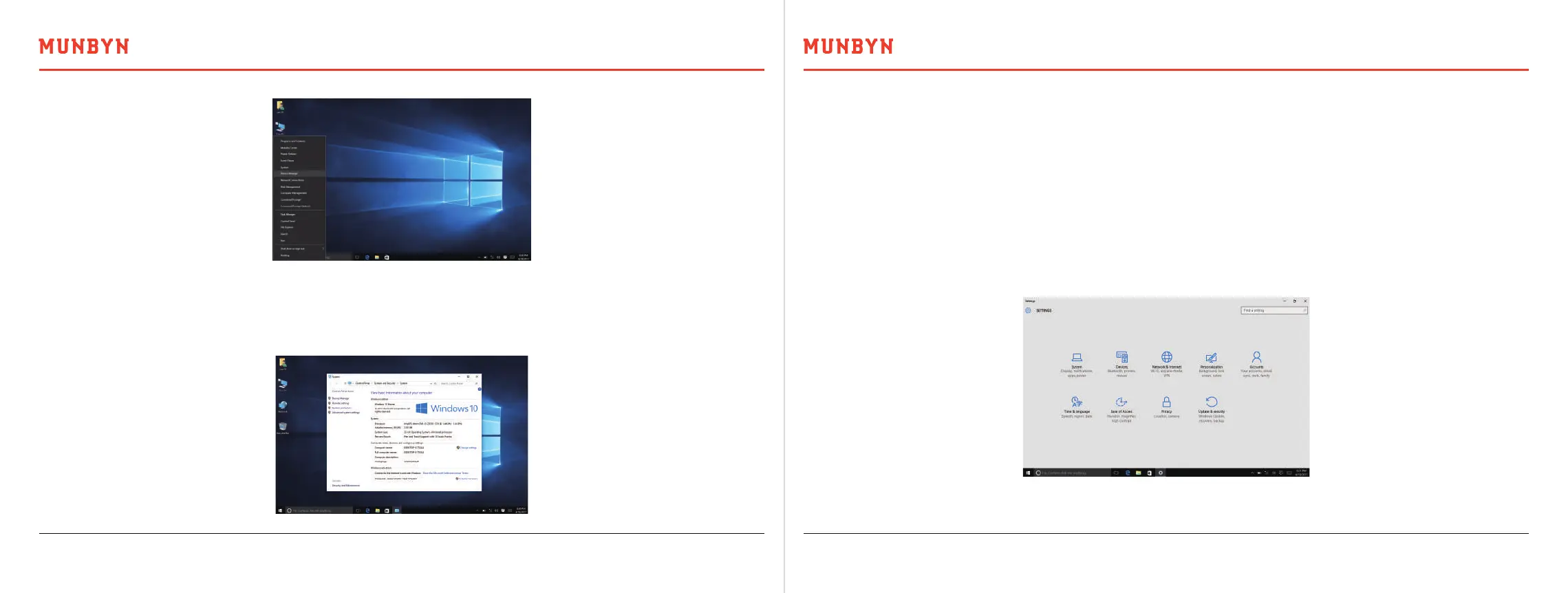
Open all settings in quick settings. Open the next picture interface, in this interface can set all computer systems, as the
following picture.
After choosing the system can appear, inform, apply, power, and so on, as the following picture.
4.1. Go to Settings
Click "start" in the lower left corner, click settings and click "system", then you can go to the system interface.
Look up system type here, CPU model number, run memory, and other information, as the following picture.
3.5. System and Configuration Information
System property page can look up Windows version information, processor/RAM(run memory)/system type/pen and
touch, etc. Information,activation code information show 00325-00000-00000-AAOEM, not activation, as the above picture.
You can open device management /remote setting/system protecting/high system setting and so on.



 To Next Page