Need help?
Do you have a question about the MUNBYN ITPP130 and is the answer not in the manual?
Lists the items included in the printer package, such as the printer, cables, and manual.
Details the physical components and ports of the MUNBYN shipping label printer.
Step-by-step guide for connecting the printer to power and a computer via USB.
Instructions for loading labels and enabling automatic label identification.
Guidance on installing printer drivers for Windows and Mac operating systems.
Offers advanced usage advice and best practices for using the printer effectively.
Provides a link to frequently asked questions for troubleshooting.
Explains the meaning of different LED light indicators and their troubleshooting steps.
Details the functions of the feeder button based on different press and hold actions.
Lists the technical specifications of the MUNBYN shipping label printer.
Important safety precautions and warnings for operating the printer to prevent hazards.
Contact information, support hours, warranty details, and website for technical assistance.
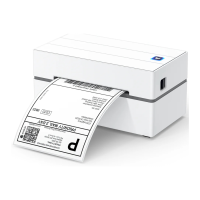
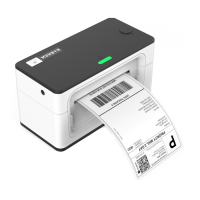
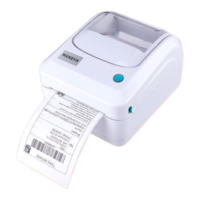
The MUNBYN Shipping Label Printer is a direct thermal printer designed for efficient and reliable label printing, particularly for shipping and e-commerce applications. It offers a range of features to streamline the label printing process, from quick setup to advanced label identification and maintenance tips.
The primary function of the MUNBYN Shipping Label Printer is to print shipping labels quickly and accurately. Unlike regular printers that might require specific paper sizes or produce labels with unnecessary white space, this device is optimized for 4"x 6" labels, a common size for shipping. It operates using direct thermal technology, which means it doesn't require ink or toner, reducing ongoing costs and simplifying maintenance. The printer connects to a computer via a USB cable, allowing users to print labels generated from various online platforms such as eBay, Amazon, and Shopify. It supports both Windows and Mac operating systems, with dedicated drivers provided for easy installation.
The printer is designed for user-friendliness, starting with its quick connection process. Users simply connect the power cord and USB cable, then turn on the printer. A key feature is its automatic label identification. To utilize this, users load at least four consecutive labels into the printer. After the paper is stable, pressing and holding the feeder button until a beep is heard initiates the automatic identification process, where the printer calibrates itself to the label size. This ensures accurate printing and prevents misaligned labels.
For common printing tasks, the feeder button serves multiple purposes. A single press during printing will pause the print job. When the printer is in standby, pressing and holding the feeder button until one beep is heard will trigger automatic label identification. If the feeder button is pressed and held until five beeps are heard, the printer will perform a reset.
The printer also includes several "Pro Tips" to enhance the user experience. It's recommended to run automatic label identification anytime the label type or roll is changed to ensure optimal performance. If a blank label needs to be skipped, a quick press of the feeder button will advance the paper. To perform a self-test, users can press and hold the feeder button until two short beeps are heard. For consistent print quality, MUNBYN recommends using their brand of labels, but if other brands are used, running automatic label identification before printing is advised. To avoid creating duplicate printer copies in the operating system, users should always insert the printer into the same USB port on their computer.
The device also provides clear LED status indicators to inform users about its operational state. A blue light indicates normal operation. A flashing red light (every 2 seconds) signifies that label paper is not identified, prompting the user to run automatic label identification. If the red light flashes every 1 second, it means the cover is not closed, and the user should check that it's completely secured. A flashing blue and red light indicates that the printer head is overheated; in this case, the printer will automatically resume once the head has cooled down.
Maintenance for the MUNBYN Shipping Label Printer is straightforward, focusing on ensuring longevity and consistent print quality. A crucial maintenance tip is to regularly clean the printer head. This helps prevent print quality degradation and extends the life of the printer. In situations where paper is jammed or the red light flashes, running automatic label identification can often resolve the issue.
Safety notices are also provided as part of the maintenance guidelines. Users are warned that the printer head can become very hot after printing and should not be touched. It's important not to bend the power cord excessively or place objects on it, as this could lead to fire or electrocution. The printer should not be used if any irregularities are found. It must be kept out of reach of children and only approved accessories should be used. Users are advised not to disassemble or repair the unit themselves. To protect the internal components, the printer should be kept away from water and other objects that could penetrate it. Finally, for long periods of disuse, it is recommended to unplug the printer. These guidelines contribute to both the safety of the user and the longevity of the device.
 General
| Brand | MUNBYN |
|---|---|
| Model | ITPP130 |
| Print Method | Thermal Transfer |
| Print Resolution | 203 DPI |
| Print Speed | 90 mm/s |
| Special Feature | Portable |
| Interface | Bluetooth |
| Compatible Label Width | 20 mm to 80 mm |
| Battery | Built-in rechargeable battery |
| Connectivity Technology | USB |
| Max. Print Speed Black and White | 90 mm/s |
| Operating System | Windows |

 To Next Page