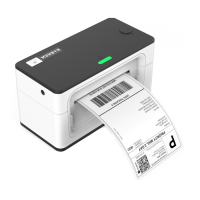
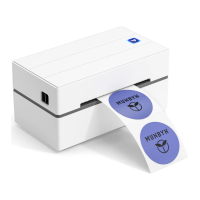
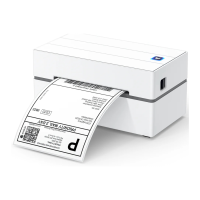
The Munbyn Label Printer (models ITPP941, ITPP942, ITPP249, ITPP966, ITPP662, ITPP477, ITPP599) is a 4-inch label printer designed for various shipping and labeling needs. This document provides a comprehensive guide to its installation, usage, troubleshooting, and maintenance.
Function Description
The Munbyn Label Printer is primarily used for printing labels, particularly 4-inch shipping labels. It supports various platforms and marketplaces, including Shopify, USPS, UPS, eBay, Amazon, Etsy, PayPal, Pirate Ship, PoshMark, Royal Mail, and Canada Post, making it a versatile tool for e-commerce businesses and individuals. The printer is capable of handling different label sizes and types, including direct thermal labels.
Important Technical Specifications
While specific technical specifications like print speed, resolution, and connectivity are not explicitly detailed in the provided text, the document highlights key operational aspects:
- Label Size Compatibility: The printer is designed for 4-inch labels, with a common size being 4x6 inches. It can also print other sizes, such as 100mm x 150mm, 100mm x 113mm, 100mm x 145mm, 100mm x 180mm, 100mm x 200mm, 100mm x 250mm, 100mm x 300mm, 105mm x 150mm, 105mm x 200mm, 105mm x 250mm, 104mm x 100mm, 94mm x 145mm, 94mm x 150mm, 94mm x 187mm, 94mm x 200mm, and 94mm x 210mm.
- Printing Technology: The printer utilizes direct thermal printing technology, which means it does not require ink or toner.
- Operating Systems: It supports both Mac (OS X 10.9 and newer) and Windows operating systems.
- Connectivity: The printer connects via USB.
Usage Features
The Munbyn Label Printer offers several user-friendly features to ensure efficient and accurate label printing:
- Driver Installation:
- Mac: The driver package (ITPP941) can be obtained via a USB flash drive or downloaded from https://munbyn.biz/macd. Installation involves opening the package, and if a security warning appears (stating the app is from an unidentified developer), users need to go to "Security & Privacy" in System Preferences and click "Open Anyway" to allow the installation. After installation, the printer is ready for use.
- Windows: The driver package (ITPP941) can be obtained via a USB flash drive or downloaded from https://munbyn.biz/wind. The installation process involves running the setup wizard and following the on-screen prompts.
- Printing Settings:
- Paper Size Configuration: Users can customize label sizes. For Windows, this is done through "Printer preferences" > "advanced" > "paper size" or by creating a new custom size. For Mac, in the print dialogue, users select "Paper Size" and can choose from predefined sizes or create custom sizes by managing custom sizes.
- Density and Speed Adjustment: To address issues like incomplete or faint prints, users can adjust the printing density and speed.
- Windows: Navigate to "Settings" > "Devices" > "Printers and Scanners" > Right-click on 'Munbyn ITPP941' > "Manager" > "Printing Preferences" > "Page Setup" > "Dotted line" > "Apply." Here, users can adjust "Darkness" and "Print Speed."
- Mac: In the print dialogue, select "Printer Features" and then "Feature Sets" to adjust "Density" and "Speed."
- Print Orientation: The printer supports auto-rotate functionality for labels.
- Self-Test Label: The printer has a self-test function to diagnose printing issues. To perform a self-test, press and hold the FEED button (red/green light) until it beeps twice, then release. The printer will print a self-test page. If the self-check page is not printed, it indicates a problem with the printer.
- Customized Label Size Creation: Users can create new custom label sizes by entering the width and height in the print prompt menu under "Manage Custom Sizes."
- Printing from PDF: The printer supports printing from PDF files. For Mac, users can choose "Printer Features" in the print dialogue and then select "Cover Page" to adjust settings.
Maintenance Features
Proper maintenance ensures the longevity and optimal performance of the Munbyn Label Printer:
- Cleaning the Print Head:
- Turn off the ITPP941 and allow it to cool down.
- Use alcohol pads (70% Isopropyl Alcohol) to wipe the print head clean. These are commonly available in pharmacies and grocery stores or on Amazon.
- Allow 2-3 minutes for components to dry, then turn the ITPP941 back on.
- This procedure helps resolve issues like white spots on printed labels, which indicate a dirty print head.
- Troubleshooting Common Printing Issues:
- Incomplete or Faint Prints:
- Ensure the shipping label file is 4x6 inches.
- Set the correct label size on the shipping platform or online store.
- Adjust printing density and speed (as described in "Printing Settings").
- Blank Labels or Labels Not Completely Printed:
- Verify that labels are loaded upside down (tearable side up).
- Ensure labels are "Direct Thermal" labels, as the paper enclosed in the package meets this condition.
- Perform a self-test to confirm the printer can print. If the self-test fails, the printer may be faulty.
- Press FEED (green/red light) button and hold on; Release after you hear two consecutive beeps.
- Label Stuck/Barcode Not Printed:
- Follow steps to reduce density and printing speed (as described in "Printing Settings").
- Printer Prints Blank Paper After One Successful Print:
- This issue suggests the printer is not continuously printing.
- Cancel all printing sequences in the computer.
- Load no less than 4 consecutive sheets of paper into the printer.
- After the paper is stable, press and hold FEED (red/green light), and when you hear a beep, release the FEED. The printer will learn the size of the paper at this time, and the top of the printer will light up in green when it stops. After the process is complete, the printer returns to normal.
- Labels Not Sharp/Dark:
- Try to choose PDF file format for printing instead of PNG, PIG, and other image formats.
- Adjust the density to a higher value (as described in "Printing Settings").
- Red Light Indication: A red light indicates a problem with your label.
- Load no less than 4 consecutive sheets of paper into the printer.
- After the paper is stable, press and hold FEED (red/green light), and when you hear a beep, release the FEED.
- The printer will learn the size of the paper at this time, and the top of the printer will light up in green when it stops. After the process is complete, the printer returns to normal.
- If automatic label identification does not work or the red light remains, turn off ITPP941 by using the power switch on the back and turn the unit back on.
- Printer Beeping: Check if the power adapter is the one included in the package.
For further support, users can contact seller from Amazon or support via email at support@munbyn.com or WhatsApp at +86 1781788 1078.

 Need help?
 General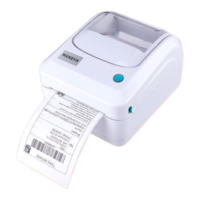

 To Next Page