Turn on the Muse before connecting to your computer. Using the USB cable that came with the cutter, plug
the wider end into your computer’s USB port, and the squarish end into the cutter’s USB port which is on the
right end cap (see FIG. 1.5.4).
Open Create Space and select New Project.
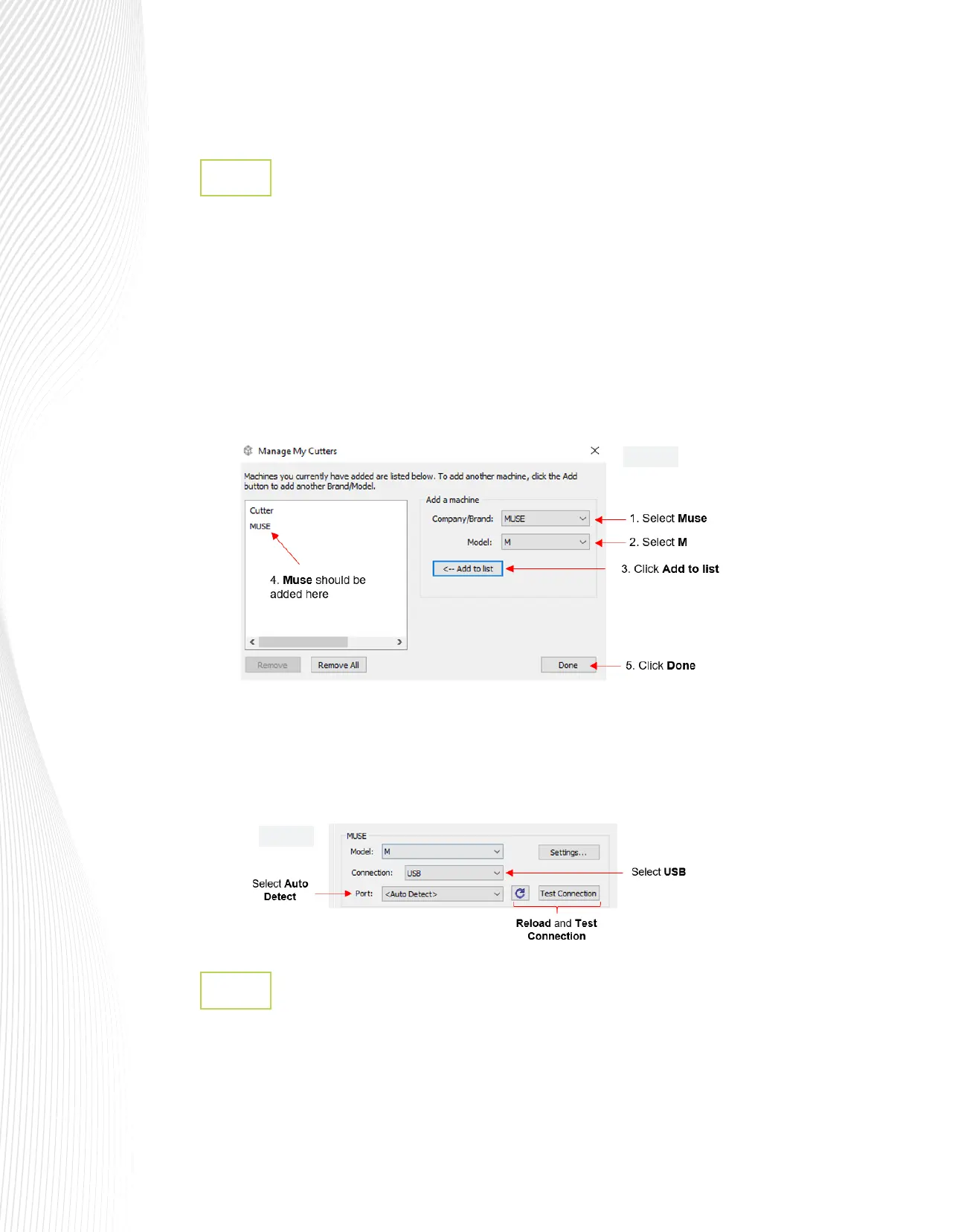
Go to Cutter>My Cutter>Manage Cutters and a new window will open (FIG. 1.10.3).
A new window will open. On the right side, under Company/Brand select MUSE and under Model select M.
Click Add to list. Click Done to apply and close the window.
Once you are ready to cut, click the Cutter icon on the Toolbar at the top of the screen. The Cut Settings
window will open and, in the Connection drop-down menu, select USB. You can change the port or leave it
on Auto Detect. If you click on Test Connection, it should move the blade carriage back and forth one time.
This does not send a cut, just a signal to the cutter.
USB Connection in Create Space
1.10.2
For initial setup using the Wi-Fi option, you may need to place the Muse in the same room or in close
proximity to the Wi-Fi router. This will create a stronger connection and faster Wi- network conguration.
Once the connection is set, you can move the cutter around within the limits of your router’s coverage area.
Connecting the Muse to a Wi-Fi Network
1.10.3
Fig. 1.10.3
Fig. 1.10.4


 To Next Page
 Loading...
