Force Guidelines: There are dierent levels of force required for various kinds of self-adhesive vinyl and heat
transfer vinyl. Generally speaking, thicker or coarser materials such as reective vinyl or glitter-ake HTV require
more force than standard 3 mil sign vinyl.
The Muse makes managing these settings easier. It allows you to store, edit, and recall saved settings for
dierent kinds of materials, so you can quickly change from one type of lm to another.
The recommended or optimal force varies for dierent materials. The ideal force setting may even change for
dierent colors. White vinyl sometimes requires more cutting force than other colors, due to the density of the
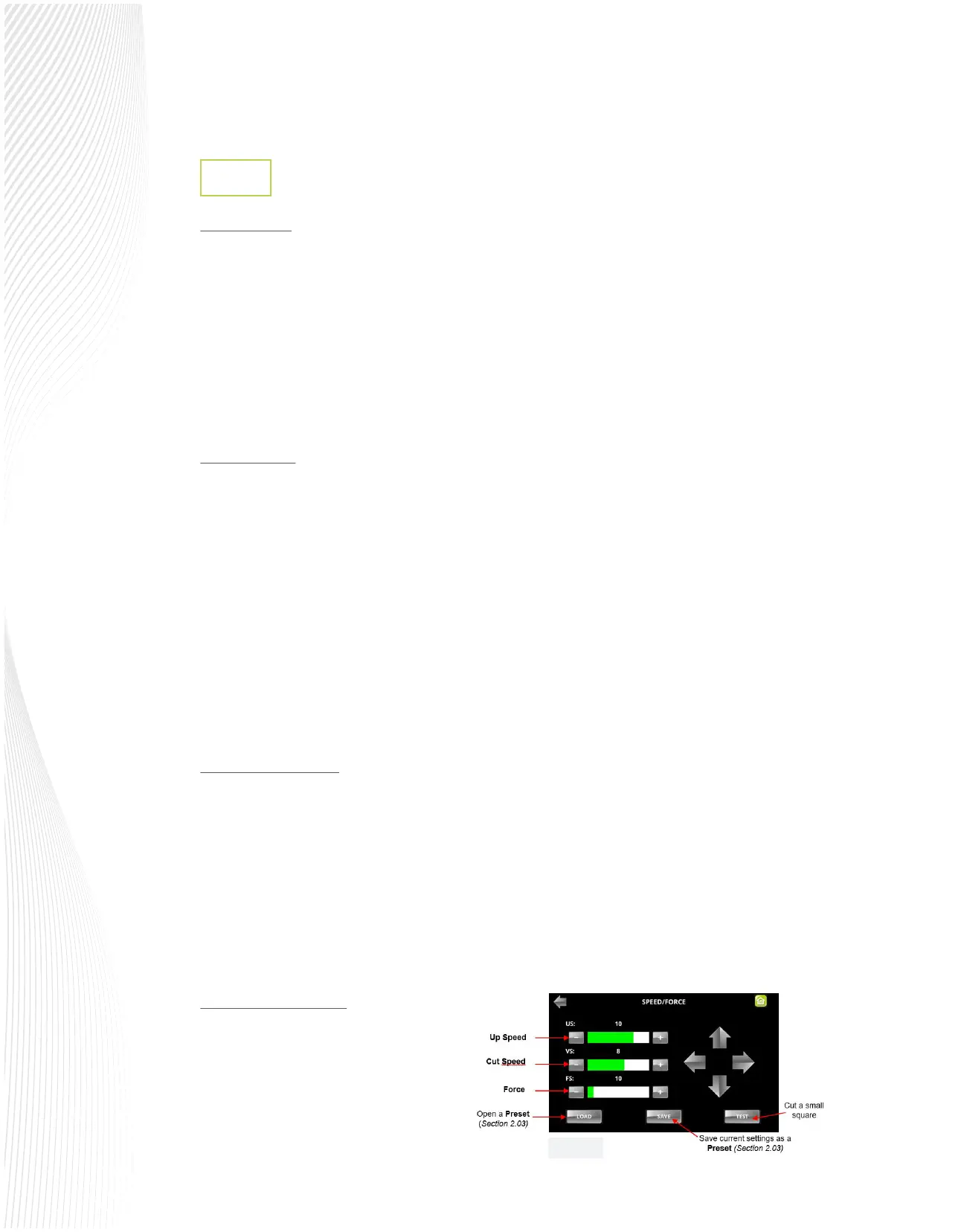
pigment. It’s always a good idea to perform a test cut before proceeding. This can be done using the TEST
button on the SPEED/FORCE screen.
Speed Guidelines: In commercial signs and graphics, the faster you get a job done, the better. Time is money
and speed saves time. So, it’s tempting to run your cutter at top speed all the time, but this is not always the
best approach.
Think of the cutter making vinyl graphics as if you were drawing, holding a fountain pen, or cutting with a
hand-held X-Acto knife. If you were cutting or drawing a large square, you could go very quickly. If, however,
you were cutting an intricate image, you might want to slow down and make sure you got all the curves and
corners right.
The same holds true for vinyl cutters. You can cut large simple graphics at maximum speed. Cutting small,
intricately detailed graphics requires more care and should be done at lower cutting speeds.
Just as you would do manually, if you’re cutting something thick or tough, you would slow down to make sure
you’re cutting with enough force. Likewise, when using your Muse, cut thicker or tougher lms on a lower
speed setting to ensure good cut quality.
US and VS Speed Settings: To make your cutter even more ecient, there are two available speed settings in the
Muse control panel:
US is the ‘up speed’, the speed of the tool carriage when the blade is lifted o of the media, moving from the
origin to the start of the rst shape to cut, or when moving from one shape to the next.
VS is the ‘down speed’ or the speed of the tool carriage when the blade is in the down position, cutting the
shapes from the media.
For instance, you may need to use a lower VS to cut a detailed graphic, but you can leave the US at a much higher
setting. Overall, there will be a time savings compared to use a lower
VS for the entire project.
Force and Speed
2.2.1
Changing Speed and Force: To change the speed
and force settings on your Muse:
From the Main Screen, press the SPD/FOR button
and the following screen appears:
Fig. 2.2.1


 To Next Page
 Loading...
