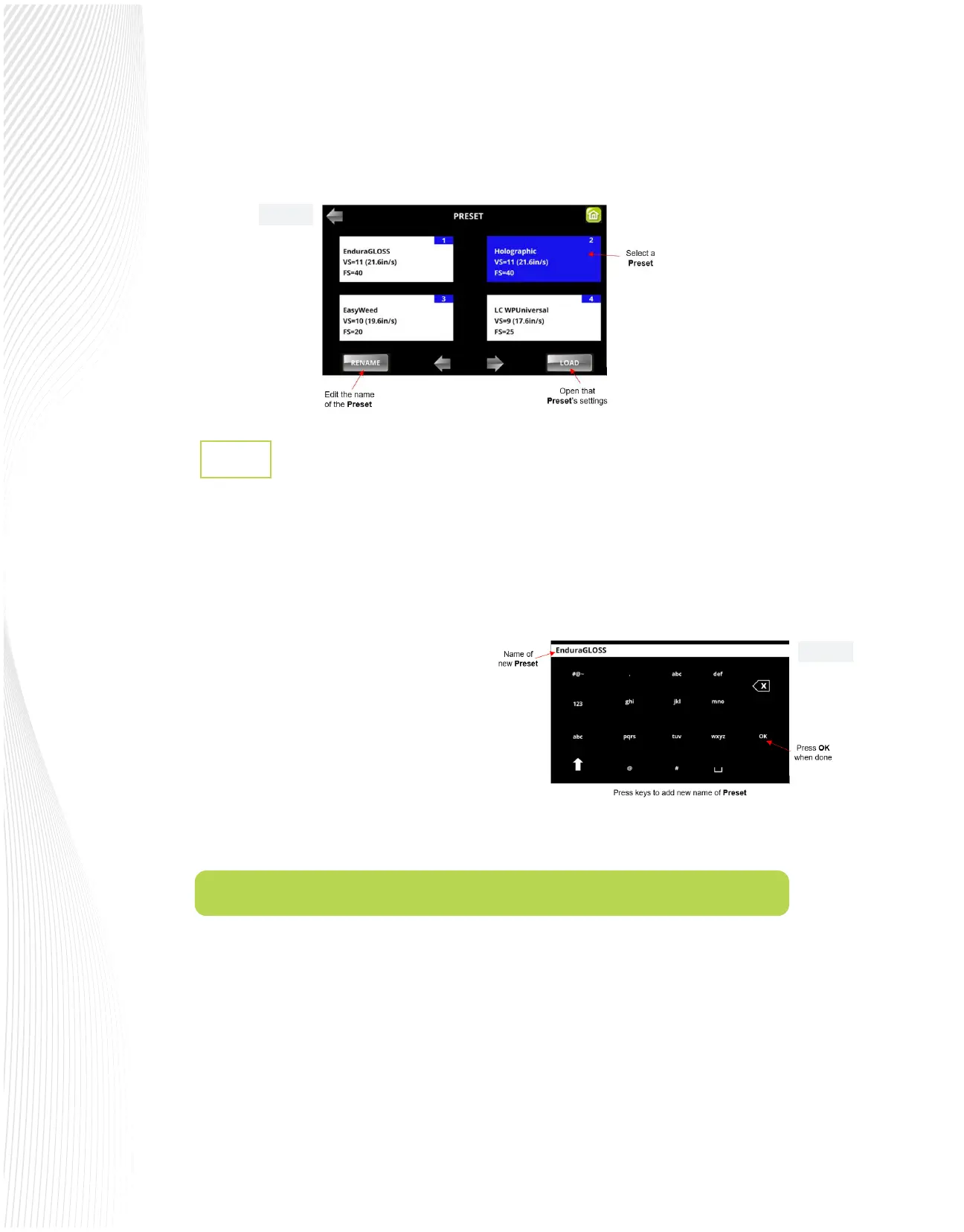
Press one of the Preset boxes and it will turn blue. You then have the option to RENAME it or LOAD it:
Saving a Cutting Parameters Preset
2.3.1
The following steps show you how to create your own preset of cut settings:
1.
2.
3.
From the Main Screen, press the SPD/FOR button.
Enter the desired US, VS, and FS settings and press SAVE (refer to FIG. 2.2.1). The Preset screen will open.
4.
Now your new PRESET will appear with the rest of the presets in the menu.
Press one of the custom preset boxes, as shown in
FIG.2.3.2. Instead of turning blue, it will turn red.
You can either click on SAVE and that preset will
be updated with the new settings or you can press
RENAME and the following keypad will appear.
Enter the name of the new preset you would like
to save and press OK (Note: there is a 15-character
limit).
2.4 Setting the Origin before Cutting
Setting an origin point is an important part of managing your material cost and using the Muse contour
cutting capabilities. Setting the origin point consists of using the arrow keys to move the tool carriage to a
specic point on the cutter’s X axis (left-to-right on the platen) and advance the media forwards or backwards.
Once you have positioned the blade in a specic point over the media (typically close to the bottom right
corner of the material), your origin is dened and you do not need to press anything before cutting.
Fig. 2.3.3
Fig. 2.3.2


 To Next Page
 Loading...
