2.
Try to load the material straight so that the front registration marks are parallel to each other on your Muse’s
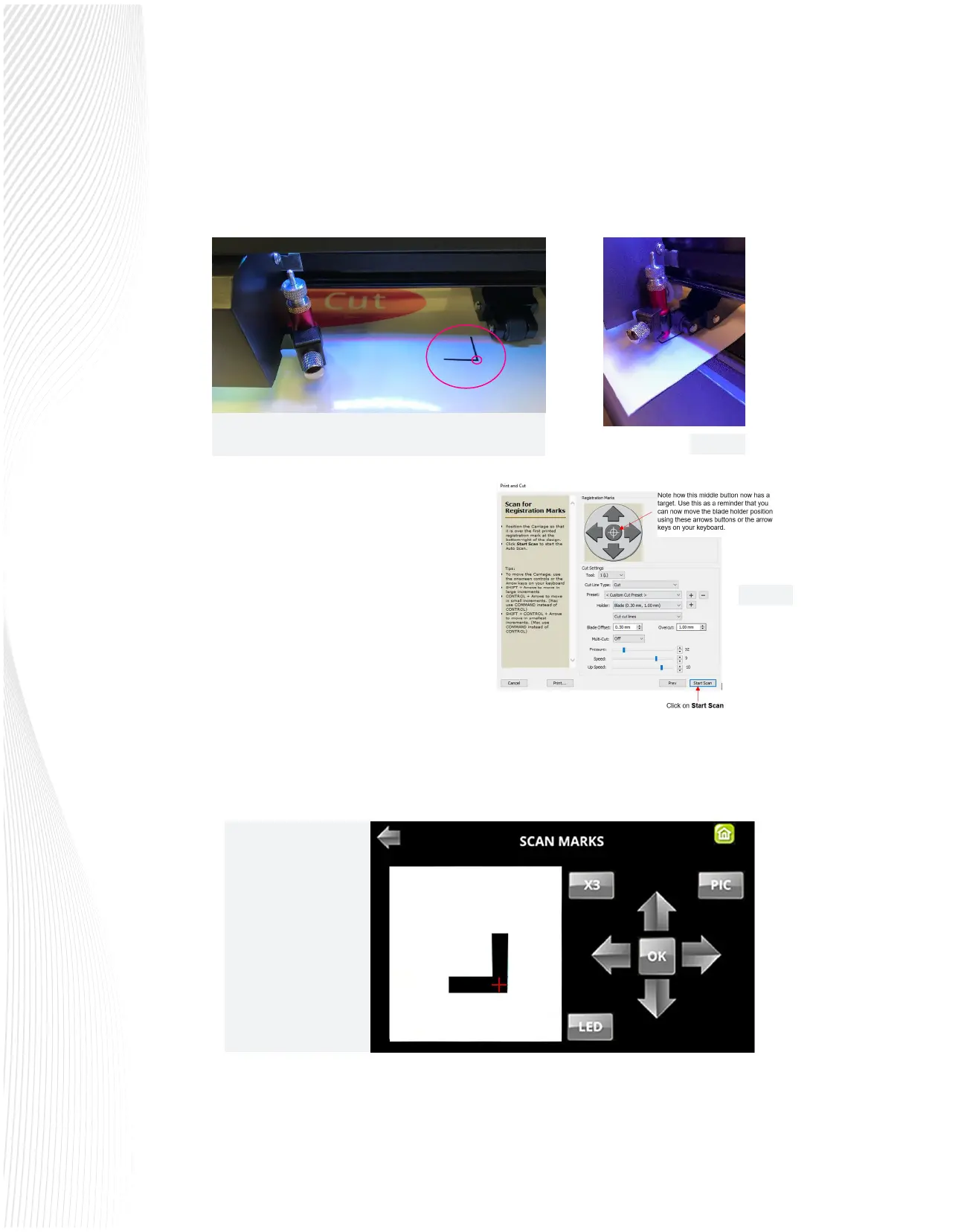
platen. Move the tool carriage so that the blade is over the lower right registration mark. The blade needs to
be close to the bottom corner as shown in FIG. 3.4.6.
3.
4.
5.
Select Next to move to the reading of the
registration marks. You can use the arrows on
the box to move the carriage or use the
arrows on the cutter to move the tool
carriage into the right spot. You want the
blade in the bottom corner of the lower right
registration mark.
Once in the correct spot, click Start Scan and
your Muse will begin scanning the marks:
Position the blade over the lower right corner of
the lower right registration mark.
As the camera scans each registration mark, the LCD display will show the mark being scanned. If, for any
reason, the cutter fails to scan a particular mark, the camera display will show how far o-center the alignment
is. At that point, you can use the arrow keys to adjust the camera to align over the corner of the mark and
complete the scan (FIG. 3.2.9).
When the cut job is sent,
the Muse activates its
camera and begins
scanning the marks.
Each mark is displayed
on the LCD control
panel in real time as it’s
scanned.
Fig. 3.4.7
Fig. 3.4.8
Fig. 3.4.6
Fig. 3.4.9


 To Next Page
 Loading...
