17
5. Control
5.3 The Naim App
The Naim App comprises pages dedicated to each of the
Mu-so streaming sources and inputs and pages dedicated
to Mu-so setup. The Naim App is intuitive in use and its
capabilities and philosophies are best learned by using it to
congure Mu-so to suit your needs. To begin using the
Naim App follow the steps below:
• Download and install the Naim App on your iOS or
Android device.
• Ensure that the device is connected to the same
network as the Mu-so and open the Naim App.
• From the Settings menu select Mu-so to connect the
app. Diagram 20 illustrates selection of Mu-so from the
Naim App setup page.
Note: If you have multiple Naim streaming products
connected to your network they will be listed for selection
in the Naim App setup page. The correct unit can be
identied either by its product name or, in the case of
multiple identical products, by the rst four characters
of each units’ unique MAC addresses appended to its
product name. The individual Mu-so MAC address can be
found on the serial number label axed to its underside.
Note: The Naim App Settings menu enables Mu-so and
Naim streaming product default names to be changed.
Designating each Mu-so or streamer with a name that
reects their location will help make multiroom control
more satisfying and intuitive. See Section 5.3.2.
5.3.1 Selecting Inputs from the Naim App
With your Mu-so selected, the Naim App Input icons will
congure to reect the inputs available. Select the required
input. Diagram 21 illustrates the Naim App home page and
Input icons.
Diagram 20
Naim App Setup
Diagram 21
Naim App Home
If a streaming source such as AirPlay or Spotify
®
is selected
automatically on Mu-so by the presence of a stream, the
Naim App display will switch to the appropriate streaming
source page and oer the controls available to that stream
type. If an alternative source is selected using the Naim App
the stream playback will stop and Mu-so will disconnect
from the stream source.
Note: Only one instance of the Naim App can be
connected to a single Mu-so at any time.
Rooms
Setup new Mu-so
Rooms
Setup new Mu-so
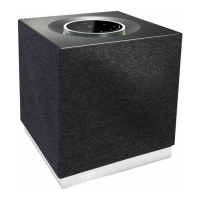
The Naim App behaves identically with Mu-so and
Mu-so Qb.


 To Next Page
 Loading...