2
1. Getting Started
1.1 Installation
Mu-so and Mu-so Qb are designed to be located either on a
table, a furniture unit or a wall shelf. If a shelf is to be used
be sure that it is able to support the weight.
1.1.1 Mu-so Connections
A connection panel located on the Mu-so underside
incorporates a mains input socket, a wired network socket,
and a TosLink optical digital audio socket intended for the
connection of external digital audio sources; a CD player for
example. The underside connection panel is illustrated in
Diagram 1.
If your Mu-so is to use a wired network connection begin by
connecting a standard Ethernet cable to the network socket.
Otherwise, rst connect Mu-so to a suitable mains supply
using the supplied mains cable.
Note: Mu-so is supplied with a mains cable appropriate
for the territories in which it is sold.
1.1.2 Mu-so Side Panel Features
The Mu-so right-hand side panel, illustrated in Diagram 2,
also incorporates some connection and installation facilities.
These include:
• A Wi-Fi set up and factory defaults pin-hole button.
See Section 2.1 for more on Wi-Fi set up, and see
Section 6.6 for more on returning a Mu-so to its default
settings.
• A multicolour status indicator. See Section 2 for
information on indicator colours.
• A 3.5mm jack analogue audio socket for the
connection of external analogue audio sources.
Note: Mu-so will automatically select its analogue input
when a plug is inserted in the socket.
• A USB socket for the connection of USB memory
hardware and iOS audio playback devices.
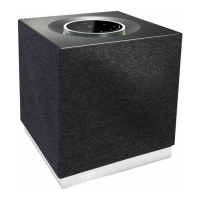
1.1.3 Mu-so Qb Connections and Installation Features
Mu-so Qb connection and installation facilities can be found
on its rear panel. These include:
• A mains input socket.
Note: Mu-so Qb is supplied with a mains cable
appropriate for the territories in which it is sold.
• A USB socket for the connection of USB memory
hardware and iOS audio playback devices.
• A wired network socket.
• A TosLink optical digital audio socket intended for the
connection of external digital audio sources.
• A 3.5mm jack analogue audio socket for the
connection of external analogue audio sources.
• A Wi-Fi set up and factory defaults pin-hole button. See
section 2.1 for more on Wi-Fi set up, and Section 6.6 for
more on returning Mu-so Qb to its default settings.
• A multicolour status indicator. See Section 2 for
information on indicator colours.
The Mu-so Qb connection panel is illustrated in Diagram 3.
Important: Items of any weight placed on the Mu-so or
Mu-so Qb top surface may damage its nish.
Important: Never place any item containing liquid, such
as a vase, a cup or a glass, on the Mu-so or Mu-so Qb
top surface.
Important: Take great care when lifting and carrying
Mu-so, and when accessing the underside connection
sockets. Do not stand Mu-so on its front grille or either
end panel, or invert it fully to stand on its top panel.
Mu-so can be stood temporarily on its rear heatsink
in order to gain access to the underside connection
sockets. Ensure however that the heatsink is protected
from damage.


 To Next Page
 Loading...