Getting Started: AUDIO 4 DJ – 16
Software Setup
Open TRAKTOR.
Open Preferences > Audio Setup > Audio Setup.
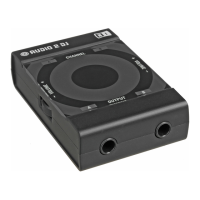
From the audIo devICe list, select the AUDIO 4 DJ entry.
Now open Preferences > Audio Setup > Output Routing.
Choose Internal Mixing Mode.
Choose a channel pair 3/4 for the Output Monitor for pre-listening the Tracks.
Choose a channel pair 1/2 (Ch. A) for the Output Master.
Close the Preferences.
Adjust the headphones volume inside TRAKTOR with the vol KnoB in the Master
Panel and on the AUDIO 4 DJ front with the Headphone Volume knob to a comfort-
able level.
Test the Setup
From TRAKTOR’s list window, drag tracks in both decks and hit the Play/PauSe
ButtonS.
Drag the CroSSfader all the way to the left (Deck A). Click on the Cue Button in the
Mixer Strip of Deck B. You should hear the track playing on Deck B only in your head-
phones, while the track in Deck A is playing over your speakers.
1.
2.
3.
4.
5.
6.
7.
8.
9.
1.
2.
!
The AUDIO 4 DJ has to be set to
Line Mode for use in this setup.!
The AUDIO 4 DJ has to be set to
Line Mode for use in this setup.



 To Next Page