6 7
No matter which control unit you have, when using the reader for the rst time, you can choose between three
dierent control modes: analogue, app or hybrid control. Description and instructions for each control mode can
be found below.
ANALOGUE CONTROL using buttons located on the control unit, by remote control or by placing your
nger on the sensor
APP CONTROL on your smartphone
HYBRID CONTROL - analogue reader control, using the app only to unlock doors and control LED lighting
READER CONTROL MODES
YOU CAN CHANGE THE CONTROL MODE AT ANY TIME BY RESETTING THE DEVICE TO FACTORY
SETTINGS AND STARTING TO OPERATE IT IN YOUR PREFERRED MODE.
Resetting the device to factory settings deletes the ngerprint database and all other settings.
FACTORY RESET IN THE APP
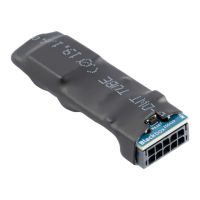
BBX MINI CONTROL UNIT
RESET »R«
BUTTON
The factory reset button
is located below the
connector.
RESET
Blackbox
PRESS AND HOLD THE R BUTTON FOR 10 SECONDS.
All ngerprints, including the administrator’s, are erased
from the memory and the device is restored to factory settin-
gs. Any paired remote controls and smartphones are deleted
as well. After resetting to factory settings, iall stored
WiFi connections must be deleted in your mobile phone
settings.
FACTORY RESET
PURPLE
5 ×
Clicking on the “FACTORY RESET” tab deletes all
saved ngerprints, including administrator ngerprints,
and returns the device to factory settings.
Any paired
remote controls and smartphones are deleted as
well. The devices must be re-paired.
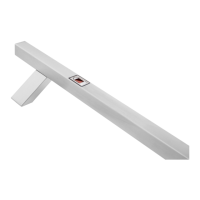
The control unit is built into the door leaf. It has the factory reset button.
The reader can be operated:
- with remote control
- by placing your nger on
sensor
- with X-manager app
The BBX control unit also has the option to reset to facto
-
ry settings in the app.
1
1
AFTER EACH FACTORY RESET, THE DEVICE REMAINS IN TEST FUNCTION FOR 1 MINUTE.


 To Next Page
 Loading...