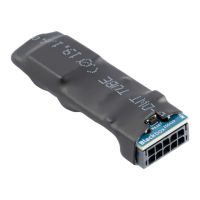
The Navkom R7 is a door profile built-in control unit, designed for secure access management using fingerprint recognition. It offers various control modes, including analogue, app, and hybrid, to suit different user preferences and system integrations.
Function Description
The R7 unit acts as a central control for door access, primarily through a fingerprint sensor. When a saved finger is placed on the sensor, it triggers a relay to open the door. The device supports up to 498 fingerprints, with the first three being designated as "administrator fingerprints." Administrators have special privileges, including the ability to add and delete other users, and their fingerprints are crucial for initiating certain operations. User fingerprints can be assigned to open the main door, an additional door (via Relay 2), or both.
The control unit features two function buttons (Button 1 and Button 2) and a hidden "R" button for factory reset. These buttons are used for various operations depending on the control mode. For instance, in analogue mode, Button 1 is used for adding administrators or users, while Button 2 is for deleting users. In Wi-Fi mode, Button 1 activates/deactivates free passage mode, and Button 2 controls the blue LED lighting.
The device also incorporates a security lockdown feature: if an unrecognized finger is placed on the sensor seven times in a row, the reader locks for 30 seconds. Subsequent unsuccessful attempts increase the lockdown duration, up to a maximum of 5 minutes.
Important Technical Specifications
- Capacity: 498 fingerprints (166 x 3, as each fingerprint requires 3 entries).
- Supply Voltage: 8-30 V, DC.
- Relay Outputs: 2.
- Maximum Current on Relay: 3 A.
- Relay Trigger Time: 1-60 seconds (adjustable).
- Maximum Power: 1.8 A in analogue mode, 2.5 A in Wi-Fi mode.
- Fingerprint Recognition Speed: <1.2 seconds.
- Operating Temperature Range: -20°C to +60°C.
- Maximum Ambient Humidity: Up to 100% IP65.
- Memory Retention: Fingerprints remain stored even during power failure.
- Sensor Type: Capacitive sensor FPC1011F3.
- User Interface: 3-colour LED, beeper, and 3 buttons on the control unit.
- Biometric Algorithm: Creates a pattern from fingerprint characteristics, converted into a code for recognition.
Usage Features
The R7 offers three primary control modes:
-
Analogue Control: This mode uses the physical buttons on the control unit, a remote control (if paired), or direct finger placement on the sensor for operations.
- Adding Administrators: Press Button 1 on the control unit. The blue LED flashes. Administrators can choose to activate Relay 2 only (press Button 1 again, orange LED flashes once, one beep) or both the door and Relay 2 (press Button 2, orange LED flashes twice, two beeps). Each administrator fingerprint must be placed on the sensor 3 times.
- Adding Users: Press Button 1. An administrator must first confirm by placing their finger on the sensor. The green LED lights up, and a beep is heard. Then, the user places their finger on the sensor 3 times.
- Deleting Users: Press Button 2. An administrator must first confirm. The green LED lights up, and a beep is heard. Then, the user places their finger on the sensor once.
- Analogue Control by Placing Finger on Sensor: For this method, administrators are added by placing a finger on the sensor for 5 seconds. Users are added after an administrator confirms by placing their finger on the sensor for 5 seconds.
- Relay 2 Activation: During fingerprint entry (both administrator and user), there's an optional step to assign the fingerprint to activate Relay 2, either exclusively or in conjunction with the main door.
- Blue Light On/Off: Hold Button 1 on the control unit for 10 seconds (until 3 beeps) to turn off the blue LED in standby mode. Repeat to reactivate.
-
App Control (X-Manager App): This mode provides a comprehensive range of functions via a smartphone or tablet app (available on Google Play Store and App Store).
- Device Connection: Find, name, and add the reader in the X-Manager app. Click on its name to establish a connection.
- Fingerprint Entry: Start entering administrator fingerprints directly within the app.
- Unlocking Doors/Activating Relay 2: Use the "Touch to open - relay 1" tab to unlock the door, or "Activate - relay 2" to activate the second relay.
- Settings Management: Adjust relay opening time (1-60 seconds), toggle blue backlight, and configure LED lighting settings (24h, auto, custom schedules with two intervals).
- Database Import/Export: Transfer fingerprint databases between readers.
- Adding People: Enter a person's name, assign administrator or user rights, select which relay(s) they activate, and then guide them to place their finger on the sensor 3 times for each fingerprint.
- Managing People: View a list of entered people, their rights, number of fingerprints, and assigned relays. Add additional fingerprints or delete users.
- Schedules: Assign time-limited access schedules to users (unlimited 24h, no access, or custom time intervals). Up to five schedules can be created.
- History: Review the last 100 events, including successful entries, attempts outside scheduled times, and temporary reader blockages.
-
Hybrid Control: This mode combines analogue reader control with app functionality for unlocking doors and controlling LED lighting. Administrator fingerprints are entered via the control unit buttons or remote control, and then the app can be used for door unlock and LED management.
Maintenance Features
- Sensor Cleaning: The fingerprint sensor should always be kept clean. If used with greasy or dirty fingers, dirt may accumulate. Clean the sensor with a soft, damp cloth.
- Prohibited Cleaning Agents: Do not use aggressive cleaners, polishing pastes, or acids. Avoid cleaning or scratching the sensor surface with hard and sharp objects, as this can damage the sensor and void the warranty.
- Factory Reset: Press and hold the "R" button (located under a screw on the control unit) for 10 seconds. This erases all fingerprints (including administrators), restores factory settings, and disconnects paired remote controls and smartphones. After a factory reset, the device enters a 1-minute test function where any finger can unlock the door. It is recommended to immediately enter administrator fingerprints after a reset to secure the device.
- Fingerprint Entry Quality: For successful fingerprint entry, ensure the finger covers at least 70% of the sensor surface, is placed in the center, and is not moved during the reading process. Dry skin can cause poor reading; moisturizing wipes or hand creams can help, but avoid wet fingers. Each fingerprint should be entered 3 times to ensure quality input. It is recommended to enter several fingers from both hands to provide backup in case of injury.

 Need help?
 General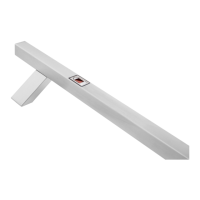

 To Next Page