EasyManua.ls Logo

NDD Easy on-PC - User Manual

NDD Easy on-PC
2 pages
Print Icon
To Next Page IconTo Next Page
Loading...
Easy on-PC | Quick Start Guide
Doc 0327 iss02
n d d
1
4
7
2
5
3
6
Double click on the EasyOne
Connect software icon on the
Desktop to open the software.
From the main menu, click on
“Patients
You have a choice of 5 tests. The only tests that you
will use are “SVC” and “FVC”(ex only). To perform a slow
VC rst click on “SVC”. On the next screen the ambient
temperature etc will be shown. Click Conrm.
You will then be asked to block the spirette. Place
your palm over the end of the spirette (as shown) and
click OK”. This will set the baseline for the spirometer.
When the message ‘Start test appears you are ready to
perform the relaxed test.
This step by step guide is designed to show users how to add patient details and perform a basic
spirometry test using the EasyOne Connect software. IMPORTANT: Please ensure the software
is fully installed and congured correctly before use. Refer to conguration guide
(document reference 0318).
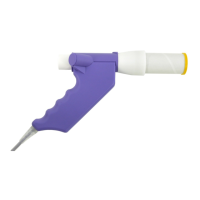
Plug the Easy On Flowhead
into the USB port of the PC.
Click on “New on the bottom
left hand side of your screen.
Fill in the patient details as
required. Then click OK”
Insert the Spirette ‘M’ into the
ow head. Attach adaptor
and insert a clean one way
valve mouthpiece.
The patient you have just
added will be already
highlighted in the patient list.
Click on Test” to proceed.
For use in Primary Care
Question and Answer IconNeed help?

Do you have a question about the NDD Easy on-PC and is the answer not in the manual?

Summary

Getting Started and Patient Setup

Open Software

Double-click the EasyOne Connect software icon on the Desktop to open the application.

Connect Hardware

Plug the Easy On Flowhead into the USB port of the PC.

Prepare Spirometer

Insert the Spirette 'M' into the flow head, attach the adaptor, and insert a clean one-way valve mouthpiece.

Navigate to Patient List

From the main menu, click on the 'Patients' option.

Add New Patient

Click 'New' on the bottom left, fill in the required patient details, and click 'OK'.

Select Patient for Testing

The newly added patient will be highlighted; click 'Test' to proceed.

Initiate Spirometry Test

Select test type (SVC/FVC), confirm settings, block spirette for baseline, and await 'Start test' prompt.

Performing Tests and Managing Results

Conduct Spirometry Manoeuvre

Perform the test manoeuvre. Results are shown at the bottom left of the screen upon completion.

Add Additional Trials

Click 'Add Trial' to perform a second manoeuvre and compare variations between tests.

Complete SVC and FVC Tests

Finish required SVC tests, then select FVC (ex only) and repeat the baseline setting and manoeuvre process.

Manage Test Results

Double-click a trial to delete it or mark it as 'Acceptable' if deemed good quality by the user.

Save and Print Reports

Click 'Report', then 'Print Menu', and select 'pdf' to save or print the test results.

Overview

This document outlines the quick start guide for the Easy on-PC spirometry system, designed for use in primary care settings. It details the process of adding patient information and performing basic spirometry tests using the EasyOne Connect software.

The Easy on-PC system is a diagnostic tool used to assess lung function by measuring the volume and flow of air during breathing. It consists of a flowhead, Spirette 'M', adaptor, and one-way valve mouthpiece, all connected to a personal computer running the EasyOne Connect software. The system is designed to be user-friendly, guiding the operator through each step of the spirometry test, from patient setup to data analysis and reporting.

Function Description:

The primary function of the Easy on-PC system is to perform various spirometry tests, including Slow Vital Capacity (SVC) and Forced Vital Capacity (FVC) (exhalation only). These tests help in the diagnosis and management of respiratory conditions by providing objective measurements of lung function. The system captures real-time breathing data, processes it through the EasyOne Connect software, and presents the results in an easily interpretable format. The software also allows for the comparison of multiple trials, calculation of percentage variations, and generation of comprehensive reports.

Usage Features:

  1. Software Initialization: To begin, the user double-clicks the EasyOne Connect software icon on the desktop. This launches the application, which serves as the central interface for all operations.
  2. Hardware Connection: The Easy On Flowhead, a crucial component for measuring airflow, is plugged into a USB port on the PC. This establishes the physical connection between the measurement device and the software.
  3. Spirette Assembly: A Spirette 'M' is inserted into the flowhead, followed by an adaptor. A clean, one-way valve mouthpiece is then attached. This assembly ensures hygienic and accurate measurement during the test.
  4. Patient Management: From the main menu, the user navigates to the "Patients" section. Here, new patient details can be added by clicking "New" and filling in the required information. Once entered, clicking "OK" saves the patient's data. Existing patients are highlighted in the list, allowing the user to select them for testing.
  5. Test Selection: The system offers a choice of five tests, but for primary care, the recommended tests are "SVC" and "FVC" (exhalation only). The user selects the appropriate test from the menu.
  6. Baseline Calibration: Before performing a test, the system requires baseline calibration. This involves blocking the Spirette with the palm (as shown in the guide) and clicking "OK" in the software. This step sets the baseline for the spirometer, ensuring accurate measurements.
  7. Performing Tests: Once the baseline is set, the message "Start test" appears, indicating readiness for the relaxed breathing test. The patient performs the maneuver as instructed.
  8. Real-time Feedback and Results: During the test, the software provides real-time feedback. Upon completion of a maneuver, the results are displayed at the bottom left of the screen, including parameters like VC [L] and %Pred.
  9. Multiple Trials: For comprehensive assessment, the system supports multiple trials. After the first maneuver, the user can click "Add Trial" to perform additional tests. The software then displays the percentage variation between trials, aiding in the assessment of test quality and consistency.
  10. Trial Management: If any maneuver is deemed unacceptable or needs to be removed, the user can double-click the corresponding trial column. A new window appears, allowing the user to "Delete" the trial. A login prompt ensures authorized deletion. If a test is considered acceptable despite software flagging, the user can override this by ticking "Acceptable," making the test usable in the results.
  11. Reporting and Printing: After completing the required number of FVC tests, the user can choose to "print" the results directly or save them as a PDF. To save as a PDF, the user clicks "report," then "print menu," and finally "pdf," selecting the desired folder for saving. This feature facilitates record-keeping and sharing of results.
  12. Navigation: The main menu provides easy access to various sections, including "Report," "Print," "History," "Test," and "Patients," ensuring a streamlined workflow.

Maintenance Features:

While the document does not explicitly detail maintenance features, the mention of "insert a clean one way valve mouthpiece" implies a focus on hygiene and the use of disposable components to prevent cross-contamination. The "Spirette 'M'" is also a disposable component, further emphasizing the system's design for ease of use and infection control. The system relies on the correct installation and configuration of the EasyOne Connect software, as highlighted by the "IMPORTANT" note referring to a separate configuration guide (document reference 0318). This suggests that software updates and proper configuration are part of the system's ongoing maintenance to ensure optimal performance. Regular checks of hardware connections, such as the USB port for the flowhead, are also implicitly part of routine maintenance to ensure reliable operation. The system's design with disposable components minimizes the need for complex cleaning procedures for the main device, focusing maintenance efforts on software integrity and the replacement of consumables.

NDD Easy on-PC Specifications

General IconGeneral
CategoryMedical Equipment
TypeSpirometer
BrandNDD
ModelEasy on-PC
ConnectivityUSB
StandardsATS/ERS
CompatibilityWindows
Software IncludedYes
PortableYes
Battery OperatedNo
Flow sensorTrueFlow
Parameters MeasuredFVC, FEV1, FEV1/FVC, PEF

Related product manuals