EasyManua.ls Logo

NEC MultiSync P402 - User Manual

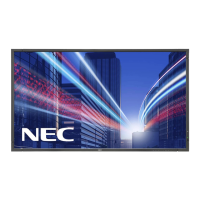
NEC MultiSync P402
43 pages
Print Icon
To Next Page IconTo Next Page
Loading...
Users Manual
MultiSync P402
MultiSync P462
MultiSync P552

Other manuals for NEC MultiSync P402

Questions and Answers

  • D
    David MorenoAug 19, 2025
    How to fix selected resolution not displayed properly on NEC MultiSync P402?
    • D
      David BarrAug 19, 2025
      If the selected resolution is not displayed properly on your NEC monitor, use the OSD Display Mode to enter the Information menu and confirm that the appropriate resolution has been selected. If not, select the corresponding option.
  • D
    Douglas MurrayAug 21, 2025
    How to fix no picture on my NEC Monitor?
    • B
      Brian ConleyAug 21, 2025
      If there is no picture on your NEC monitor, ensure the signal cable is fully connected to both the display card and the computer. Also, verify that the display card is properly seated in its slot. Confirm that the main power switch, front power switch, and computer power switch are all in the ON position. Check that a supported mode is selected on the display card or system. Ensure compatibility between the monitor and display card, and verify the recommended settings. Finally, inspect the signal cable connector for bent or pushed-in pins.
  • T
    Tyler LeeAug 25, 2025
    Why is the LED on my NEC MultiSync P402 not lit?
    • B
      Bruce HicksAug 25, 2025
      If the LED on your NEC monitor isn't lit, ensure the power switch is in the ON position and the power cord is properly connected. Also, check the main power switch on the back of the monitor. Make sure your computer isn't in a power-saving mode by touching the keyboard or mouse. Finally, verify that the power indicator option in the OSD is set to ON.
  • V
    Victoria LittleAug 26, 2025
    How to troubleshoot no sound on NEC MultiSync P402 Monitor?
    • V
      Victoria RobinsonAug 26, 2025
      If there is no sound from your NEC monitor, check that the audio cable is properly connected. Ensure that mute is not activated and the volume is not set to the minimum. Verify that your computer supports an audio signal through DisplayPort. Also, check if SURROUND is ON and verify the Internal/External speaker switch.
  • T
    Todd SmithAug 28, 2025
    What to do if image is unstable on NEC Monitor?
    • M
      Mary JonesAug 28, 2025
      If the image on your NEC monitor is unstable, unfocused, or swimming, ensure the signal cable is completely attached to the computer. Use the OSD Image Adjust controls to focus and adjust the display by increasing or decreasing the fine adjustment. Check the monitor and your display card for compatibility and recommended signal timings. If your text is garbled, change the video mode to noninterlace and use a 60Hz refresh rate.
  • J
    Jason WhiteAug 30, 2025
    What to do if power button does not respond on NEC MultiSync P402?
    • R
      Rebecca HerreraAug 30, 2025
      If the power button on your NEC monitor doesn't respond, unplug the power cord from the AC outlet to turn off and reset the monitor. Also, check the main power switch on the back of the monitor.
  • M
    Michael GardnerSep 1, 2025
    How to adjust display image size on NEC MultiSync P402 Monitor?
    • S
      Stephanie BatesSep 1, 2025
      If the display image on your NEC monitor is not sized properly, use the OSD Image Adjust controls to increase or decrease the coarse adjustment. Also, ensure that a supported mode has been selected on the display card or system being used.
  • O
    Olivia HensonSep 3, 2025
    Why is the remote control not working on NEC Monitor?
    • H
      hensleyalexandraSep 3, 2025
      If the remote control for your NEC monitor isn't working, check the batteries' status and ensure they are inserted correctly. Make sure the remote control is pointing at the monitor's remote sensor. Verify the Remote Control Mode status. Note that direct sunlight or strong illumination may interfere with the remote control sensor.
  • D
    Desiree LaraSep 5, 2025
    Why is RS-232C or LAN control not available on NEC MultiSync P402 Monitor?
    • M
      Megan MezaSep 5, 2025
      If RS-232C or LAN control is not available on your NEC monitor, check the RS-232C or LAN cable connection. Also, check the “CONTROL” setting in “EXTERNAL CONTROL” and the “ID=ALL REPLY” setting in “EXTERNAL CONTROL.”
  • R
    Robert BruceSep 8, 2025
    Why is the “SCHEDULE”/“OFF TIMER” function not working properly on NEC MultiSync P402?
    • M
      mestradaSep 8, 2025
      The “SCHEDULE” function will be disabled when the “OFF TIMER” is set on your NEC monitor. If the “OFF TIMER” function is enabled and the power to the LCD monitor is turned off unexpectedly, then the “OFF TIMER” will be reset.

Summary

Important Information and Declarations

WARNING

Critical safety warnings about electrical hazards and usage.

CAUTION

Important safety precautions to prevent electric shock and damage.

Safety Precautions, Maintenance & Recommended Use

General Safety Warnings

Comprehensive safety guidelines for monitor operation and handling.

Installation Procedures

Mounting Guidelines

Recommendations for professional and safe monitor mounting.

Mounting Accessories Installation

Steps for attaching VESA-compliant accessories and preventing tipping.

Parts Identification

Control Panel Overview

Identification and function of control panel buttons.

Terminal Panel Connections

Video Input Terminals

Details of various video input connectors (DisplayPort, VGA, DVI, HDMI, etc.).

Setup Guide

Installation Location and Battery Setup

Instructions for selecting location and installing remote batteries.

Connecting External Equipment and Power

Steps for connecting devices and the power cord.

Setup Procedures

Cable Cover and Power-On Sequence

Attaching cable cover and powering on equipment.

Display and Image Adjustments

Operating external equipment and adjusting sound, screen, and image.

Connections Overview

Wiring Diagram

Visual guide to connecting various devices to the monitor.

Connecting Computer and AV Devices

Details for connecting PCs, HDMI, and DisplayPort devices.

Computer and Device Connection Details

Personal Computer Connection

Details on connecting a PC, including signal timing.

Basic Operation

Power ON and OFF Modes

How to power the monitor on and off using various methods.

OSD Information and Picture Settings

Picture Mode and Ambient Settings

Description of picture modes and ambient light adjustments.

OSD (On-Screen-Display) Controls

Key Guide and OSD Navigation

Explanation of remote control buttons and OSD navigation.

Picture Adjustment Menu

OSD menu for picture adjustments.

Image Adjustment Menu

OSD menu for image adjustment controls.

Detailed OSD Settings

Picture Settings

Detailed settings for picture adjustments (Backlight, Contrast, etc.).

Image Adjustment Settings

Detailed settings for image adjustments (H/V Position, Clock, etc.).

OSD Configuration Options

Audio Settings

Settings for volume, balance, treble, bass, and audio input.

Schedule and Timer Settings

Settings for power scheduling and timers.

Advanced OSD Features

PIP and Text Ticker Settings

Settings for Picture-in-Picture modes and text ticker display.

Multi-Monitor and External Control

External Control Options

Selecting control interface (RS-232C/LAN) and related settings.

Network Settings

LAN Configuration

Settings for DHCP, IP Address, Subnet Mask, and Gateway.

Display Protection Features

Settings for Power Save, Screen Saver, Fan Control, and Security.

Troubleshooting Guide

Specifications - P402

Specifications - P462

Specifications - P552

NEC MultiSync P402 Specifications

General IconGeneral
Panel life- h
Pixel pitch- mm
Response time8 ms
Display diagonal40 \
Display brightness500 cd/m²
Display technologyLCD
Native aspect ratio16:9
Vertical scan range50 - 85 Hz
Horizontal scan range31.5 - 91.1 kHz
Contrast ratio (dynamic)-
Contrast ratio (typical)3000:1
Display number of colors16.78 million colors
Active display area (W x H)886 x 498 mm
Supported graphics resolutions720 x 400, 832 x 624, 1024 x 768 (XGA), 1280 x 1024 (SXGA), 1280 x 720 (HD 720), 1360 x 768 (WXGA), 1600 x 1200 (UXGA), 1920 x 1080 (HD 1080), 640 x 480 (VGA), 800 x 600 (SVGA)
Audio inputYes
Cable lock slot typeKensington
USB 2.0 ports quantity0
S-Video inputs quantity1
DVI-D ports quantity2
Product colorBlack
Product designDigital signage flat panel
Panel mounting interface300 x 300 mm
AC input voltage100 - 240 V
AC input frequency50 - 60 Hz
Power consumption (standby)0.5 W
Power consumption (typical)145 W
Sustainability certificatesRoHS, ENERGY STAR
Storage temperature (T-T)-20 - 60 °C
Operating temperature (T-T)5 - 40 °C
Storage relative humidity (H-H)10 - 90 %
Operating relative humidity (H-H)20 - 80 %
Weight and Dimensions IconWeight and Dimensions
Depth103 mm
Width919.7 mm
Height532 mm
Weight20800 g

Related product manuals