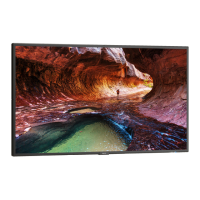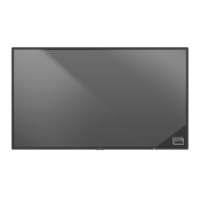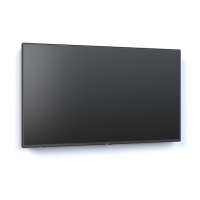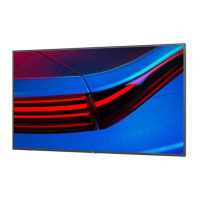
How to fix snowy picture and poor sound in TV on NEC MultiSync P403?
- JJanet WilliamsonSep 22, 2025
To fix a snowy picture and poor sound in TV mode on your NEC monitor, check the antenna/cable connection. Use a new cable if necessary.
How to fix snowy picture and poor sound in TV on NEC MultiSync P403?
To fix a snowy picture and poor sound in TV mode on your NEC monitor, check the antenna/cable connection. Use a new cable if necessary.
How to adjust display image size on NEC Monitor?
If the display image on your NEC monitor is not sized properly: * Use the OSD Image Adjust controls to increase or decrease the coarse adjustment. * Make sure that a supported mode has been selected on the display card or system being used.
How to fix selected resolution not displayed properly on NEC monitor?
To fix the selected resolution not being displayed properly on your NEC monitor, use the OSD Display Mode to enter the Information menu and confirm that the appropriate resolution has been selected. If not, select the corresponding option.
How to fix a NEC MultiSync P403 with no picture?
If your NEC monitor displays no picture, ensure the signal cable is securely connected to both the display card and the computer. Also, verify that the display card is properly seated in its slot. Check that the main power switch on both the monitor and the computer are in the ON position. Finally, confirm that a supported mode has been selected on the display card or system.
How to resolve interference in TV on NEC MultiSync P403?
To resolve interference in TV mode on your NEC monitor, check components for shielding and move them away from the monitor if necessary.
Why is RS-232C or LAN control not available on NEC MultiSync P403?
If RS-232C or LAN control is not available on your NEC monitor, check the RS-232C or LAN cable connection.
How to fix no picture on my NEC Monitor?
If there is no picture on your NEC monitor, ensure the following: * The signal cable is completely connected to the display card/computer. * The display card is completely seated in its slot. * The main Power Switch is in the ON position. * The Front Power Switch and computer power switch are in the ON position. * A supported mode has been selected on the display card or system. * The monitor and display card are compatible with recommended settings. * The signal cable connector has no bent or pushed-in pins. * If the monitor went into OFF mode after signal loss, press the power button.
What to do if the power button does not respond on NEC MultiSync P403?
If the power button on your NEC monitor isn't responding, try these steps: * Unplug the power cord of the monitor from the AC outlet to turn off and reset the monitor. * Check the main Power Switch on the back side of the monitor to ensure it is in the ON position.
How to fix image persistence on NEC MultiSync P403 Monitor?
To alleviate image persistence on your NEC monitor, turn off the monitor for as long as the previous image was displayed.
How do I fix the display image size on my NEC MultiSync P403?
If the display image on your NEC monitor is not sized properly, use the OSD Image Adjust controls to increase or decrease the coarse adjustment. Also, check to make sure that a supported mode has been selected on the display card or system being used.
Critical safety alerts and precautions for monitor usage.
Instructions for selecting and using the correct power cord.
Rules for safe operation, handling liquids, and ventilation.
Tips for optimal performance, eye comfort, and cleaning procedures.
Guidelines for selecting a suitable installation site and ensuring stability.
How to attach mounting hardware and prevent the monitor from falling.
Steps for setting up the monitor, installing batteries, and connecting power.
Critical safety alerts and precautions for monitor usage.
Instructions for selecting and using the correct power cord.
Rules for safe operation, handling liquids, and ventilation.
Tips for optimal performance, eye comfort, and cleaning procedures.
Guidelines for selecting a suitable installation site and ensuring stability.
How to attach mounting hardware and prevent the monitor from falling.
Steps for setting up the monitor, installing batteries, and connecting power.
| Panel life | - h |
|---|---|
| Panel type | SPVA |
| Pixel pitch | - mm |
| Response time | 8 ms |
| Display diagonal | 40 \ |
| Display brightness | 700 cd/m² |
| Display technology | LED |
| Native aspect ratio | 16:9 |
| Vertical scan range | 50 - 85 Hz |
| Horizontal scan range | 31.5 - 91.1 kHz |
| LED backlighting type | Edge-LED |
| Contrast ratio (typical) | 4000:1 |
| Display number of colors | - |
| Display diagonal (metric) | 101.6 cm |
| Active display area (W x H) | 885.6 x 498.15 mm |
| Supported graphics resolutions | 640 x 480 (VGA), 800 x 600 (SVGA), 1024 x 768 (XGA), 1280 x 1024 (SXGA), 1280 x 768 (WXGA), 1360 x 768 (WXGA), 1600 x 1200 (UXGA), 1920 x 1080 (HD 1080), 3840 x 2160, 4096 x 2160 |
| Ethernet LAN (RJ-45) ports | 2 |
| Product color | Black |
| Product design | Digital signage flat panel |
| Bezel width (bottom) | 15.5 mm |
| Panel mounting interface | 300 x 300 mm |
| Compatible products | C-tick; CE; FCC Class B; PSB; TÜV GS; UL/C-UL or CSA; VCCI |
| Operating hours (hours/days) | 24/7 |
| Sustainability certificates | RoHS |
| RMS rated power | 20 W |
| Power consumption (standby) | 1 W |
| Power consumption (typical) | 135 W |
| Operating temperature (T-T) | 0 - 40 °C |
| Operating relative humidity (H-H) | 20 - 80 % |
| Cables included | AC, DVI |
| Certification | C-tick; CE; FCC;' PSB; RoHS; TÜV GS; UL/C-UL CSA; VCCI |
| Depth | 66.5 mm |
|---|---|
| Width | 920.6 mm |
| Height | 532.2 mm |
| Weight | 17000 g |