EasyManua.ls Logo

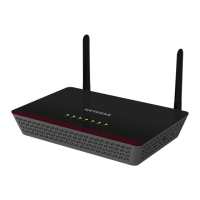
NETGEAR dg834pn - User Manual

NETGEAR dg834pn
108 pages
Print Icon
To Next Page IconTo Next Page
Loading...
August 2005
BETA
August 2005
NETGEAR, Inc.
4500 Great America Parkway
Santa Clara, CA 95054 USA
Phone 1-888-NETGEAR
Reference Manual for the
Model DG834PN 108
Mbps RangeMax
TM
Wireless ADSL Modem
Router

Table of Contents

Other manuals for NETGEAR dg834pn

Questions and Answers

  • N
    Nicole PriceAug 14, 2025
    What to do if NETGEAR dg834pn Modem cannot load any Web pages from the Internet?
    • M
      michelle95Aug 14, 2025
      If the wireless ADSL modem router cannot load any web pages from the Internet, it might be because your computer doesn't recognize any DNS server addresses. To resolve this, reboot your computer and verify the DNS address as described in “Preparing a Computer for Network Access:”. If your computer obtains its information from the wireless ADSL modem router by DHCP, reboot the computer and verify the wireless ADSL modem router address as described in “Preparing a Computer for Network Access:”.
  • G
    ghintonAug 19, 2025
    Why are the LAN or ADSL Internet Port LEDs not on my NETGEAR dg834pn Modem?
    • V
      veronica97Aug 19, 2025
      If the LAN or ADSL Internet Port LEDs are not lit on your NETGEAR Modem, ensure the Ethernet cable connections are securely connected to both the router and the hub or workstation. Also, verify that the connected hub or workstation is powered on. Finally, make sure you're using the correct cable; for the ADSL port, use the cable that came with the modem router.
  • J
    John MarquezAug 25, 2025
    How to troubleshoot a NETGEAR dg834pn Modem with Power LED not on?
    • J
      Jeremy HarrisAug 25, 2025
      If the Power LED is not on for your NETGEAR Modem, ensure the power cord is properly connected to both the router and a functioning power outlet. Also, verify that you are using the power adapter supplied by NETGEAR for this specific product. If the problem continues, it might indicate a hardware issue, and you should contact technical support.
  • N
    Noah RosalesAug 29, 2025
    What to do if Test LED Never Turns On or Test LED Stays On NETGEAR dg834pn Modem?
    • T
      Tiffany MillerAug 29, 2025
      If the Test LED on your NETGEAR Modem never turns on or stays on, the issue might be a fault within the router. Try cycling the power to see if the router recovers and the LED blinks correctly. If all LEDs, including the Test LED, remain on one minute after powering up, cycle the power again. You can also clear the router’s configuration to factory defaults, which will set the router’s IP address to 192.168.0.1. If the error persists, it could be a hardware problem, and you should contact technical support.
  • P
    Patricia LopezNov 8, 2025
    What to do if my NETGEAR dg834pn is unable to access the Internet?
    • S
      stewartronaldNov 8, 2025
      If your NETGEAR Modem is unable to access the Internet, first determine if you have an ADSL link with your service provider. If the Internet LED isn't green, disconnect all telephones on the line. If that doesn't work and the ADSL Internet LED remains off, the wiring in your house might be the issue. Ensure the telephone company has connected and tested your line and that you're using the correct telephone line. Verify the Multiplexing Method and parameter value with your ISP, and update the router’s ADSL Settings accordingly. You can also assign your ISP account's computer Host Name to the NETGEAR modem router in the Setup Wizard or inform your ISP that you have a new network device and ask them to use the router’s MAC address, or configure your router to spoof your computer’s MAC address...
  • E
    Emily SheaDec 3, 2025
    How to fix unable to access the NETGEAR dg834pn Web Configuration interface?

    NETGEAR dg834pn Specifications

    Power IconPower
    power adapter voltage12 VDC
    power adapter current1A
    power adapter plug localizationlocalized to country of sale for North America, UK, Europe, Australia
    Operating Environment IconOperating Environment
    operating temperature0 to 40º C
    operating temperature (Fahrenheit)32 to 104º F
    operating humidity90% maximum relative humidity, noncondensing
    Weight and Dimensions IconWeight and Dimensions
    dimensions223 x 153 x 31 mm
    dimensions (inches)8.8 x 6.0 x 1.2 inches
    weight0.5 kg

    Related product manuals