EasyManua.ls Logo

NewLine Collaboration HO Series - User Manual

NewLine Collaboration HO Series
88 pages
Print Icon
To Next Page IconTo Next Page
Loading...
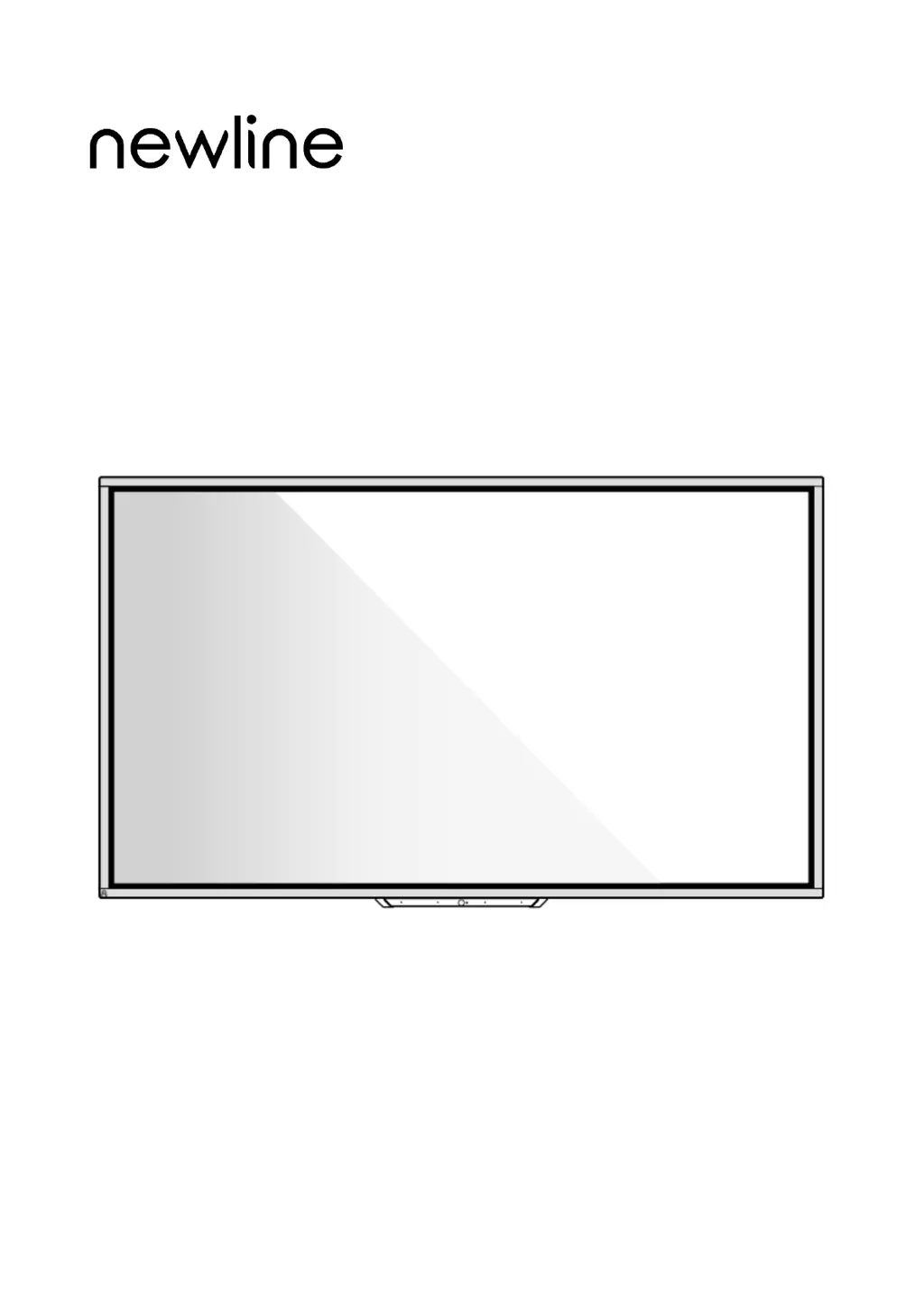
Collaboration Touch Screen
User Manual
HO Series
V1.0
Please keep this Manual properly for future reference!
This manual is a general manual, the pictures are for reference only, Please refer to the real product.

Questions and Answers

  • A
    Andrea LeeAug 18, 2025
    What to do if my NewLine Collaboration HO has no image display?
    • C
      courtneynicholsAug 18, 2025
      If your NewLine Touch Panel isn't displaying an image, first ensure the power cord is properly connected to an electrical outlet and that the power is turned on. Next, verify that the rocker switch on the device is also turned on. Check that the input computer is correctly connected and the input source is correctly selected.
  • L
    lambadrienneAug 21, 2025
    How to troubleshoot a NewLine Collaboration HO that won't turn on?
    • T
      tiffany87Aug 21, 2025
      If your NewLine Touch Panel isn't turning on or the indicator light is off, check the following: * Make sure the power socket is connected to the power source. * Ensure the power plug is properly plugged in. * Verify the power line is in good condition. * Confirm that the rocker switch is turned on.
  • M
    Mr. Michael BrownAug 23, 2025
    Why is there no sound on my NewLine Collaboration HO, even though the image is fine?
    • R
      reginald27Aug 23, 2025
      If your NewLine Touch Panel displays a normal image but has no sound, first check the volume level. Next, make sure the mute button on the remote control hasn't been pressed. Finally, verify that the mute function in the menu is turned off.
  • J
    Jill CraigAug 26, 2025
    What to do if the NewLine Collaboration HO remote control is not working?
    • M
      Mallory LeeAug 26, 2025
      If the remote control for your NewLine Touch Panel isn't working, try replacing the battery first. If that doesn't work, clean the transmission port on the top of the remote control to ensure it's not blocked. Also, check that the batteries are correctly installed.
  • A
    Alexandra ShepardAug 28, 2025
    Why is the image color abnormal on my NewLine Collaboration HO Touch Panel?
    • S
      susanlopezAug 28, 2025
      If the image color on your NewLine Touch Panel appears abnormal, check whether the HDMI cable is properly connected. If you're using a VGA cable, ensure it is also securely connected.
  • T
    Tamara MooreAug 30, 2025
    Why does my NewLine Collaboration HO automatically turn on and off?
    • M
      mcdonaldrandyAug 30, 2025
      If your NewLine Touch Panel automatically turns on or off when not in use, try turning off the automatic power on/off function. Also, check if the device has been idle for a long time, causing it to enter sleep mode. Finally, ensure that the input power is stable.
  • N
    Nathaniel TuckerSep 1, 2025
    What causes image or sound disturbance on my NewLine Collaboration HO Touch Panel?
    • L
      Luis JacksonSep 1, 2025
      If the image or sound on your NewLine Touch Panel is distorted, locate any nearby electrical equipment that might be causing interference and move it away from the device. Avoid sharing the same power outlet with such equipment.
  • A
    Arthur HerreraSep 3, 2025
    Why does the built-in computer on my NewLine Touch Panel have no signal?
    • A
      Andrea RiveraSep 3, 2025
      If the built-in computer of your NewLine Touch Panel shows no signal, check if it is properly inserted into the slot. Also, verify whether the built-in computer is in sleep mode. You may need to manually turn it on by pressing the power button (refer to the built-in computer manual for details).
  • T
    Taylor DavisSep 6, 2025
    Why is there no touch control under external source channel on my NewLine Collaboration HO?
    • L
      Lawrence CervantesSep 6, 2025
      If there is no touch control on your NewLine Touch Panel when using an external source, try switching between different external sources. Make sure that the USB cable is connected to the correct interface. Try re-plugging the USB cable.
  • L
    Lauren PalmerSep 8, 2025
    What to do if the built-in computer on my NewLine Touch Panel can’t be turned on?
    • M
      Melanie JohnsonSep 8, 2025
      If the built-in computer on your NewLine Touch Panel won’t turn on, check whether the computer and the machine are properly connected. If the issue persists, consider replacing the built-in computer.

Summary

Installation Guide

Safety Precautions

Outlines essential safety measures and environmental conditions for product installation and use.

Installation Precautions

Covers weight loading, mounting considerations, and vertical installation guidelines for safe setup.

OPS Computer Installation

Provides step-by-step instructions for installing the Optional Plug-in Computer (OPS) into the touch screen.

Power On;Off

Power On Procedure

Details the procedure for connecting power and turning on the touch screen.

Power Off Procedure

Explains how to properly shut down the touch screen, including saving sessions.

Operating the Touch Screen

Troubleshooting

Common Issues and Solutions

Provides guidance on diagnosing and resolving common problems encountered with the device.

Technical Parameter

NewLine Collaboration HO Series Specifications

General IconGeneral
Operating SystemAndroid 9.0
Brightness350 cd/m²
Response Time8ms
Speakers2 x 15W
RAM4GB
Storage32GB
Built-in SpeakersYes
Resolution4K UHD (3840 x 2160)
Touch TechnologyInfrared (IR)
Touch PointsUp to 20
ConnectivityHDMI, USB, RS232, LAN
Wireless ConnectivityWi-Fi 802.11ac, Bluetooth
VESA Mount CompatibilityYes

Related product manuals