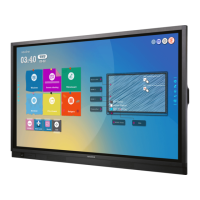
1. Any device currently connected to the display will light up in
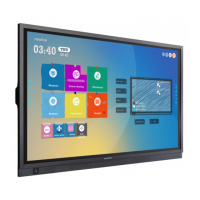
white in the Source Preview window on the home screen.
2. Tap the icon of the Source you want to switch to.
3. The Source Preview window will show a preview of what is
currently on the screen of that connected device.
4. Tap the icon of the Source a second time or tap the Preview
window and you will be taken to that source.
5. Plugging your device into the front ports will automatically
bring up the device on screen.
To Access Any Source Connected to the Display
Switching Sources Accessing the Built-In OPS Computer
1. Turn on the display.
2. Touch the “Tap to Start” message on the rst screen.
3. Tap the “OPS” button on the home screen.
4. You will now be viewing and using the built-in OPS
Computer.
Bonus Tips:
You can also quickly navigate to different sources
using these icons on the oating menu on both
sides of the display:
Quick Access to the OPS
Quick Access to the Sources Page
Q Series Quick Start Guide
6


 To Next Page
 Loading...