This document describes the Newline Interactive Flat Panel Display, S Series, a device designed for conference, education, and interactive display applications. It serves as a comprehensive user manual, covering installation, operation, and troubleshooting.
Function Description
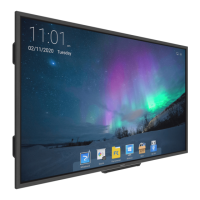
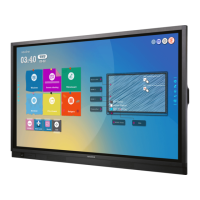
The Newline S Series Interactive Flat Panel Display is a versatile device that integrates a display, a multi-touch screen, and an embedded operating system (Android 11) to provide an interactive experience. Its primary functions include:
- Interactive Display: Offers a large, high-resolution screen with multi-touch capabilities for collaborative work, presentations, and digital content interaction.
- Whiteboard Functionality: Provides a dedicated whiteboard application for writing, drawing, annotating, and brainstorming during meetings or lessons. It supports various pen types (hard pen, word recognition pen, shape recognition pen), different line sizes and colors, and an eraser function. Users can create multiple pages, set backgrounds, and export whiteboard content.
- Screen Sharing: Allows wireless casting from portable devices (laptops, tablets) using various modes like Airplay and Google Cast, facilitating collaborative presentations and content sharing.
- Application Hub: Comes pre-installed with a suite of applications such as Aqual Mail, Browser, Camera, Chromium, Classroom Share, EsharePro, File Commander, Memory Usage, Office Suite, Screen Record, Source Launcher, and Visualizer, enhancing its utility for various tasks.
- File Management: Enables users to preview, move, copy, paste, delete, and search for files across internal storage, USB flash drives, cloud storage, FTP, and local network files.
- Sign-In and Voting Features: Includes specialized applications for meeting sign-ins (with QR code scanning and participant list management) and interactive voting (with customizable topics and options, and real-time result display in pie or bar charts).
- Visualizer Integration: Connects with a visualizer camera to display real-time images, supporting annotation, screen split modes, and image adjustments.
- System Settings and Customization: Offers extensive settings for network configuration (Wi-Fi, Ethernet, hotspot), Bluetooth connectivity, language and input methods, storage management, application control, smart eye protection (eye care writing, light control, blue light filter), time and date settings, power management (auto power on/off, energy conservation, CEC auto power on/off), and wallpaper customization.
- Serial Port Control: Supports RS232 communication for external control, allowing integration with other systems and remote management.
Important Technical Specifications
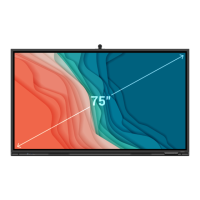
The Newline S Series is available in three sizes: 65-inch, 75-inch, and 86-inch, with consistent core specifications across the range.
Display:
- Backlight: LED
- Display Area:
- 65-inch: 56.22 in x 31.61 in (1428 x 803mm)
- 75-inch: 64.96 in x 36.54 in (1650 x 928mm)
- 86-inch: 74.61 in x 41.97 in (1895 x 1066mm)
- Display Ratio: 16:9
- Resolution: 3840 x 2160 Pixel (4K UHD)
- Display Colors: 10 bit + FRC, 1.07 billion colors
- Brightness:
- ≥ 450 cd/m² for 65" & 75"
- ≥ 500 cd/m² for 86"
- Contrast: 15000:1
- Response Time: Typ. 4ms
- Life Time: ≥50000 h (Min.)
Touch:
- Touch Surface: Anti-Glare, Anti-Fingerprint, Antimicrobial Tempered Glass
- Transparency: 88%±3%
- Touch Points: Windows 40 Points, Android 20 Points (Max.)
- Writing Tools: Eraser, Stylus or Finger
- Scan Speed: <4ms
- Communication Interface: USB-A
Audio:
- Speaker Position: Bottom
- Max. Power Output: Full Amplifier 2 x 20 W
- Microphone Type: 3.5 mm interface
Electrical:
- Power Consumption:
- 65-inch: Maximum < 400 W, Standby Mode ≤ 0.5 W
- 75-inch: Maximum < 450 W, Standby Mode ≤ 0.5 W
- 86-inch: Maximum < 500 W, Standby Mode ≤ 0.5 W
- Working Voltage: AC100-240V Max 6.0A
Environmental:
- Storage Temperature/Humidity: -20~60°C / 0~90%RH (Non-condensing)
- Working Temperature/Humidity: 0°C-40°C / 20~80%RH (Non-condensing)
Ports:
- Front Interface Inputs: HDMI In x 1, USB (Touch) x 1, USB 3.0 x 2, Microphone In x 1, Type C x 1
- Rear Interface Inputs: USB2.0 (Touch) x 1, HDMI 1/2 In x 2, DP x 1, USB 2.0 (Public) x 2, USB 2.0 (Android) x 1, RS-232 x 1, Earphone x 1, SPDIF out x 1, HDMI Out x 1, Audio-VGA x 1, VGA x 1, Battery Slot x 1, OPS Slot x 1 (4K@60Hz), Wi-Fi Module Slot.
Smart System:
- Android Version: 11
- RAM: Standard with 4G
- Flash: 64GB (Onboard 32GB + SD Card 32GB)
- Wi-Fi Module: Wi-Fi 6 + BT 5.2
Usage Features
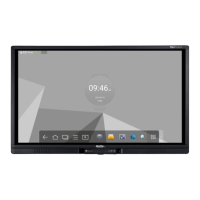
- Intuitive Interface: The device features a user-friendly Home page with quick access to essential functions like Built-in PC, Source selection, Whiteboard, Screen Sharing, Files, Apps, and Settings.
- Floating Toolbar: A customizable floating toolbar appears with a two-finger press, offering shortcuts to internal PC source, whiteboard, and annotation modes, as well as volume and brightness adjustments.
- Multi-Touch and Gesture Support: Supports multi-touch gestures for smooth interaction, including 5-finger gesture as an eraser in whiteboard mode and two-finger gestures for moving, zooming, and rotating objects.
- OPS Integration: An optional OPS (Open Pluggable Specification) module can be installed for enhanced computing power, providing a built-in PC experience.
- Wi-Fi Module: Supports easy installation of a Wi-Fi module for wireless connectivity.
- Remote Control: A dedicated remote control provides comprehensive functionality, including power on/off, mute, numbers, navigation, whiteboard access, screenshot, volume/brightness adjustment, source selection, and quick settings.
- Front Buttons: Physical buttons on the front panel offer quick access to power, customization page, previous menu, home page, and quick setting menu.
- Calibration: A calibration function is available to ensure accurate touch response, especially when using an OPS or external computers connected via HDMI/Display Port.
- Smart Eye Protection: Features like "Eye care writing," "Eye protection and light control," and "Blue light filter" are designed to reduce eye strain during prolonged use.
- Energy Conservation: Allows setting a duration after which the screen enters lock mode or powers off, promoting energy efficiency.
- CEC Auto Power On/Off: Supports Consumer Electronics Control (CEC) for automatic power management with connected HDMI devices.
- Security Features: Includes Passkey lock for system access and Setting lock to restrict changes to settings, enhancing device security.
Maintenance Features
- Safety Precautions: The manual provides extensive safety instructions covering electrical safety, handling liquids, stability, panel integrity, power supply usage, and transportation.
- Installation Guide: Detailed instructions for proper installation, including environmental considerations, weight loading, and ventilation requirements, are provided to ensure safe and optimal setup.
- Troubleshooting Guide: A dedicated section addresses common issues and provides solutions, such as power problems, remote control unresponsiveness, sound issues, automatic power on/off, image abnormalities, and touch function problems.
- System Updates: The "About equipment" section allows users to update the system firmware, restore factory settings, and view system information.
- Storage Management: Users can monitor internal storage usage and clear system cache via the "Memory Usage" application.
- Data Management: File management tools allow for easy organization, copying, and deletion of files, aiding in system maintenance and data hygiene.
- Wi-Fi Module and OPS Installation: Clear instructions are provided for installing and removing the Wi-Fi module and OPS, emphasizing the need to power off the display to prevent damage.
- Regular Cleaning: The manual advises regular cleaning of the power plug with a dry cloth to prevent fire or electric shock.
- Battery Care: Instructions for correct battery usage in the remote control, including type, polarity, and removal during long periods of disuse, are given.

 Need help?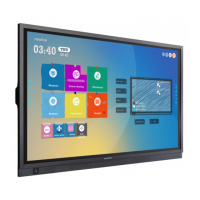




 To Next Page
 General