© 2021 Copyright Newmar Corporation. All rights reserved. For the most up-to-date version of this content, and for more product-specific information, please refer to Newgle.
82
ELECTRONICS
Function Description
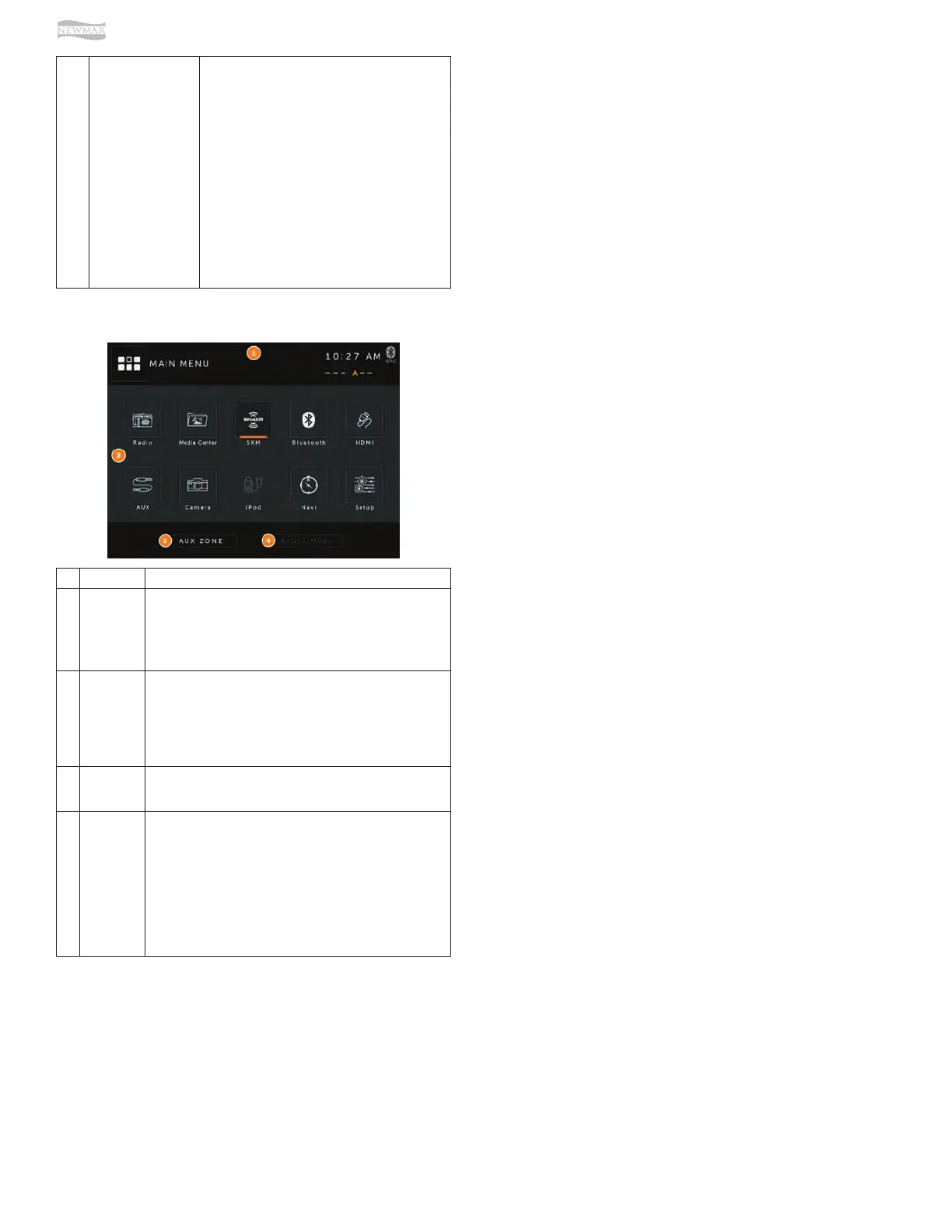
1
Information
Bar
• The top area of the screen is the source information bar.
It displays the current source together with temperature,
compass, and time information as well as the Bluetooth
connection status.
• Note: One needs to select a source to be able to see all the
information mentioned above.
2 Main Menu
• Infotainment Center is designed for simple maneuvering. The
screen shown on the left is the MAIN MENU screen. From
here, you can choose what source to access by tapping the
appropriate icon on the touch screen.
• For more information on how to navigate through the Main
Menu, please see the Function 3 in the page 5 of the Xite G4
D10 + A7 + SDHD CAM General Information & Setup Guide.
3 AUX Zone
• Allows you to select what output is displayed on the
Passenger monitor. This is the same as using the SRC button
on that monitor.
4
House
Mode
• This option is only accessible when parking brake is engaged.
• When active, House Mode sends current source audio and/or
video to other areas of the
• coach.
• After 15 seconds of no input to the touch screen, the LCD
displays will enter into sleep. Touch the screen to wake.
• House Mode is cancelled when selected again, park brake
disengaged or power
• cycle is performed.
• Tap once to enter the House Mode.
• Tap once to exit the House Mode.
Main Menu
Settings
Access the Settings by selecting the Setup icon in the
Main Menu. There are three Settings that can be changed
and these are System, Video, and Audio. In addition, there
are Settings for Radio, Sirius XM, Bluetooth and DVD,
and to access these, you must go to the setup icon while
one of these sources is active. To exit the Settings menu
at any time, press the Settings icon in the top left of the
screen.
7
Volume/Power Rotary
Button
• Turn on the ignition to power up the Infotainment
Center. When powered up, it will immediately go
to the last mode (memory on playback) before it
was turned o.
• In order to put the unit in standby mode, press
and hold the rotary button once. During standby,
your vehicles graphics together with date and
time will be displayed.
• Press and hold the rotary button again to turn
the unit on.
• Turn the rotary button left / right to adjust the
volume to the desired level. A short press of the
rotary button will Mute the audio.
• Note: When in standby mode, Infotainment
Center consumes power. To completely turn
the system on, remove the ignition key and / or
ensure any auxiliary battery power to the system
is turned o.
• Auto Dim
• Dim (Day Time)
• Dim (Night Time)
• Beep Tone
• Standby Screen
• Temperature
• Compass Display
• Time Set
• Favorite Mode
• Coach Warning
• Language
• Factory Set
• WiFi Settings
VIDEO SETUP
By touching the VIDEO button, the settings for the video
part of the Infotainment Center can be changed.
• Brightness
• Contrast
SYSTEM SETUP
By touching the SYSTEM button, the settings for the
system part of the Infotainment Center can be changed.
AUDIO SETUP
•
Treble Gain
• Mid Gain
• Bass Gain
• Equalizer
• Fader
• Balance
• Center/Woofer Volume
• Loudness
• NAV Volume: Sets the gain of navigation volume (-10
to +10). 0 is the center. This feature will help balance
the navigation audio prompts with the system volume
level according to the individual user preference.
• NAV Audio Mix: This option allows setting the way of
navigation voice behavior in relation to the normal
audio playback. The following options are available:
◉ OFF: Navigation voice will not be audible.
◉ MIX: Navigation voice will mix through normal
audio.
◉ FULL: Normal audio will be muted on the front
speakers during navigation voice instructions.
◉ Note: Navigation voice prompts can only be heard
on front speakers.
For More Information
Refer to the G4 D10 + A7 + SDHD CAM General
Information & Setup Guide for more information about
your Radio Operation, Media Center, Bluetooth Operation,
SiriusXM, iPod & iPhone AV Interface, HDMI, Split
Screen, Camera, Navigation, House Mode, and Customer
Feedback and Product Registration.
CONTACT XITESOLUTIONS NORTH
AMERICA INC.
•
Website: www.xsna.ca
• Email: support@xsna.ca



 To Next Page