1
2 3 4 5 6 7 8
9
12 11
10
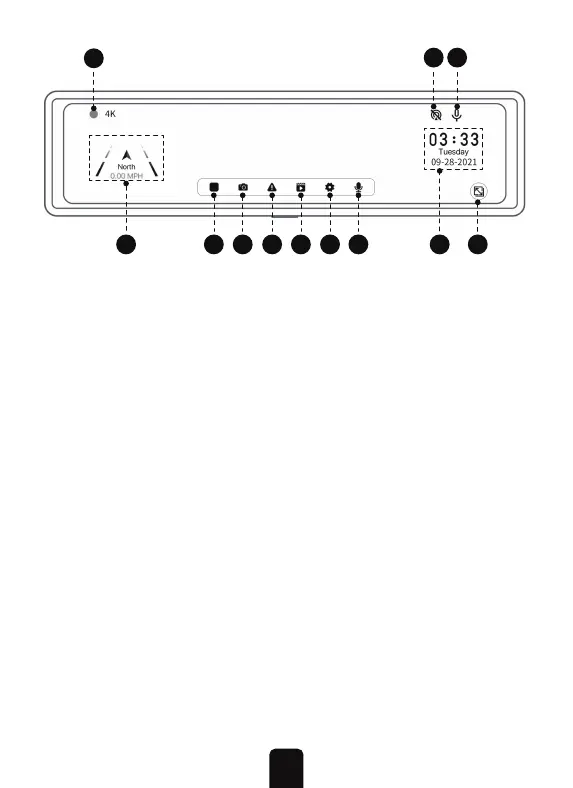
1. Video Recording Icon: While the Dashcam is recording, this
icon will blink slowly. If the icon is red, then the system is
recording properly. If the icon is yellow, the Dashcam is in
Emergency Recording Mode. If no icon is present then the
system is not currently recording.
2. GPS Direction Icons: The GPS direction icon indicates the
current driving direction and speed of the vehicle. This icon is
displayed on the left of the screen. This icon will not be
displayed if the GPS antenna is not connected.
3. Record Icon: Tap this icon to begin or pause recording.
4. Snapshot Icon: Tap this icon to take a snapshot of the
currently displayed screen.
5. Emergency Lock Icon: Tap the lock icon to lock the current
recording. It will be tagged as an Emergency Video and
placed into the appropriate folder.
6. Playback Icon: Tap this icon to enter playback mode. This
allows you to playback previous recordings and view photos.
Select the appropriate recording or picture to review it.
7. Settings Icon: Tap this icon to enter the settings menu.
7


 To Next Page