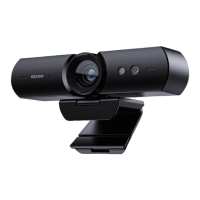
3. Open the app you want to use with the webcam.
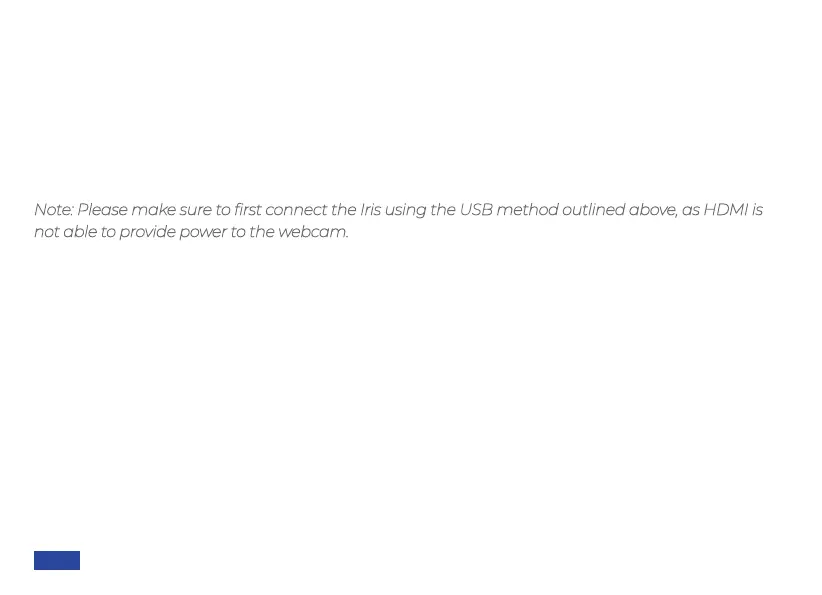
When the webcam is powered on, the activity light will turn red. The activity light will turn blue
when the webcam is in use by an app like Zoom or OBS.
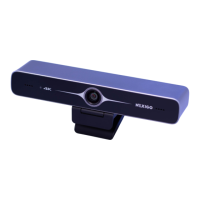
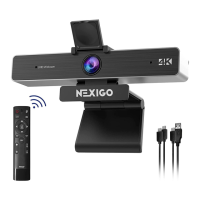
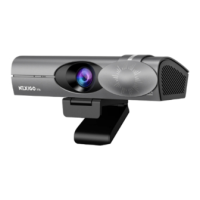
You may need to select your Iris as the active camera (NexiGo Iris 4K Webcam) and its built-in
microphones (NexiGo Iris 4K Webcam Audio) in the settings of the specific app you’re using.
HDMI Connection
Function 1 - Monitor view: Use an HDMI cable to connect the webcam directly to an external
monitor. This provides a direct mirror of the camera’s viewpoint, which is useful for monitoring
what your viewers see and making adjustments to the framing, even from a distance.
Note: Please make sure to first connect the Iris using the USB method outlined above, as HDMI is
not able to provide power to the webcam.
US 01EN 09


 To Next Page