!Page!3!
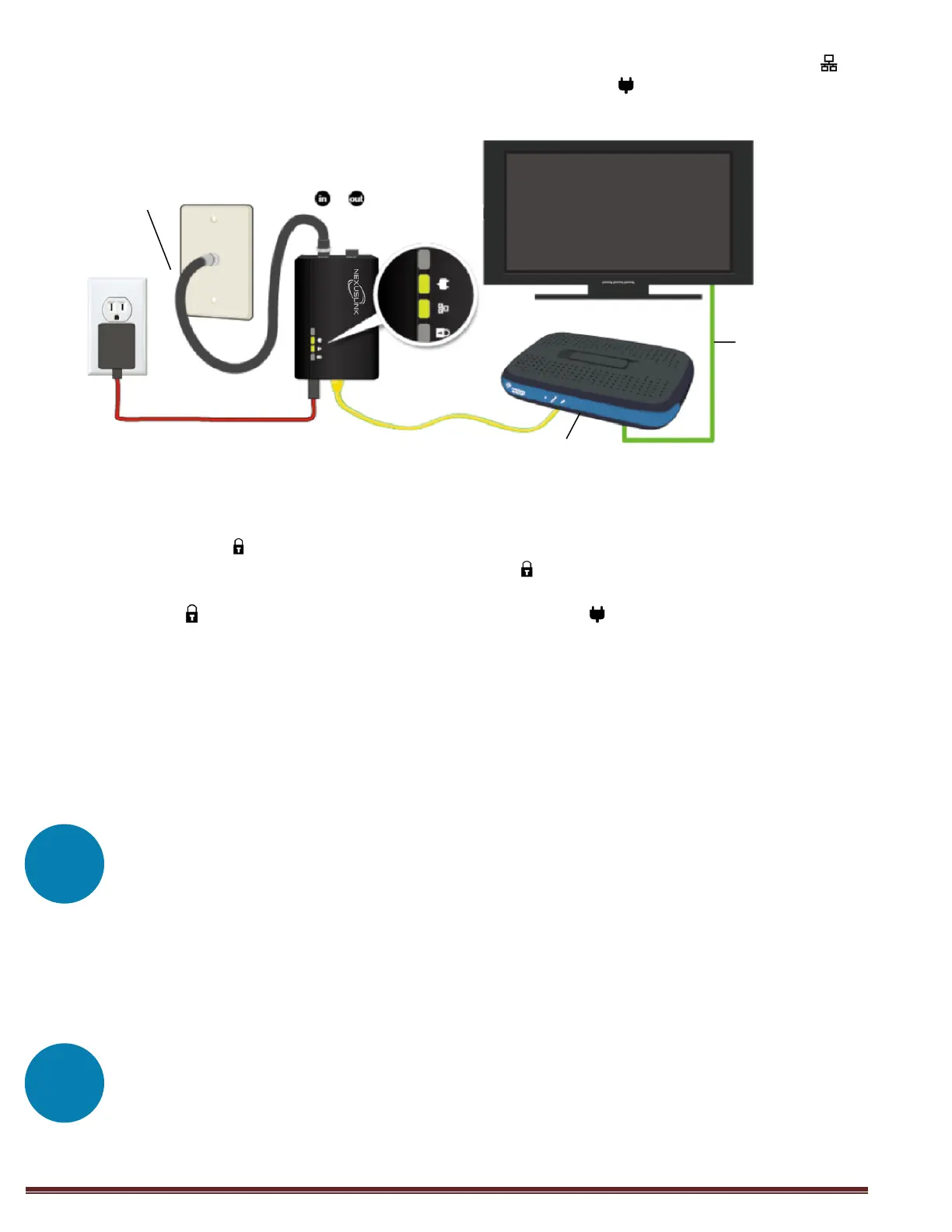
6. Connect the Coax Adapter to the device with an Ethernet cable. The Ethernet LED on
the Coax Adapter should light up GREEN. The Coverage LED on the Coax Adapter
should now be RED or GREEN or ORANGE.
7. If the Security LED is off, press the “Config” button on each of the two Coax Adapters
for 3 seconds consecutively (until the Security LED starts slow blinking – opening a
configuration period of 120 seconds). Upon successful connection of the Adapters, the
Security LED will light up GREEN and the Coverage LED will light up RED or GREEN or
ORANGE.
8. If the connection process is not successful, please refer to the trouble shooting steps in
section F.
Note: Pressing the Config button – located on the side of the device for more than 5 seconds resets
the security settings (10 seconds or more performs a factory reset). If you accidentally reset the
GCA-1200 unit, then return to step 7 to reconfigure it.
Adding Additional Adapters/Devices
Follow steps 3-7 in Part B to add additional Adapters/devices to the Coax Network (up to
32 devices). For each additional adapter added, press the “Config” button on one of
the Adapters in an already paired network, then on the new device, so they can pair
and transmit data successfully.
Congratulations! You Are Done!
IP Set-Top-Box, Game Console, Streaming Player, etc.
Note: The “OUT” port on the Coax Adapter is meant for traditional Cable TV services. We do not
recommend using the Coax Adapter if you receive Cable TV/Internet services.


 To Next Page
 Loading...