34 35
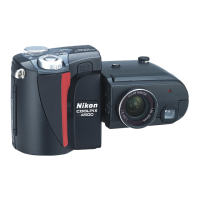
The COOLPIX4300 offers a choice of twelve “scene” modes for
common subjects and shooting situations.
To choose a scene:
Set mode dial to SCENE and turn
camera on
1 2
Getting Creative: Select Scene Mode
Note on SCENE mode
• Depending on the subject, SCENE mode setting may not always produce the
desired results. If you are dissatisfied with the results in SCENE mode, try
using a mode instead.
When you press the MENU button to display the SCENE mode menu, the
most-recently selected setting will be highlighted. Press the MENU button a
second time to exit the menu.
Press > to make the selection
and return to shooting mode
• The selected scene mode icon is
displayed on the monitor.
• Image quality and size can be adjusted
from the SETUP menu (p. 80).
Depending on the scene selected, restrictions may apply to flash (p. 48) and focus
mode (p. 41). The table of scene choices on the pages that follow lists the flash
and focus mode settings possible in each scene. If in doubt about the meanings
of the icons used, consult the following table:
Icon Flash mode (3)
None Auto
P Flash Cancel
# Auto with red-eye reduction
O Anytime Flash (fill flash)
SLOW Slow sync
Icon Focus mode (2)
None Autofocus (Auto)
0 Self-timer
@ Infinity
™ Macro Close-up
0™ Macro close-up+ self-timer
In scenes in which the flash turns off (P) automatically, shutter speeds slow and
pictures may be blurred by inadvertent camera movement (“camera shake”). While
use of a tripod is recommended, other methods that may be successful in
preventing blurring are indicated by the “camera shake” rating:
*
Support the camera steadily in both hands with your elbows against your
torso.
**
Use a tripod or place the camera on a flat, level surface such as a wall or table.
E4300 (E) 02.12.9 1:47 PM Page 34


 To Next Page
 Loading...