EasyManua.ls Logo

Nikon CoolPix P3 - User Manual

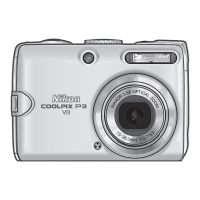
Nikon CoolPix P3
161 pages
Print Icon
To Next Page IconTo Next Page
Loading...
(En)
Printed in China
Fuji Bldg., 2-3 Marunouchi 3-chome, TR5L01(11)
Chiyoda-ku, Tokyo 100-8331, Japan 6MA17611-01
No reproduction in any form of this manual, in whole
or in part (except for brief quotation in critical articles
or reviews), may be made without written authoriza-
tion from NIKON CORPORATION.
The Nikon Guide to Digital Photography
with the
En
DIGITAL CAMERA

Table of Contents

Questions and Answers

  • E
    Edward HesterSep 10, 2025
    Why does the flash not fire on my Nikon Digital Camera?
    • A
      Anthony BowmanSep 10, 2025
      If the flash on your Nikon Digital Camera does not fire, ensure that the flash is turned on. Also, check if the mode dial is set to b (scene) mode with certain settings; if so, adjust the mode dial settings as needed.
  • B
    Brenda SilvaAug 22, 2025
    What to do if the monitor is blank on my Nikon CoolPix P3 Digital Camera?
    • R
      Robert JohnsonAug 23, 2025
      If the monitor of your Nikon Digital Camera is blank, try the following: * Ensure the camera is turned on. * Verify the battery is correctly inserted and the battery chamber/memory card slot cover is properly latched. * Replace the battery if it is exhausted. * Ensure the AC adapter is properly connected. * If in standby mode, press the shutter-release button halfway. * Wait until flash recharging is finished. * Disconnect any connected USB or audio/video cables.
  • J
    Jessica RobinsonAug 25, 2025
    How to fix blurred pictures on my Nikon Digital Camera?
    • G
      Grace HarrisAug 25, 2025
      If the pictures from your Nikon Digital Camera are blurred, it may be due to camera shake when shooting a picture or movie with Vibration reduction option set by pressing f. You can reduce blurring by using the flash, using the Best Shot Selector (BSS), or using the self-timer with a tripod.
  • C
    Cesar JenkinsAug 26, 2025
    How to make the monitor easier to read on my Nikon Digital Camera?
    • M
      Michael WallAug 26, 2025
      If your Nikon Digital Camera displays a monitor that is hard to read, try moving to a darker location, adjusting the monitor brightness, or cleaning the monitor.
  • J
    julie22Aug 27, 2025
    How to fix out of focus pictures on my Nikon CoolPix P3?
    • L
      Laura StevensAug 28, 2025
      If your Nikon Digital Camera is taking pictures that are out of focus, ensure the subject is in the focus area. If the AF indicator flashes red, allow the camera to focus. If lighting is poor and the AF-assist illuminator does not light, select Auto in the AF assist option.
  • C
    Christine HoganAug 29, 2025
    Why does my Nikon CoolPix P3 turn off without warning?
    • R
      Robert IrwinAug 29, 2025
      If your Nikon Digital Camera turns off without warning, the battery may be exhausted or cold. Try replacing or warming up the battery.
  • E
    Erik RomeroSep 18, 2025
    What to do if the signal was interrupted and a picture could not be sent from my Nikon Digital Camera?
    • C
      Carolyn GrossSep 18, 2025
      To resolve an interrupted signal that prevented a picture from being sent on your digital camera, turn the camera off and then turn it on again.
  • M
    Micheal DixonSep 12, 2025
    What to do if PictureProject doesn't start with my Nikon CoolPix P3?
    • A
      atkinsondustinSep 12, 2025
      To resolve the issue where PictureProject does not start when your Nikon Digital Camera is connected or a memory card is inserted: * Ensure the camera is turned on. * Verify the AC adapter is properly connected or replace the battery if it is exhausted. * Ensure the USB cable is correctly connected, or the card is properly inserted in the card reader or card slot. * Ensure the camera is properly recognized by the computer. * Check the INTERFACE menu setting if the USB is set to PTP when the camera is connected to a computer (Windows only).
  • D
    David SloanSep 8, 2025
    How to eliminate bright specks in pictures taken with my Nikon Digital Camera?
    • R
      Rebecca TuckerSep 8, 2025
      If you see bright specks in the pictures taken with your Nikon Digital Camera, it's likely the flash reflecting from particles in the air. Try turning the flash off or zooming in.
  • T
    tracyharrisSep 4, 2025
    How to reduce noise in images from my Nikon Digital Camera?
    • J
      Jody SalasSep 5, 2025
      If you're seeing randomly-spaced, brightly-colored pixels (“noise”) in images from your Nikon Digital Camera, it could be due to a slow shutter speed. Try using the flash or selecting an appropriate scene mode to reduce the noise.

Summary

Symbols Used in This Manual

Before You Begin Safety Precautions

Safety precautions to prevent damage or injury.

Manual Notices and Disclaimers

Legal disclaimers, copyright, and regulatory information.

Introduction to Nikon COOLPIX P3

Overview of camera features, accessories, and support resources.

Camera Parts Identification

Identification and description of the camera's external components.

Camera Monitor Display Overview

Explanation of the camera's monitor display and icons.

First Steps Camera Setup

Charging the Battery

Step-by-step guide to charging the camera battery.

Inserting the Battery Correctly

Instructions for inserting the camera battery correctly.

Inserting Memory Cards

Steps to insert an SD memory card into the camera.

Basic Camera Setup Procedure

Initial camera setup, including language and date/time.

Basic Photography and Playback

X Mode Auto Shooting Guide

Guide to using Auto shooting mode for beginners.

Viewing Pictures on Camera

How to view pictures on the camera's monitor.

Deleting Pictures from Camera

Procedure for deleting pictures from the camera.

Using the Built-in Flash

Explanation of available flash modes and their uses.

Taking Self-Timer Pictures

Guide to using the self-timer for self-portraits.

Selecting Focus Options

How to choose different focus modes.

Exposure Compensation Adjustments

How to adjust exposure compensation for better results.

Selecting Scene Modes

Scene Mode Overview

Overview of scene modes and their automatic adjustments.

Available Scene Modes Explained

Descriptions of various scene modes like Portrait, Landscape, etc.

Additional Shooting Options

Using Exposure Control Modes

Explanation of Programmed Auto and Aperture Priority modes.

Image Quality and Size Selection

How image quality and size affect file size and print appearance.

Using ISO Sensitivity Settings

How to adjust ISO sensitivity for different lighting conditions.

Setting White Balance

How to adjust white balance for accurate colors under different lighting.

Using Vibration Reduction (VR)

How to use vibration reduction to prevent camera shake.

Viewing Pictures on the Camera

Full-screen Playback Mode

Navigating and operating in full-screen playback mode.

Thumbnail Playback Mode

How to view multiple pictures in thumbnail format.

Histogram Display

How to display and interpret the histogram for image exposure.

Deleting Pictures from Camera

Steps to delete selected pictures from the camera.

Zooming In on Pictures

Using zoom to view pictures in detail.

Playback Zoom Functionality

How to zoom in and out on pictures during playback.

Creating a Cropped Picture Copy

How to crop a picture and save it as a new file.

Voice Memos Functionality

How to record, play, and delete voice memos.

Recording and Viewing Movies

Selecting Movie Options

How to select movie recording quality and frame rate.

Selecting Auto-Focus Mode for Movies

Choosing between Single AF and Full-time AF for movie recording.

Recording Movies on Camera

Steps to start and finish recording movies.

Recording Time-Lapse Movies

How to create time-lapse movies by taking pictures at intervals.

Movie Playback Operations

How to play back recorded movies and control playback.

TV, Computer, and Printer Connections

Connecting the Camera to a TV

Steps to connect the camera to a TV for viewing.

Connecting the Camera to a Computer

How to connect the camera to a computer for transferring files.

Connecting the Camera to a Printer

Steps to connect the camera to a printer for direct printing.

Printing Pictures Individually

How to print individual pictures directly from the camera.

Printing Multiple Pictures

How to print multiple pictures or all images.

Creating DPOF Print Orders

How to create a print order for DPOF printing.

Advanced Camera Settings

Using the Camera Menus

Overview of how to access and navigate camera menus.

Navigating Menu Options

How to use the multi selector to navigate menu options.

The Shooting Menu Options

List and description of options available in the Shooting Menu.

The Playback Menu Options

List and description of options available in the Playback Menu.

The Set-up Menu Options

List and description of options available in the Set-up Menu.

Wireless Transfer Mode

What is Wireless Transfer Mode?

Introduction to wireless transfer capabilities.

Setting Up Wireless Transfer

Guide to configuring wireless transfer settings.

Wireless Transfer Configuration Details

Detailed steps for configuring wireless transfer settings.

Transferring Images to Computer Wirelessly

Overview of wireless image transfer methods.

Wireless Printing from Computer

How to print images wirelessly from a computer-connected printer.

Technical Notes

Optional Camera Accessories

List of available optional accessories for the camera.

Approved Memory Cards

List of memory cards tested and approved for use.

Camera Care and Handling

Precautions for storing and using the camera to ensure longevity.

Camera Cleaning Instructions

Instructions for cleaning the camera lens, monitor, and body.

Camera Storage Guidelines

Proper procedures for storing the camera.

Battery Care and Usage

Guidelines for battery care, charging, and usage.

Camera Specifications

Technical specifications of the Nikon COOLPIX P3 digital camera.

Wireless Transfer Technical Details

Technical details of wireless transfer standards and protocols.

MH-61 Battery Charger Specifications

Specifications for the battery charger.

EN-EL5 Battery Specifications

Specifications for the rechargeable battery.

Error Messages

Wireless Transfer Error Messages

Error messages specific to wireless transfer operations.

Troubleshooting Camera Issues

Electronically-Controlled Camera Issues

Explains rare issues with camera display and function due to static.

Appendix

Camera Default Settings

Lists default settings for various camera modes and menus.

Image Mode and Exposure Counts

Explains image modes and expected number of exposures.

Scene Mode Default Settings

Default settings for each scene mode, including flash, focus, etc.

Image File and Folder Naming

Explanation of how image files and folders are named and organized.

Achieving Good Autofocus Results

Tips for achieving optimal autofocus performance.

ISO Sensitivity Options

Explanation of ISO sensitivity settings and their effects.

White Balance Options

Explanation of white balance presets and auto settings.

Time Zone Settings

List of supported time zones and setting instructions.

Nikon CoolPix P3 Specifications

General IconGeneral
Megapixel8.1 MP
Camera typeCompact camera
Sensor type-
Image stabilizerNo
Image sensor size- \
Maximum image resolution3264 x 2448 pixels
Still image resolution(s)640 x 480, 1024 x 768, 2048 x 1536, 2592 x 1944, 3264 x 2176
Digital zoom4 x
Optical zoom3.5 x
Focal length range7.5 - 26.3 mm
Lens structure (elements/groups)7/6
InterfaceUSB 2.0
Built-in flashYes
Aperture range (F-F)2.7 - 5.3
Camera shutter speed- s
Compatible operating systemsWindows
Focal length (35mm film equivalent)36 - 126 mm
Auto focusing (AF) modesContinuous Auto Focus
Flash modesAuto, Flash off, Red-eye reduction, Slow synchronization
Flash range (tele)0.4 - 2 m
Flash range (wide)0.4 - 4 m
Internal memory23 MB
Compatible memory cardsSD
Motion JPEG frame rate30 fps
Maximum video resolution640 x 480 pixels
Display diagonal2.5 \
Display resolution (numeric)150000 pixels
Scene modesBacklight, Beach, Close-up (macro), Dawn, Dusk, Fireworks, Museum, Night landscape, Night portrait, Panorama, Party (indoor), Portrait, Snow, Sports, Landscape (scenery)
Photo effectsBlack&White
White balanceAuto
Camera playbackmovie, single image
Self-timer delay3 s
Product colorSilver
Weight and Dimensions IconWeight and Dimensions
Depth31 mm
Width92 mm
Height61 mm
Weight170 g

Related product manuals