
 To Next Page
J
Jessica RobbinsAug 19, 2025
Why does my Nikon COOLPIX P4 Digital Camera keep turning off?
- CcynthiawilliamsAug 19, 2025
If your Nikon Digital Camera turns off without warning, it is likely due to the battery being exhausted or cold.

Why does my Nikon COOLPIX P4 Digital Camera keep turning off?
If your Nikon Digital Camera turns off without warning, it is likely due to the battery being exhausted or cold.
Why won't my Nikon COOLPIX P4 Digital Camera take a picture?
If no picture is taken when the shutter-release button is pressed on your Nikon Digital Camera, it could be due to several reasons: * Camera is in Playback mode. * Battery is exhausted. * Flash lamp blinks: flash is charging. * Message “CARD IS NOT FORMATTED” appears in monitor: memory card is not formatted for use in camera. * Message “MEMORY CARD IS WRITE PROTECTED.” appears in monitor: memory card is locked. * Message “OUT OF MEMORY” appears on monitor: insufficient memory to record picture at current Image quality/size setting.
How to fix a Nikon COOLPIX P4 Digital Camera that freezes and shows strange characters?
If your Nikon Digital Camera stops functioning and shows unusual characters, it might be due to a strong external static charge. To resolve this, turn the camera off, remove and replace the battery, then turn it back on. If you're using an AC adapter, disconnect and reconnect it before turning the camera on again.
Why are my Nikon COOLPIX P4 pictures blurry and how to fix it?
If your Nikon Digital Camera pictures are blurred, especially when shooting a picture or movie when a Vibration reduction option was set or because the camera shook during the shot, try these solutions: * Use the flash. * Use the Best Shot Selector (BSS). * Use the self-timer with a tripod.
How to fix out of focus pictures on Nikon Digital Camera?
If your Nikon Digital Camera pictures are out of focus, ensure that the subject is in the focus area when you press the shutter-release button halfway. If the AF indicator flashes red, the camera is unable to focus. In poor lighting conditions, make sure the AF-assist illuminator lights up by selecting Auto in the AF assist option.
Why is the screen blank on my Nikon COOLPIX P4 Digital Camera?
If the monitor of your Nikon Digital Camera is blank, it could be due to several reasons: * The camera is off. * The battery is not correctly inserted, or the battery chamber/memory card slot cover is not properly latched. * The battery is exhausted. * The AC adapter is not properly connected. * The camera is in standby mode; press the shutter-release button halfway. * The flash is being recharged while the battery is running low. Wait until recharging has finished. * A USB cable is connected. * An audio/video cable is connected.
What to do if Nikon COOLPIX P4 can't create copy from small picture?
If you cannot create a copy using small picture, crop, or D-Lighting on your Nikon Digital Camera, it might be because the picture is a retouched copy or there is not enough free space in the memory or on the memory card. To solve this, delete unwanted pictures from the memory to make free space.
How to reduce noise in Nikon COOLPIX P4 Digital Camera pictures?
If randomly-spaced, brightly-colored pixels (“noise”) appear in your Nikon Digital Camera image, it could be because the shutter speed is too slow. You can reduce noise by using the flash or selecting D NIGHT PORTRAIT, G NIGHT LANDSCAPE or J DUSK/DAWN in b (scene) mode.
Why are there no indicators on my Nikon Digital Camera monitor?
If no indicators appear in your Nikon Digital Camera monitor, it is because Hide info is selected for Photo info. Select Show info to resolve this.
Why is my Nikon COOLPIX P4 Digital Camera monitor hard to read?
If your Nikon Digital Camera monitor is hard to read, it could be due to ambient lighting being too bright (move to a darker location), the monitor brightness needing adjustment, or the monitor being dirty (clean the monitor).
Crucial safety precautions to prevent damage and injury when using the camera.
Important legal notices, copyright, and disclaimer information regarding manual use.
General overview of the camera, recommended accessories, and pre-shooting checks.
Identifies and explains the main physical components and controls of the camera.
Details the various icons and indicators displayed on the camera's monitor.
Step-by-step guide on how to charge the camera's rechargeable lithium-ion battery.
Instructions for correctly inserting the EN-EL5 rechargeable battery into the camera.
Guide on how to properly insert an SD memory card into the camera.
Procedure for setting the camera's language, time, and date upon first use.
Instructions for taking pictures using the automatic 'point and shoot' mode.
How to view captured images on the camera's monitor and navigate through them.
Explanation of the five available flash modes and when to use each.
Guide on using the self-timer function to include yourself in the picture.
Details the four available focus modes for optimal subject sharpness.
How to adjust exposure to alter brightness for better image results.
Overview of selecting scene modes for automatic camera adjustments.
Descriptions of various scene modes like Portrait, Landscape, and Night modes.
Explanation of Programmed Auto and Aperture-priority Auto exposure modes.
Guide to choosing image quality (compression) and size for storage.
How to set ISO sensitivity to adjust camera response to light.
Adjusting white balance to ensure realistic color reproduction under different lighting.
How to activate and use vibration reduction to minimize image blur.
Operations available when viewing pictures individually on the monitor.
How to display multiple images in a contact sheet for quick review.
Viewing histogram data to analyze image brightness distribution.
Instructions for zooming in on pictures for detailed inspection.
Recording, playing back, and deleting voice memos attached to pictures.
Choosing movie type, size, and frame rate according to shooting intent.
Steps for recording movies with sound using the camera's built-in microphone.
How to play back recorded movies and control playback operations.
Guide for viewing pictures and movies on a television.
Steps for transferring images and movies to a computer via USB.
Overview of connecting the camera to a printer for direct printing.
Procedure for printing individual pictures directly from the camera.
Instructions for printing multiple pictures or setting print orders.
How to create a digital print order for specific pictures and print settings.
How to display and navigate through the camera's various menus.
Details settings related to capturing images, such as White Balance and Metering.
Options for managing and editing pictures after they have been taken.
Camera configuration settings including Date, Language, and Format.
List of recommended optional accessories for the Nikon COOLPIX P4 camera.
Precautions for storing and using the camera to ensure its longevity.
Instructions on how to clean the camera lens, monitor, and body.
Guidelines for safely storing the camera and its batteries.
Troubleshooting guide for common error messages and warnings displayed.
Common problems and their solutions, including monitor blankness and blurred pictures.
Lists the camera's default settings that can be restored via Reset All.
Table showing approximate picture counts based on image quality and size.
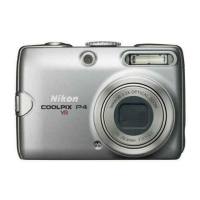
Detailed technical specifications of the camera, including dimensions and performance.
 General
| I/O ports | USB |
|---|---|
| Megapixel | 8.1 MP |
| Sensor type | CCD |
| Image stabilizer | Yes |
| Image sensor size | 1/1.8 \ |
| Optical zoom | 3.5 x |
| Digital SLR | No |
| Internal memory | 23 MB |
| Compatible memory cards | sd |
| Motion JPEG frame rate | 30 fps |
| Display diagonal | 2.5 \ |
| Material | Metal |
| Product color | Silver |
| Battery type | EN-EL5, Duracell CP1 |
| Flash modes | Red-eye reduction |
| Light exposure modes | Aperture priority AE |
| Focus adjustment | Auto |
 Weight and Dimensions
| Depth | 31 mm |
|---|---|
| Width | 92 mm |
| Height | 61 mm |
| Weight | 170 g |