EasyManua.ls Logo

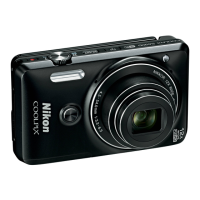
Nikon COOLPIX S6500 - User Manual

Nikon COOLPIX S6500
333 pages
Print Icon
To Next Page IconTo Next Page
Loading...
Nikon
Quick
Start
Guide
Confirming
the
Package
Contents
3
First Steps 5
Shooting and
Playback
14
Using ViewNX 2
20
Other
Functions 26
For Your Safety
32
0 ( )
Nikon
COOL
PIX
COOLPIX
56500

Table of Contents

Other manuals for Nikon COOLPIX S6500

Questions and Answers

  • X
    xnguyenSep 8, 2025
    Why are images not displayed on TV from my Nikon COOLPIX S6500 Digital Camera?
    • M
      Margaret JonesSep 8, 2025
      If images are not displayed on your TV from your Nikon Digital Camera: * Video mode or HDMI is not correctly set in the TV settings setup menu. * Cables are connected to the HDMI micro connector (Type D) and to the USB/audio/video output connector simultaneously. * The memory card contains no images. Replace the memory card. Remove the memory card to play back images from the internal memory.
  • A
    Andrew PerryAug 23, 2025
    Why does my Nikon COOLPIX S6500 not focus?
    • D
      daniel28Aug 23, 2025
      Your Nikon Digital Camera might not be able to focus because: * The subject is too close. Try shooting using macro mode, or the Scene auto selector or Close-up scene mode. * The intended subject is one with which autofocus does not perform well. * Set AF assist in the setup menu to Auto. * Turn the camera off and then on again.
  • M
    Marissa HendersonAug 25, 2025
    How to fix blurred images on my Nikon COOLPIX S6500?
    • R
      robertdelgadoAug 25, 2025
      If your images are blurred, consider the following: * Use flash. * Increase the ISO sensitivity value. * Enable vibration reduction or motion detection. * Use D (Best Shot Selector). * Use a tripod to stabilize the camera when shooting (using the self-timer at the same time is more effective).
  • T
    Tammy WashingtonAug 26, 2025
    Why are my Nikon COOLPIX S6500 images too dark (underexposed)?
    • R
      robertandrewsAug 26, 2025
      Your Nikon Digital Camera images might be too dark because: * The flash mode is set to W (off). * The flash window is blocked. * The subject is beyond flash range. * Adjust exposure compensation. * Increase ISO sensitivity. * The subject is backlit. Select Backlighting scene mode or set the flash mode setting to X (fill flash).
  • L
    Linda SheltonAug 27, 2025
    How to fix bright specks in images captured with flash on Nikon Digital Camera?
    • T
      Taylor MarshallAug 27, 2025
      If you're seeing bright specks in your flash photos with your Nikon Digital Camera, it's likely because the flash is reflecting off particles in the air. Set the flash mode setting to W (off).
  • S
    sroachSep 22, 2025
    Why is date not imprinted on images even when Print date is enabled on my Nikon COOLPIX S6500 Digital Camera?
    • M
      Mark PaceSep 22, 2025
      The date may not be imprinted on images even when Print date is enabled on your Nikon Digital Camera because: * The current shooting mode is one that does not support Print date. * The date cannot be imprinted on movies.
  • S
    Scott BrownSep 16, 2025
    Why can't I use digital zoom on my Nikon Digital Camera?
    • A
      Amy LeblancSep 16, 2025
      Digital zoom may be unavailable on your Nikon Digital Camera because: * Digital zoom is set to Off in the setup menu. * Digital zoom cannot be used in various scene modes.
  • S
    Samuel JohnsonSep 18, 2025
    What to do if I get unexpected results when flash is set to V (auto with red-eye reduction) on Nikon COOLPIX S6500?
    • B
      bradleymaureenSep 18, 2025
      Use any scene mode other than Night portrait, and change the flash mode to any setting other than V (auto with red-eye reduction) and try taking an image again.
  • D
    Diana PerezSep 7, 2025
    What does it mean if the monitor turns off and the power-on lamp flashes quickly on Nikon COOLPIX S6500?
    • O
      Olivia YoungSep 7, 2025
      If the monitor turns off and the power-on lamp flashes quickly on your Nikon Digital Camera, it indicates that the battery temperature is high. Turn off the camera and allow the battery to cool down before resuming use. After the lamp flashes for three minutes, the camera will turn off automatically. Pressing the power switch also turns off the camera.
  • C
    Christy Larson DVMSep 4, 2025
    What to do if my Nikon COOLPIX S6500 Digital Camera battery cannot be charged?
    • N
      nraySep 4, 2025
      If the battery inserted in your Nikon Digital Camera cannot be charged: * Confirm all connections. * Off is selected for Charge by computer in the setup menu. * When charging by connecting the camera to a computer, battery charging stops if the camera is turned off. * When charging by connecting the camera to a computer, battery charging stops if the computer is suspended (sleeping), and the camera may turn off. Depending upon computer specifications, settings, and status, charging the battery inserted in the camera may not be possible via computer connection.

Summary

Parts of the Camera

The Camera Body

Details the physical components and controls of the camera, including buttons and ports.

Using Menus (the MENU Button)

Explains how to access and use the camera's menu system for settings adjustment.

The Monitor

Describes the various icons and information shown on the camera's LCD screen.

The Basics of Shooting and Playback

Preparation 1 Insert the Battery

Step-by-step instructions for correctly inserting the rechargeable Li-ion battery.

Step 1 Turn the Camera On

Instructions for turning the camera on for the first time and initial setup.

Step 4 Focus and Shoot

Guides users on how to achieve focus and capture images using the shutter button.

Step 5 Play Back Images

Guide on how to access and view photos and videos stored on the camera.

Shooting Features

(Auto) Mode

Details on utilizing the camera's automatic mode for general photography.

Scene Mode (Shooting Suited to Scenes)

Information on selecting camera modes optimized for specific photographic scenarios.

Using the Flash (Flash Modes)

Covers various flash settings and their application for different lighting conditions.

Focusing

Details on autofocus modes, face detection, and focus lock for sharp image capture.

Playback Features

Connecting the Camera to a TV, Computer, or Printer

Instructions for linking the camera to external devices for image and video transfer.

Using ViewNX 2

Guide to installing and utilizing Nikon's software for managing and editing camera images.

Recording and Playing Back Movies

Recording Movies

Step-by-step instructions for capturing movie clips using the camera's movie-record button.

Playing Back Movies

Guide on how to play back video clips recorded with the camera.

General Camera Setup

Time zone and date

Procedure for configuring the camera's internal clock and time zone settings.

Reset all

Instructions on how to restore all camera settings to their original default values.

Using the Wi-Fi (Wireless LAN) Feature

Installing the Software on the Smart Device

Steps for downloading and installing the 'Wireless Mobile Utility' app on smart devices.

Connecting the Smart Device to the Camera

Guide to setting up the Wi-Fi network and connecting the camera to a smart device.

Reference Section

Troubleshooting

Lists common camera issues and their potential solutions for user support.

Specifications

Provides detailed technical data and performance metrics for the camera model.

Nikon COOLPIX S6500 Specifications

General IconGeneral
Megapixel16 MP
Camera typeCompact camera
Sensor typeCMOS
Image stabilizerYes
Total megapixels16.79 MP
Image sensor size1/2.3 \
Image formats supportedJPEG XR
Maximum image resolution4624 x 3464 pixels
Still image resolution(s)-
Digital zoom4 x
Optical zoom12 x
Focal length range4.5 - 54 mm
Lens structure (elements/groups)8/8
Maximum focal length (35mm film equiv)300 mm
Minimum focal length (35mm film equiv)24 mm
FocusTTL
Focus adjustmentAuto
Auto focusing (AF) modesCentre weighted Auto Focus, Contrast Detection Auto Focus, Tracking Auto Focus
Light meteringCentre-weighted, Spot
ISO sensitivity125, 400, 800, 3200
ISO sensitivity (max)3200
ISO sensitivity (min)125
Light exposure controlProgram AE
Light exposure correction± 2EV (1/3EV step)
Camera shutter typeElectronic, Mechanical
Fastest camera shutter speed1/2000 s
Slowest camera shutter speed4 s
Power source typeBattery
Video resolutions640 x 480, 1280 x 720, 1920 x 1080 pixels
Motion JPEG frame rate30 fps
Video formats supportedH.264, MPEG4
Maximum video resolution1920 x 1080 pixels
Analog signal format systemNTSC, PAL
Audio systemstereo
Audio formats supportedAAC, WAV
Memory slots1
Internal memory- MB
Compatible memory cardsSD, SDHC, SDXC
Field of view96 %
Display diagonal3 \
Display resolution (numeric)460000 pixels
USB version2.0
HDMI connector typeMini
Scene modesBacklight, Beach, Close-up (macro), Cuisine, Dawn, Dusk, Fireworks, Museum, Night landscape, Night portrait, Party (indoor), Pet, Portrait, Snow, Sports, Sunset
Image editingCrop, Trimming
White balanceAuto, Cloudy, Daylight, Flash, Fluorescent, Incandescent, Manual
Self-timer delay2, 10 s
Languages supportARA, CHI (SIMPL), CHI (TR), CZE, DAN, DEU, DUT, ENG, ESP, FIN, FRE, GRE, HUN, ITA, JPN, KOR, NOR, POL, POR, RUM, RUS, SWE, THA, TUR, UKR
Camera file systemDCF, DPOF, Exif 2.3
Image quality adjustmentBrightness
Battery life (CIPA standard)150 shots
Product colorSilver
Operating temperature (T-T)0 - 40 °C
Operating relative humidity (H-H)0 - 85 %
Weight and Dimensions IconWeight and Dimensions
Depth26.3 mm
Width95.4 mm
Height57.9 mm
Weight153 g

Related product manuals