EasyManua.ls Logo

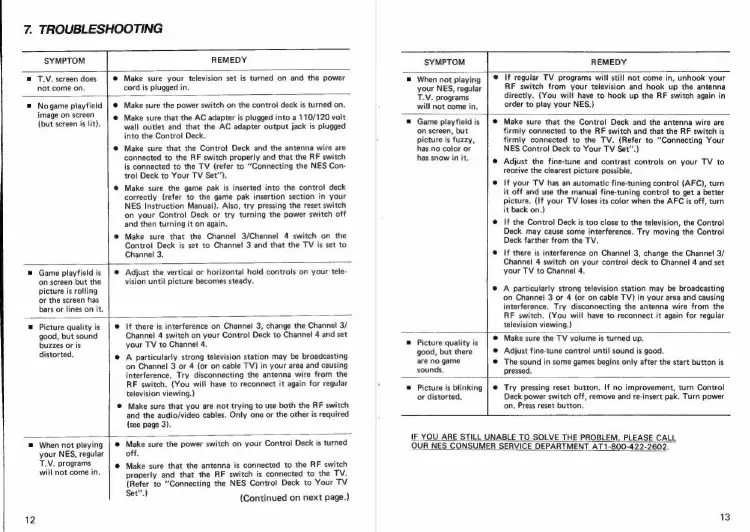
Nintendo CONTROL DECK - Troubleshooting Common NES Issues; Display and Picture Problems; Audio and TV Interference

Nintendo CONTROL DECK
13 pages
Print Icon
To Next Page IconTo Next Page
To Previous Page IconTo Previous Page
Loading...
7.
TROUBLESHOOTING
SYMPTOM
T.V.
screen
does
not
come
on.
REMEDY
Make
sure
your
television
set
is
turned
on
and
the
power
cord
is
plugged
in.
No
game
playfield
image
on
screen
(but
screen
is
lit).
Game
playfield
is
on
screen
but
the
picture
is
rolling
or
the
screen
has
bars
or
lines
on
it.
Picture
quality
is
good,
but
sound
buzzes
or
is
distorted.
I:
Make
sure
the
power
switch
on
the
control
deck
is
turned
on.
Make
sure
that
the
AC
adapter
is
plugged
into
a
110/120
volt
wall
outlet
and
that
the
AC
adapter
output
jack
is
plugged
into
the
Control
Deck.
Make
sure
that
the
Control
Deck
and
the
antenna
wire
are
connected
to
the
RF
switch
properly
and
that
the
RF
switch
is
connected
to
the
TV
(refer
to
“Connecting
the
NES
Con-
trol
Deck
to
Your
TV
Set").
Make
sure
the
game
pak
is
inserted
into
the
control
deck
correctly
(refer
to
the
game
pak
insertion
section
in
your
NES
Instruction
Manual).
Also,
try
pressing
the
reset
switch
on
your
Control
Deck
or
try
turning
the
power
switch
off
and
then
turning
it
on
again.
Make
sure
that
the
Channel
3/Channel
4
switch
on
the
Control
Deck
is
set
to
Channel
3
and
that
the
TV
is
set
to
Channel
3.
Adjust
the
vertical
or
horizontal
hold
controls
on
your
tele-
vision
until
picture
becomes
steady.
If
there
is
interference
on
Channel
3,
change
the
Channel
3/
Channel
4
switch
on
your
Control
Deck
to
Channel
4
and
set
your
TV
to
Channel
4.
A
particularly
strong
television
station
may
be
broadcasting
on
Channel
3
or
4
(or
on
cable
TV)
in
your
area
and
causing
interference.
Try
disconnecting
the
antenna
wire
from
the
RF
switch.
(You
will
have
to
reconnect
it
again
for
regular
television
viewing.)
Make
sure
that
you
are
not
trying
to
use
both
the
RF
switch
and
the
audio/video
cables.
Only
one
or
the
other
is
required
(see
page
3).
12
When
not
playing
your
NES,
regular
T.V.
programs
will
not
come
in.
Make
sure
the
power
switch
on
your
Control
Deck
is
turned
off.
Make
sure
that
the
antenna
is
connected
to
the
RF
switch
properly
and
that
the
RF
switch
is
connected
to
the
TV.
(Refer
to
“Connecting
the
NES
Control
Deck
to
Your
TV
era)
(Continued
on
next
page.)
SYMPTOM
REMEDY
=
When
not
playing
your
NES,
regular
T.V.
programs
will
not
come
in.
=
Game
playfield
is
on
screen,
but
picture
is
fuzzy,
has
no
color
or
has
snow
in
it.
®
Picture
quality
is
good,
but
there
are
no
game
sounds.
®
Picture
is
blinking
or
distorted.
If
regular
TV
programs
will
still
not
come
in,
unhook
your
RF
switch
from
your
television
and
hook
up
the
antenna
directly.
(You
will
have
to
hook
up
the
RF
switch
again
in
order
to
play
your
NES.)
Make
sure
that
the
Control
Deck
and
the
antenna
wire
are
firmly
connected
to
the
RF
switch
and
that
the
RF
switch
is
firmly
connected
to
the
TV.
(Refer
to
“Connecting
Your
NES
Control
Deck
to
Your
TV
Set’)
Adjust
the
fine-tune
and
contrast
controls
on
your
TV
to
receive
the
clearest
picture
possible.
If
your
TV
has
an
automatic
fine-tuning
control
(AFC),
turn
it
off
and
use
the
manual
fine-tuning
contro!
to
get
a
better
picture,
(If
your
TV
loses
its
color
when
the
AFC
is
off,
turn
it
back
on.)
\f
the
Control
Deck
is
too
close
to
the
television,
the
Control
Deck
may
cause
some
interference.
Try
moving
the
Control
Deck
farther
from
the
TV.
If
there
is
interference
on
Channel
3,
change
the
Channel
3/
Channel
4
switch
on
your
control
deck
to
Channel
4
and
set
your
TV
to
Channel
4.
A
particularly
strong
television
station
may
be
broadcasting
on
Channel
3
or
4
(or
on
cable
TV)
in
your
area
and
causing
interference.
Try
disconnecting
the
antenna
wire
from
the
RF
switch.
(You
will
have
to
reconnect
it
again
for
regular
television
viewing.)
Make
sure
the
TV
volume
is
turned
up.
Adjust
fine-tune
control!
until
sound
is
good.
The
sound
in
some
games
begins
only
after
the
start
button
is
pressed.
Try
pressing
reset
button.
If
no
improvement,
turn
Control
Deck
power
switch
off,
remove
and
re-insert
pak.
Turn
power
on.
Press
reset
button,
IF
YOU
ARE
STILL
UNABLE
TO
SOLVE
THE
PROBLEM,
PLEASE
CALL
OUR
NES
CONSUMER
SERVICE
DEPARTMENT
AT1-800-422-2602.
13

Related product manuals