Need Help?
877.716.8550
starlight.org/gaming/support
funcenter@noa.nintendo.com 12
Each game typically has a controller screen that will prompt you to choose your preferred
controller. An alternate way to select your controller is through the console’s controller
menu.
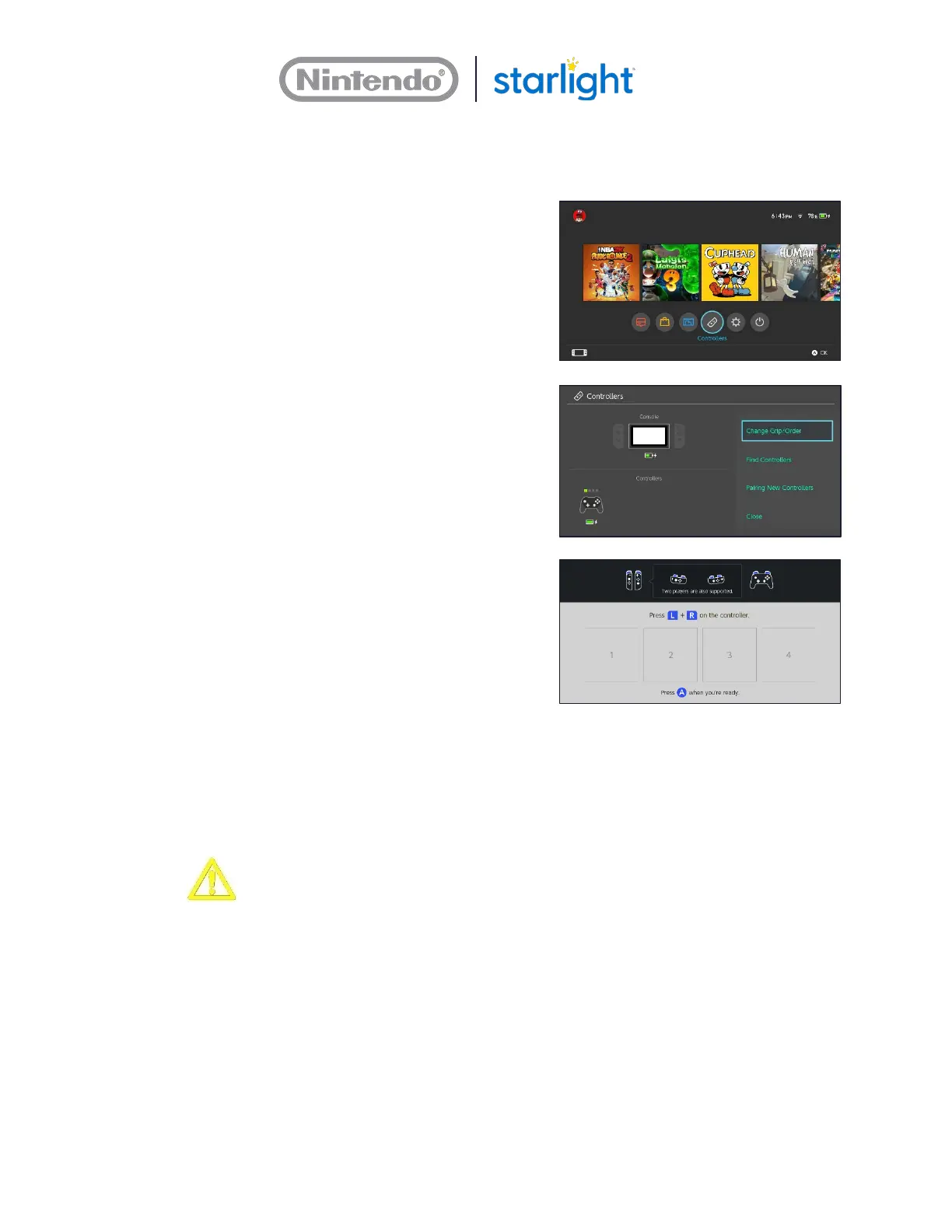
1. Press the HOME Button on the controller to
open the HOME Menu.
2. Select Controllers at the bottom of the
HOME Menu.
3. Select Change Grip/Order.
4. Follow the on-screen prompts to select the
preferred controller configuration.
2.5 Connecting to the Internet
Caution: Connecting to the Internet may cause the Joy-Con controllers for this
Gaming station to prompt an error screen for failing to install a controller firmware
update. The message can be bypassed to play a game, but the message will appear
each time a Joy-Con controller is powered on and syncs with the console. Contact
support for updated replacement controllers to stop the error message from
appearing.
To meet UL requirements for use in healthcare facilities, the batteries were
removed from the Joy-Con controllers and Pro Controller – they get power solely
from the controller cables. Unfortunately, the Joy-Con controllers cannot receive
firmware updates without a battery and will prompt an error message. The
controller firmware updates are a part of console updates that will automatically
download when the console is connected to the Internet.





 To Next Page