Note
Fisrt registered user has administrator right therefore, you must
initialize all user data if installer and administrator are different.
After Installation
After finishing installation, check that it was done properly and
plug in the power.
Check if the lock and other devices are properly functioning as
described below. For more information, see “FingkeyAccess
Terminal Manual” and “AccessManager Professional User
Manual.”
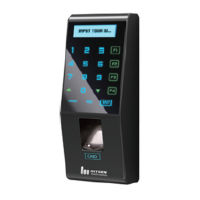
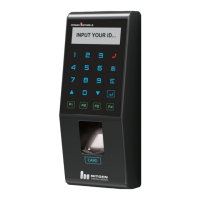
① When power is supplied, the initial screen with
FingkeyAccess string and Time will appear.
② Select the Network -> Normal -> “Disable” in Admin
menu of Terminal to use the standalone mode.
③ Press the Admin button and select User -> “Register” to
register user information such as ID and fingerprint.(4-
digit user ID is set to the default
④ Perform fingerprint authentication peripherals such as a
locking device to proceed with the Test


 To Next Page