12 13
NIX QC: MANUAL
Turning On
& Charging your Device
Downloading the App
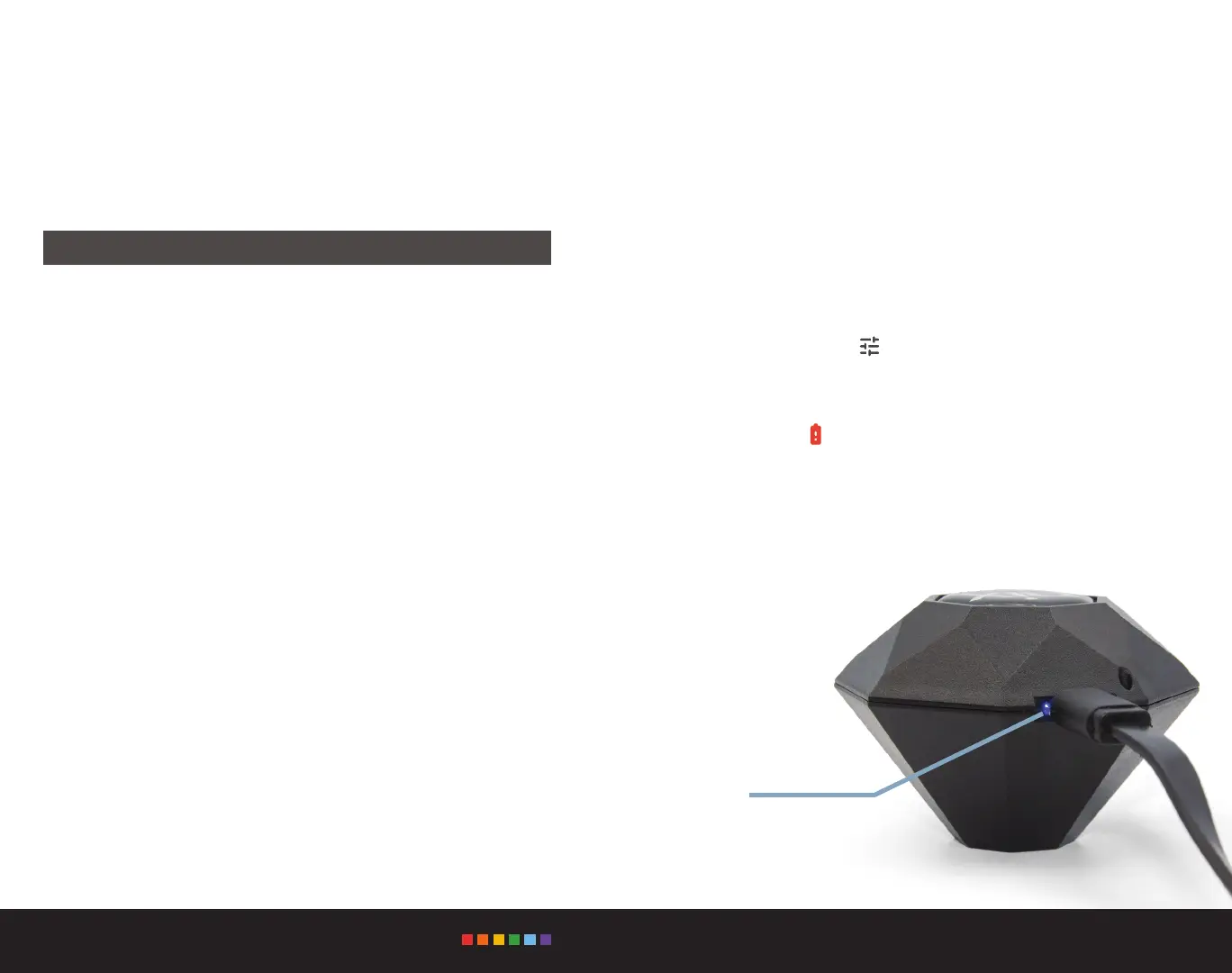
The Nix QC arrives in a “sleep” state. To wake it up, plug in the provided
micro USB charging cable into the USB port on the device (plug the
other end into a wall adapter or PC). Once charging, a small blue LED will
illuminate on the left side of the USB port on the Nix QC to indicate it’s
connected to power. For a full charge, keep your device plugged in for
four hours.
You can check the battery level of your device by connecting to the Nix QC
app. Select the slider icon to see charge information. Your device must
be connected to the app to see this information (see page 14 for details on
connecting). Generally one charge will last for 25,000 scans.
A low battery icon will appear in the top left of the screen when a
recharge is required.
Note: The Nix QC does not need to be turned o. It will automatically
hibernate when the Nix QC app is closed.
The Nix QC hardware requires the installation of the Nix QC app,
compatible with Android and iOS. The Nix QC hardware is also compatible
with the Nix Paints, Nix Digital, and Nix Pro Color Sensor apps.
Download the apps at: www.nixsensor.com/apps
Nix QC App
Compatible with iOS (11.0 or newer) or Android (4.4 Kit Kat or newer)
With the Nix QC app, you can control and monitor the variance of color in your
studied samples. Visualize color deviation between your scanned samples
using the color space target zone and identify the direction in which your
sample diers from the reference by lightness and hue. For example, learn if
a sample contains more yellow than your reference, or if it is darker or lighter.
If a sampled color doesn’t meet your set threshold, the scan will be agged
and logged so it can later be referenced. Custom quality control libraries can
be imported, and QC thresholds can be set by managers. The color dierence
(Delta E or ΔE) value to the reference color can be seen for all scans in the
sample set.
• Results displayed in CIELAB and compared to reference color
• Log of scans in comparison to the reference sample
• Set custom pass/fail color dierence (ΔE) thresholds for sampled colors
• Multiple color dierence (ΔE) modes available, including CIE76, CIE94,
CIE2000, and CMC
• Multiple illuminant and observer scan settings (D50, 2° and D65, 10°)
• Set multi-point averaging
• Import custom libraries and export scan data
(see www.nixsensor.com/qc-import for details and instructions)
• Allows the user to verify that the Nix QC device is performing within
advertised specications (see pages 20-21) using the provided reference
tile
Blue LED
Charging
Indicator


 To Next Page