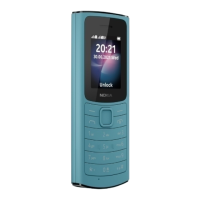
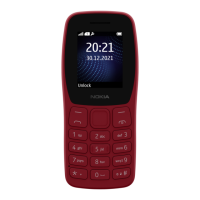
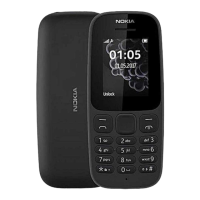
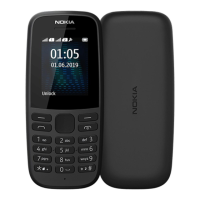
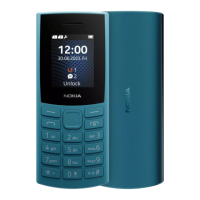
The Nokia 105 4G is a user-friendly mobile phone designed for essential communication and basic functionalities. This guide provides comprehensive instructions for setting up, using, and maintaining your device, ensuring a smooth experience.
Function Description
The Nokia 105 4G primarily functions as a reliable communication tool, enabling users to make and receive calls, manage contacts, and send messages. It supports 4G connectivity, offering improved call quality and potentially faster data speeds for its limited internet capabilities. The device includes essential utilities such as a clock with an alarm function, a calendar for scheduling, and a calculator for quick computations. For personalizing the user experience, it allows for changes to the home screen wallpaper and offers various profiles to suit different environments and preferences. The phone also features a flashlight for convenience. Security is addressed through a phone lock option, allowing users to protect their privacy and personal data with a security code.
Usage Features
Getting Started:
The phone's setup is straightforward. Users begin by inserting a nano-SIM card into the designated slot. If it's a dual-SIM model, a second SIM can be inserted into the SIM2 slot. The device also supports a microSD memory card (up to 32 GB) for additional storage, which is inserted into its dedicated slot. After inserting the SIM and memory cards, the battery is placed back, followed by the back cover. The phone is switched on by pressing and holding the Power/End key.
Charging:
Before initial use, the battery may need to be recharged. The phone is charged by plugging the charger into a wall outlet and then connecting it to the phone. It's important to unplug the charger from the phone first, then from the wall outlet, once charging is complete. Continuous charging should not exceed 12 hours. USB charging is also an option when a wall outlet is unavailable, though its efficiency may vary.
Keypad Usage:
The keypad is the primary interface for navigation and input.
- Accessing Apps and Features: From the home screen, select "Menu" to view all apps and features. The scroll key (up, down, left, or right) is used to navigate through options, and pressing the scroll key opens the selected app or feature. In zoomed menu view, the scroll key up or down is used to navigate.
- Locking/Unlocking Keypad: To prevent accidental key presses, the keypad can be locked by selecting the left selection key, then "Lock keypad." To unlock, press the left selection key and then "Unlock."
- Writing Text: Press a key repeatedly until the desired letter appears. "0" is used for a space. Special characters or punctuation marks can be inserted by selecting the left selection key, then "Insert options," and "Insert symbol." The "#" key switches between character cases. Holding a number key types the corresponding number.
- Making a Call: Type the phone number, then press the Call key. For international calls, press "*" twice to type "+." If prompted, select the desired SIM. To end a call, press the Power/End key.
- Answering a Call: Press the Call key to answer an incoming call.
- Adding a Contact: Navigate to "Menu" > "Contacts" > left selection key > "New." Select where to save the contact (e.g., phone or SIM). Enter the last name and first name, then select "Mobile" or "Home number" to type in the number.
- Saving from Call Logs: From "Menu" > "Call logs," select the call type. Scroll to the number, select the left selection key > "Add to contacts," then choose "Add to new contact" or "Add to existing contact." Add contact details and save.
- Calling a Contact: From "Menu" > "Contacts," scroll to the desired contact and press the Call key.
- Sending Messages: Go to "Menu" > "Messages" > "Create message." Write your message. To insert numbers or symbols, select the left selection key > "Insert options" > "Insert number" or "Insert symbol." To send, select the left selection key > "Send." If using dual SIMs, select which SIM to use. Type in a phone number or select "Search" to choose a recipient from contacts, then "OK."
Personalization:
- Wallpaper: Change the home screen wallpaper via "Menu" > "Settings" > "Display" > "Wallpaper settings." Choose from static wallpapers or pictures from the phone/memory card.
- Profiles: The phone offers various profiles (e.g., silent, outdoor) to adjust sound settings for different situations. Access these via "Menu" > "Settings" > "Profiles." Profiles can be adjusted by selecting the left selection key > "Settings" or activated by selecting "Select."
- Shortcuts: Customize the "Go to" settings on the home screen by adding shortcuts to frequently used apps and settings. Go to "Menu" > "Settings" > "Phone settings" > "Go to settings." Select "Select options," mark desired shortcuts, and save changes. Shortcuts can also be reorganized.
Clock, Calendar, and Calculator:
- Time and Date: Manually set the time and date by going to "Menu" > "Settings" > "Phone settings" > "Time & date." Switch "Auto update time" off, then select "Manual update time" to enter the details.
- Alarm Clock: Set alarms via "Menu" > "Alarm." Select to add a new alarm and enter the time and other details.
- Calendar: Add events to the calendar by navigating to "Menu" > "Extras" > "Calendar." Scroll to a date, select the left selection key > "Add new schedule," enter event details, and save.
- Calculator: Use the calculator from "Menu" > "Extras" > "Calculator." Enter the first factor, use the scroll key to select the operation, and enter the second factor. Press the scroll key for the result. The right selection key clears the number fields.
Maintenance Features
Emptying Your Phone:
Before disposing of or recycling the phone, it's crucial to remove all personal information. This can be done by restoring factory settings: "Menu" > "Settings" > "Phone settings" > "Restore factory settings" > "Full restore (delete data)." Enter the security code (default is 12345, or your changed code), then select "OK" > "Yes."
General Device Care:
- Keep Dry: Protect the device from precipitation, humidity, and liquids, as minerals in moisture can corrode electronic circuits.
- Cleanliness: Avoid dusty or dirty environments.
- Temperature: Do not expose the device to extreme hot or cold temperatures, as this can damage the device or battery and affect performance.
- Handling: Do not drop, knock, or shake the device or battery. Rough handling can cause breakage.
- Cleaning: Use only a soft, clean, dry cloth to clean the device surface.
- Modifications: Do not paint the device, as this can prevent proper operation. Unauthorized modifications can damage the device and violate regulations.
- Magnets: Keep the device away from magnets or magnetic fields.
- Opening Device: Do not open the device unless instructed in the user guide.
- Data Backup: Regularly back up important data to at least two separate places (e.g., device, memory card, computer) to prevent loss.
- Overheating: During extended operation, the device may feel warm, which is normal. If it gets too warm, it may automatically slow down, close apps, switch off charging, or even turn itself off. If issues persist, contact an authorized service facility.
- Original Components: Use only original rechargeable batteries and chargers approved by HMD Global Oy. Incompatible products can pose risks and invalidate the warranty.
- Battery Life: Batteries can be charged and discharged many times but will eventually wear out. If talk and standby times significantly shorten, replace the battery (for removable batteries) or take the device to an authorized service facility (for non-removable batteries).
- Charging Practices: Unplug the charger once charging is complete. Avoid continuous charging for more than 12 hours.
- Temperature for Battery: Keep the battery between 15°C and 25°C (59°F and 77°F) for optimal performance.
- Battery Safety: Do not dismantle, cut, crush, bend, puncture, or damage the battery. If a battery leaks, avoid contact with skin or eyes; flush affected areas with water and seek medical help. Do not modify, insert foreign objects, or expose the battery to water/liquids. Batteries may explode if damaged.
- Charger Safety: Use chargers indoors. Avoid charging during lightning storms. If a charger is not included, use the provided data cable with a compliant USB power adaptor (USB 2.0 or later, meeting country/international safety standards).
- Unplugging: Always hold and pull the plug, not the cord, when unplugging a charger or accessory.
- Removable Battery Specifics: Always switch off the device and unplug the charger before removing the battery. Avoid accidental short-circuiting by metallic objects touching the battery's metal strips.
- Restricted Areas: Switch off the device where mobile use is prohibited or may cause interference/danger (e.g., aircraft, hospitals, near medical equipment, fuel/chemical facilities, blasting areas).
- Road Safety: Prioritize road safety while driving. Obey all local laws and keep hands free to operate the vehicle.
- Interference: All wireless devices are susceptible to interference.
- Hearing Protection: To prevent hearing damage, avoid listening at high volumes for extended periods. Exercise caution when the loudspeaker is near your ear.
- Emergency Calls: While connections cannot be guaranteed, the device can be used for emergency calls. Ensure the phone is on, unlocked, and has adequate signal strength. Dial the official emergency number, provide necessary information, and do not end the call until permitted. A SIM card may be required, and call restrictions (e.g., call barring) should be off.
- Medical Devices: Maintain a minimum separation of 15.3 cm (6 inches) between the wireless device and implanted medical devices (pacemakers, insulin pumps, neurostimulators). Do not carry the device in a breast pocket. Hold the device to the ear opposite the medical device. Switch off the device if interference is suspected. Consult a healthcare provider for any questions.
- Harmful Content: Be cautious when opening messages, accepting connectivity requests, or browsing the internet to avoid viruses and malicious software. Install antivirus software on connected computers. Exercise caution with preinstalled bookmarks and third-party internet sites.
- Vehicles: Radio signals may affect electronic systems in vehicles. Only authorized personnel should install the device in a vehicle. Regularly check that wireless equipment is properly mounted and operating. Do not store flammable/explosive materials in the same compartment as the device. Avoid placing the device in air bag deployment areas.
- Potentially Explosive Environments: Switch off the device in potentially explosive environments (e.g., near gasoline pumps, chemical plants, blasting operations, below deck on boats, chemical transfer facilities, areas with airborne chemicals/particles).
Recycling:
Always return used electronic products, batteries, and packaging materials to dedicated collection points. This prevents uncontrolled waste disposal and promotes material recycling. Electrical and electronic products contain valuable materials that can be recovered. Remember to remove personal data from the device before recycling.

 Need help?
 General
 Weight and Dimensions

 To Next Page