EasyManua.ls Logo

Nokia N71 - User Manual

Nokia N71
121 pages
Print Icon
To Next Page IconTo Next Page
Loading...
User’s Guide for Nokia N71

Table of Contents

Other manuals for Nokia N71

Questions and Answers

  • B
    Beth AlvaradoAug 18, 2025
    What to do if data connection starts again and again on Nokia N71 Cell Phone?
    • K
      krista44Aug 18, 2025
      To stop your Nokia Cell Phone from automatically connecting to a data network, go to Messaging, then choose one of these options: 'On receiving msg. > Defer retrieval', 'On receiving msg. > Reject message', or 'Multimedia reception > Off'.
  • A
    Anna McintyreAug 20, 2025
    Why does my Nokia N71 display have missing, discolored, or bright dots?
    • N
      Nancy FloydAug 20, 2025
      If your Nokia Cell Phone displays missing, discolored, or bright dots, this is a normal characteristic of this type of display, as some displays may have pixels or dots that stay on or off.
  • M
    Mrs. Sarah ThompsonAug 23, 2025
    Why do images look smudgy on my Nokia Cell Phone camera?
    • L
      Lori JordanAug 23, 2025
      If images appear smudgy on your Nokia Cell Phone camera, remove any protective plastic films from the display and camera, and ensure the camera lens protection window is clean.
  • E
    Elizabeth ObrienAug 25, 2025
    What to do if I can't receive multimedia messages on Nokia N71 because memory is full?
    • J
      Justin AlexanderAug 26, 2025
      If you can't receive multimedia messages on your Nokia Cell Phone due to memory being full, you'll need to delete some data first. To see what data you have and how much memory each type consumes, go to File manager > Options > Memory details.
  • S
    Samuel DunnAug 27, 2025
    Why does my Nokia N71 Cell Phone show 'Retrieving message' briefly when using multimedia messaging?
    • I
      Isaac RamirezAug 28, 2025
      If you see the note 'Retrieving message' briefly when using multimedia messaging on your Nokia Cell Phone, ensure that your multimedia messaging settings are correct and that there are no mistakes in the phone numbers or addresses. Check this by going to Messaging > Options > Settings > Multimedia message.
  • M
    Ms. Cheryl BowenAug 30, 2025
    How to fix memory low on Nokia Cell Phone?
    • D
      Deanna ClarkAug 30, 2025
      If your Nokia Cell Phone is low on memory, delete messages from the Inbox, Drafts, and Sent folders in Messaging, remove retrieved e-mail messages from the device memory, and delete saved browser pages, images, and photos in Gallery. Also, if deleting multiple items results in 'Not enough memory' or 'Memory low' messages, try deleting items one by one, starting with the smallest.
  • T
    Tina DicksonSep 2, 2025
    Why can't my Nokia N71 Cell Phone find my friend's device via Bluetooth?
    • M
      Mrs. Yolanda Conway DDSSep 2, 2025
      If you can't find your friend's device when trying to connect via Bluetooth on your Nokia Cell Phone, make sure both devices have Bluetooth activated, are within 10 meters (33 feet) of each other without obstructions, the other device isn't in hidden mode, and both devices are compatible.
  • M
    Michael CookeSep 4, 2025
    What to do if I can't end a Bluetooth connection on Nokia N71 Cell Phone?
    • V
      vshahSep 4, 2025
      To end a Bluetooth connection on your Nokia Cell Phone that you can't otherwise terminate, either use the other device to end the connection or deactivate Bluetooth connectivity on your phone by selecting Connect > Bluetooth > Off.
  • L
    Lauren BlanchardSep 6, 2025
    What to do if I have problems connecting my Nokia Cell Phone to PC?
    • K
      kellyheidiSep 6, 2025
      If you are having problems connecting your Nokia Cell Phone to a PC, ensure that Nokia PC Suite is installed and running on your PC.
  • J
    Jaime AlvarezSep 9, 2025
    Why can't I select a contact on my Nokia N71 Cell Phone when messaging?
    • M
      Michael HarrisSep 9, 2025
      If you can't select a contact when messaging on your Nokia Cell Phone, add the missing information to the contact card in Contacts.

Summary

For your safety

Network services

Emergency calls

Procedures for making emergency calls, including ensuring signal strength and entering the number.

Camera

Take pictures

Instructions for capturing still images using the device camera and post-capture options.

Edit images

Tools to crop, rotate, adjust color, add effects, text, or frames to images.

Record videos

Steps to start, pause, and manage video recording using the device camera.

Gallery

Edit video clips

Editing video clips to combine, trim, add effects, sound, and transitions.

Messaging

Write and send messages

Steps to compose, send, and manage text, multimedia, and e-mail messages.

Make calls

Voice calls

Making and managing voice calls, including volume control and handling incoming calls.

Voice dialing

Using voice commands to initiate calls by speaking contact names or numbers.

Video calls (network service)

Making and receiving video calls, including camera activation and call management.

Video sharing (network service)

Sending live video or clips to another device during a voice call.

Answer or reject a call

Handling incoming calls, including answering, rejecting, and muting the ringing tone.

Answer or reject a video call

Managing incoming video calls, including allowing or denying video image transmission.

My own

Instant messaging (network service)

Communicating with others through instant messages, joining discussion forums, and managing contacts.

Connectivity

Bluetooth connectivity

Connecting wirelessly to other compatible devices using Bluetooth technology for data transfer and communication.

Your device as a modem

Using the phone as a modem to connect a PC to the internet or send e-mail.

Tools

Security

Managing security features like PIN codes, lock codes, autolock periods, and SIM card security.

Voice commands

Using voice commands to control device functions, start applications, and activate profiles.

Application manager

Installing, managing, and viewing details of applications and software on the device.

Install applications and software

Steps for installing applications and software from various sources, including security checks.

Troubleshooting

PC connectivity

Troubleshooting problems connecting the device to a PC using Nokia PC Suite.

Battery information

Charging and discharging

Proper procedures for charging and discharging the device's rechargeable battery to maintain its performance.

Nokia battery authentication guidelines

Steps to verify the authenticity of Nokia batteries and identify original products.

Care and maintenance

Additional safety information

Emergency calls

Instructions on how to make emergency calls and ensure adequate signal strength.

Certification information (SAR)

Details about the device's compliance with international guidelines for radio wave exposure (SAR).

Nokia N71 Specifications

General IconGeneral
Display typeTFT
Display diagonal2.4 \
Display resolution240 x 320 pixels
Display number of colors262144 colors
External display resolution96 x 68 pixels
External display number of colors65536 colors
Networking typeGSM, UMTS
Video capabilityYes
Built-in processorARM9
Operating frequency900 / 1800 / 1900, 2100 MHz
Processor frequency220 MHz
USB 2.0 ports quantity1
Internal memory10 MB
Compatible memory cardsminiSD
Internal storage capacity2 GB
Rear camera resolution1600 x 1200 pixels
Rear camera resolution (numeric)2 MP
Multimedia Messaging Service (MMS)Multimedia Messaging Service (MMS) is a standard way to send messages that include multimedia content to and from a mobile phone over a cellular network
Ringer typePolyphonic
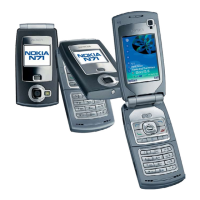
Form factorClamshell
Battery typeBL-5C
Talk time (2G)4 h
Battery capacity970 mAh
Standby time (2G)220 h
Data network3G, EDGE, GPRS
SIM card capabilitySingle SIM
Mobile network generation3G
Bluetooth version1.2
Weight and Dimensions IconWeight and Dimensions
Depth25.8 mm
Width51.2 mm
Height98.6 mm
Weight139 g

Related product manuals