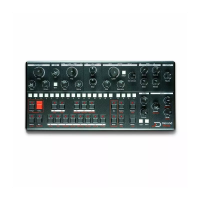
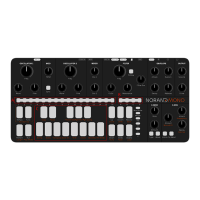
Parameter offset visualisation
By default, the [SEQ] LEDs don’t show which step holds recorded
parameter osets, and the only way to know that a parameter is automated
is by using your ears, which can be very dicult on complex patterns.
However, there is a way to immediately visualise everything : hold [FUNC].
The synth LEDs will change to show dierent information.
The [SEQ] LEDs indicates weither or not a step holds parameter oset
informations. The brighter they are, the more parameter osets they
holds.
The potentiometer LEDs indicate if a parameter has osets recorded
somewhere on the pattern, they will also ash if one or more modulation
values have osets.
You can, as usual, select a parameter by slightly moving a pot, this way
you can see exactly which modulation parameter have recorded osets.
Adding parameter offsets
To add a parameter oset on a step, hold a [SEQ] key, and turn the desired
knob either way to add an oset - the more you turn the knob, the bigger
the oset. The same can be done to modulation parameters - don’t forget
to select the synth parameter on which you want to add the modulation
parameter oset rst (that’s a lot of words - sorry about that).
Recording parameter offsets
One can also record parameter osets while in record mode. To enable the
mode, press the [RECORD] key, and turn a parameter knob while the
sequencer is playing. This will add a parameter oset on each step where a
parameter knob position change is detected, so you need to continually
move the knob to add osets at every step. This is a bit strange at rst but
it was mandatory, otherwise everything would be recorded at 0 oset as
soon as [RECORD] is enabled, that’s obviously not the best behaviour …
Note that when recording automation on the [FREQ] parameter, the
recorded parameter osets will be quantized to the current scale.
Unlink X-Env Sequence
To create interesting eects in a pattern, it is possible to unlink the X-
Envelope triggers from the note trigs. When doing so, the X-Envelope of
the selected parameter will be replaced by the one entered on the [SEQ]
keys.
To create an unlinked X-Env sequence, start by selecting the desired
parameter - [CUTOFF] for example. Then hold [TYPE] + [WAVE], and hit
[SEQ] keys to create your unlinked sequence. As you see the bright [KEY]
show the unlinked sequence. To disable an unlinked sequence and trig the
X-Env with the note trigs again, you need to disable all the unlinked trigs.
Copy paste and clear
To copy a step, hold [FUNC] + [COPY] then hit the [SEQ] key of the step to
be copied. To paste, hold [FUNC] + [PASTE], and hit the destination [SEQ]
key. Clear a step by holding [DELETE] and hitting the desired [SEQ] key.
These step operations act on every parameter - note, accent, slide,
parameter oset and so on.
The same can be done with full pages, use the desired [PAGE] key instead.
To copy a whole parameter automation (all parameter osets on the
pattern), hold [FUNC] + [COPY] and slightly move the potentiometer of the
desired parameter. To paste, hold [FUNC] + [PASTE] and slightly move the


 To Next Page
 Loading...