Guarding Vision Setup 5.2
Steps:
1. Download and install the Guarding Vision app by searching
“Guarding Vision” in App Store or Google Play
TM
.
2. Launch the app and register for a Guarding Vision user account.
3. Log in Guarding Vision app after registration.
Adding Camera to Guarding Vision 5.3
Before you start:
You need to enable the Guarding Vision service on camera before
adding it to your Guarding Vision account. Refer to Chapter 5.1.
Steps:
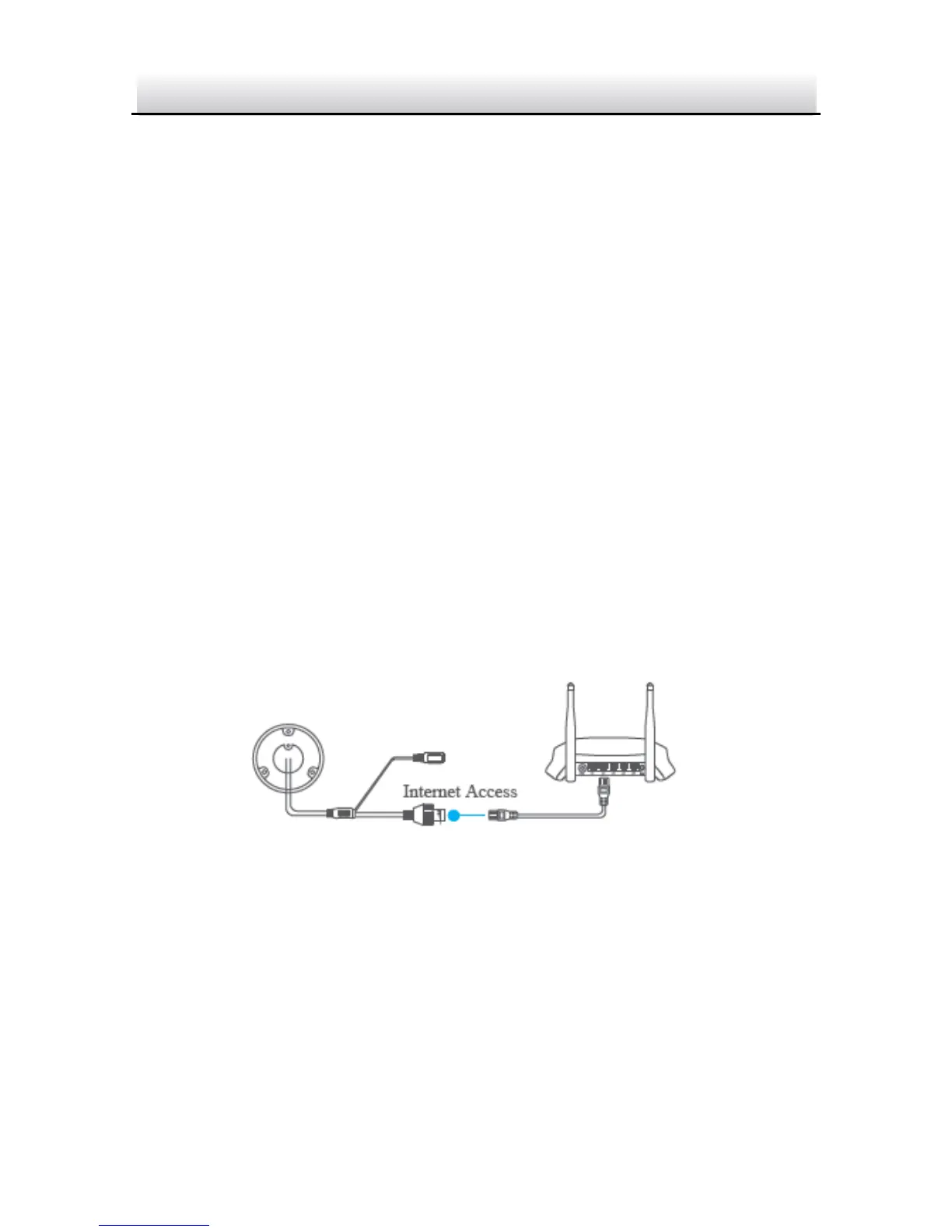
1. Use a network cable to connect the camera with a router if the
camera does not support Wi-Fi.
Figure 5-3 Connect a Router
Note:
After the camera connects to the network, please wait one minute
before any operation on the camera using Guarding Vision app.
2. In the Guarding Vision app, tap “+” on the upper-right corner and
then scan the QR code of the camera to add the camera.



 To Next Page