11
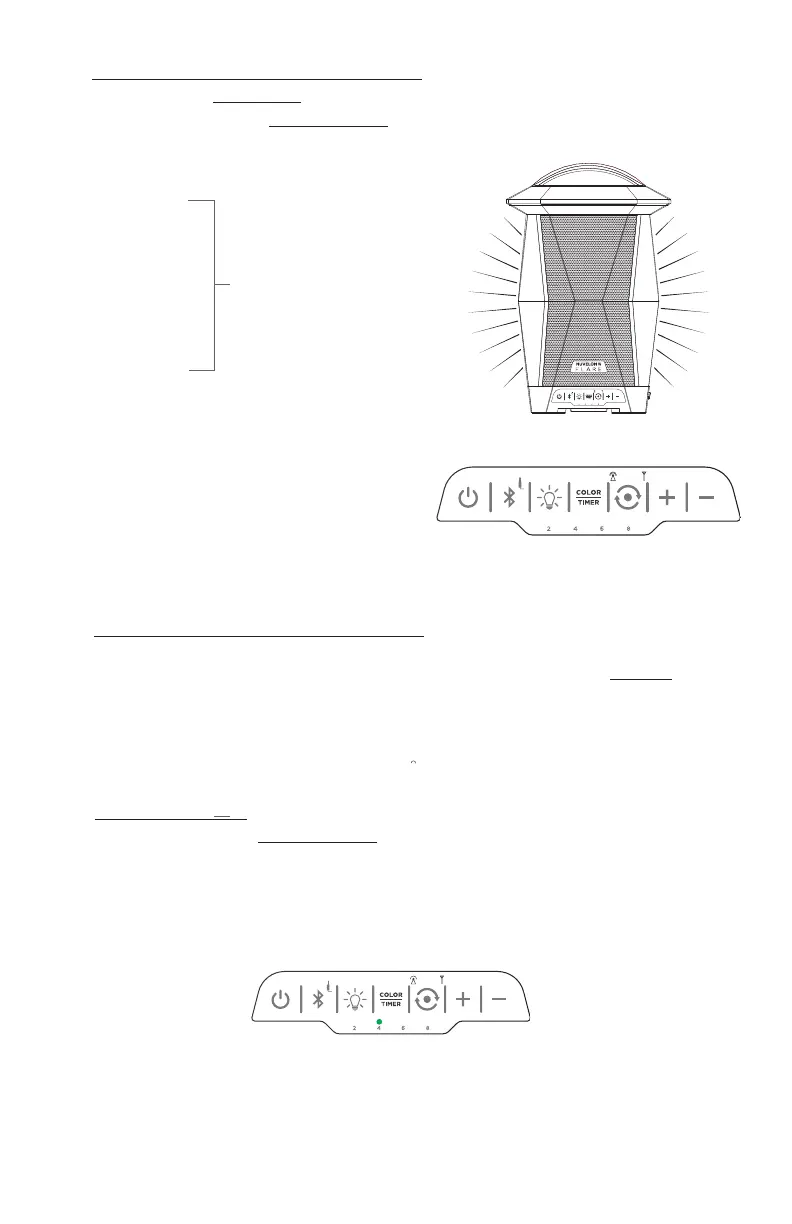
B. LIGHT SHOW COLOR SELECTION (single speaker)
Lantern feature must be on to change light show color selections. See A. Above.
1. Press and release the COLOR/TIMER button to select the next light color
Light shows are arranged in the following sequence:
1. Red
2. Blue
3. Aqua
4. Amber
5. Green
6. Pink
7. Purple
8. White
9. Color-changing Fade
10. Color-changing Pulse*
*NOTE: Only works when audio is playing
(Brightness of color-changing pulse
effect varies according to type and
volume level of music played)
D. TIMER OPTION
1. Press and HOLD the COLOR/TIMER button
2. When the desired timer interval lights up, release the button
3. To change the timer interval, repeat steps 1. and 2.
(Timer will revert to last selected timer interval when speaker is powered on)
NOTE: Brightness control
can only be adjusted for
these color selections
press and release COLOR/TIMER button
LIGHT SHOW SELECTIONS
You may set the
timer to turn o
the lantern after 2,
4, 6 or 8 hours
NOTE: By default,
the lantern will
turn o after 2
hours to extend
run time
PRESS AND HOLD COLOR/TIMER BUTTON
release when desired interval illuminates
C. LIGHT SHOW COLOR SELECTION (2 or more synced speakers)
When 2 or more speakers are synced, changing the light show color selection on
the first speaker will change the light show on all synced speakers EXCEPT the
color-changing pulse effect (which cannot sync between speakers)
Light show color/brightness/timer selections can also be changed individually on
any synced speaker


 To Next Page