This document is a user's guide for the NŪVISION TM800A730M tablet, providing instructions on getting started, an overview of the device, and information on connecting to the internet. It also includes important safety instructions, compliance information, and warranty details.
Function Description:
The NŪVISION TM800A730M is a tablet designed for general use, including internet browsing, app usage, and multimedia consumption. It features front and rear cameras, a micro USB port for charging and data transfer, and a micro TF memory card slot for expandable storage. The tablet runs on an operating system that allows users to connect to Wi-Fi networks, install applications, and personalize settings.
Important Technical Specifications:
- Model: TM800A730M
- Input: 5V/2A (for AC Adapter)
- FCC ID: M7C-MID86Q10E
- Connectivity: Wi-Fi
- Ports: Micro USB, 3.5mm Headphone Jack
- Expandable Storage: Micro TF Memory Card Slot
- Cameras: Front Camera Lens, Rear Camera Lens
- Controls: Power Button, Volume (+/-)
Usage Features:
- Getting Started: The guide emphasizes familiarizing users with the Solo 8AO (likely a model variant or internal codename) and encourages registration at www.nuvision.com for optimal experience.
- Package Contents: The package includes the TM800A730M Tablet, an AC Adapter, and a Transfer Cable.
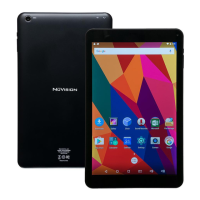
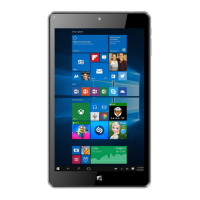
- Tablet Overview: The tablet features speakers (1), volume controls (2), a power button (3), a micro USB port (4), a microphone (5), a micro TF memory card slot (6), a 3.5mm headphone jack plug (7), a front camera lens (8), and a rear camera lens (9).
- Charging: To charge, connect the power adapter to a wall outlet and then to the tablet's micro USB port. A charge indicator LED light will appear. It is recommended to fully charge the battery before first use, with a typical charge time of 4-6 hours. The tablet may become warm while charging, which is normal.
- Powering On: Turn on the tablet by pressing and holding the power button for approximately 5 seconds and then follow the on-screen prompts.
- Setup Wizard: The setup wizard guides users through connecting to a Wi-Fi network, adding an existing Gmail account or creating a new one, and personalizing the unit. Users can skip the Wi-Fi connection step and connect later.
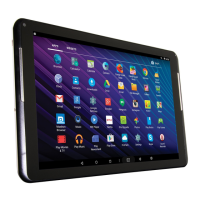
- Home Screen Familiarization: The home screen includes an Activity/Downloads area (1), Tray for quick app access (2), App icons (3), Go to Previous Page button (4), Go to Home Page button (5), Overview for active apps (6), App Tray for all available apps (7), Search bar (8), and a Status Bar (9) showing battery level, time, Wi-Fi strength, and owner/guest status.
- Connecting to the Internet: Users need a home Wi-Fi router or a publicly available Wi-Fi signal (e.g., in a library, coffee shop, or school), along with the Network Name (SSID) and Network Security Key (password). To connect, tap the Settings icon, select "Wi-Fi," choose the desired network, and enter the password.
- Internet Browsing: Once connected to Wi-Fi, users can access the internet using the Google Chrome browser. If the Chrome icon is not on the desktop, it can be found in the App Tray.
- Online Resources: NuVision's website (www.NuVision.com & shopNuVision.com) serves as an online resource for product registration, frequently asked questions (FAQs), tips on using the tablet, and customer service chat/email.
Maintenance Features:
- Cleaning: Do not use alcohol, thinner, or benzene to clean the tablet surface. Use only cleaning products designed for computer tablet devices.
- Troubleshooting: If experiencing problems, users are advised to review the quick start guide or visit the FAQ online at www.nuvision.com.
- Warranty: Dismantling the tablet will void the manufacturer's warranty.
- Customer Service: Support is available via chat at www.NuVision.com, phone at (800) 890-1288 (Hours: 8:30am to 5:30pm PST M-F), and email at cs@nuvision.com.
Safety Instructions:
- Avoid using the tablet in extremely hot, cold, dusty, damp, or wet environments.
- The tablet is not moisture or water-resistant; avoid sources of water.
- Do not drop or forcibly place the tablet on hard surfaces to prevent damage and voiding the warranty.
- Do not use the tablet while walking or driving.
- Limit earphone usage at high volume to prevent hearing impairment; adjust volume to a moderate level.
- Charge the battery when the level icon indicates low power, the tablet powers off automatically, or on-screen keys/display do not function properly.
- Do not suddenly disconnect the tablet during data formatting, uploading, or downloading to prevent program errors.
- Static discharge is normal but can corrupt files or damage memory; use only Nuvision accessories.
- Dismantling voids the warranty.
- Tablet functions, hardware, software, and warranty information are subject to change without notice.
- Warning: This product may contain chemicals known to the State of California to cause cancer, birth defects, or other reproductive harm.
- FCC Notice: The device complies with part 15 of the FCC rules, ensuring it does not cause harmful interference and accepts any received interference. It has been tested and found to comply with Class B digital device limits.
- Interference Mitigation: Measures to correct interference include reorienting/relocating the receiving antenna, increasing separation between equipment and receiver, connecting to a different circuit, and consulting a dealer/technician.
- Modifications: Changes not expressly approved by the responsible party could void the user's authority to operate the equipment.
- Antenna Co-location: The antenna(s) must not be co-located or operating in conjunction with any other antenna or transmitter.
- Warning Statement: Operation is subject to the device not causing interference and accepting interference.
- FCC Radiation Exposure Statement: The device meets general RF exposure requirements and can be used in portable exposure conditions without restriction.

 Need help?

 To Next Page
 General