
 Need help?
Do you have a question about the NuVision TM101W545L and is the answer not in the manual?
Contact information and support hours for NuVision customer service.
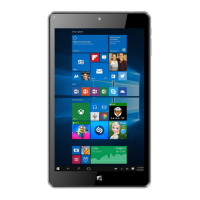
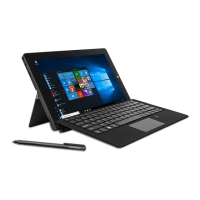
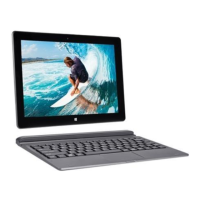
Lists the key features and specifications of the TM101W545L tablet.
Identifies the front-facing camera for video calls and selfies.
Button to return to the Home or Start Menu.
Button to turn the tablet on, off, or put it into standby mode.
Controls to decrease or increase the volume level.
Port for connecting headphones or external speakers.
Port for charging the tablet or connecting USB devices.
Slot for expanding storage with a TF memory card.
Built-in microphone for voice commands and recording.
Identifies the rear-facing camera for photos and videos.
Built-in speakers for audio playback.
Indicator light for the Caps Lock key status.
Standard USB port for connecting peripherals.
Connects the tablet to the keyboard via a magnetic dock port.
Tabs used to align and attach the tablet to the keyboard.
Instructions on how to detach the tablet from the keyboard.
Instructions for powering the device on, off, and entering standby mode.
Guides users through initial device setup and personalization.
Steps to set up user accounts and passwords for security.
Access to restart, shutdown, or sleep functions.
View all installed applications arranged alphabetically.
Access to colorful static and live tiles for apps and information.
Function to return to the previous page or view.
Tool for searching Windows or the internet.
Displays all currently open applications.
Shows remaining battery percentage and time.
Manage network connections and activate Airplane mode.
Adjusts the audio volume level.
View alerts, notifications, and tablet settings.
Access the on-screen keyboard in Desktop Mode.
Adjusts the system date and time settings.
Access open applications by swiping from the left edge.
Access Search, Share, and Settings via swipe from right edge.
Zoom in or out of content by using two fingers on the screen.
Reduce active window size and arrange side-by-side.
Move images or content by swiping horizontally.
App for creating and printing 3D models.
Access to rent or purchase movies, TV shows, and games.
Utilize TF memory cards for expanded storage capacity.
Steps to create or use an existing Microsoft account for services.
Instructions for adding external email accounts to the Mail app.
Procedure for connecting the tablet to a WiFi network.
Steps to disconnect the tablet from an active WiFi network.
Connecting external storage devices via USB ports.
Pairing Bluetooth compatible devices with the tablet.
Details on the tablet's front and rear camera capabilities.
Options for viewing, editing photos, and creating albums.
Switch between front and rear cameras.
Adjust brightness, white balance, ISO, and shutter.
Activate timer or configure camera settings like recording speed.
Take photos or start/stop video recording.
Access and view captured photos on the tablet.
Options for sharing captured photos.
View photos in a slideshow format.
Edit photos for lighting, color, effects, cropping, and rotation.
Rotate captured images.
Delete unwanted photos.
Access additional camera configuration options.
Cloud storage for documents, photos, and music, accessible from any device.
Application for keeping notes and ideas across multiple devices.
Details on pixel performance and warranty exclusions.


 To Next Page
 General