The NuVision TM101A730M is a tablet designed for general use, offering a range of features for connectivity, entertainment, and productivity. This guide provides an overview of its functions, technical specifications, and usage instructions to help users get started quickly.
Function Description:
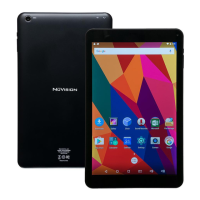
The TM101A730M tablet serves as a portable computing device, enabling users to browse the internet, access applications, view multimedia content, and perform various tasks. It is equipped with a touchscreen interface for intuitive navigation and interaction. The tablet supports Wi-Fi connectivity, allowing users to connect to home networks or public hotspots for internet access. It also features a front and rear camera for capturing photos and videos, and a microphone for audio input. The device includes ports for charging, data transfer, and external display, enhancing its versatility.
Important Technical Specifications:
- Model: TM101A730M
- Display: Not explicitly stated, but implied to be a touchscreen.
- Connectivity: Wi-Fi (802.11 b/g/n compatible), Micro USB, Micro HDMI, 3.5mm Headphone Jack.
- Cameras: Front Camera Lens, Rear Camera Lens.
- Audio: Speakers, Microphone.
- Storage: Micro TF Memory Card Slot for expandable storage.
- Power: AC Adapter for charging, internal battery.
- Battery Life: Typical charge time is between 4-6 hours.
- Operating System: Android (implied by the setup wizard screenshots).
- FCC ID: M7C-MID16Q1E.
- Input: 5V/2A.
Usage Features:
- Getting Started: Users are encouraged to register their tablet online at www.nuvision.com/product-registration for access to additional information and support.
- Charging: The tablet should be fully charged before first use. Connect the power adapter to a wall outlet and then to the tablet's micro USB port. A charge indicator LED light will appear. The typical battery charge time is 4-6 hours. It is normal for the tablet to become warm while charging.
- Power On/Off: To turn on the tablet, press and hold the Power Button for approximately 5 seconds. Follow the on-screen prompts during the initial setup.
- Setup Wizard: The setup wizard guides users through initial configuration, including connecting to a Wi-Fi network, adding or creating a Gmail account, and personalizing the unit. Users can skip the Wi-Fi setup and connect later if desired.
- Wi-Fi Connectivity: To connect to the internet, users need a Home WiFi Router or a publicly-available WiFi signal, along with the Network Name (SSID) and Network Security Key (Password).
- Navigate to "Settings" > "Wi-Fi".
- Select the desired Wi-Fi network from the list.
- Enter the password and select "CONNECT".
- Once connected, users can access the internet using the Google Chrome browser. If the Chrome icon is not on the desktop, it can be found in the App Tray.
- Home Screen Navigation:
- Activity / Downloads: Tap to view; swipe down to expand Quick Settings.
- Tray: Quick app access; switch between single and multiple app views.
- App: Applications on the home screen; activate by tapping; remove by holding and moving to the "Remove" icon.
- Go to Previous Page: Navigates back to the previous screen.
- Go to Home Page: Returns to the main home screen.
- Overview: Displays all active/open apps; swiping left/right closes an app.
- App Tray: Shows all available apps on the tablet.
- Search: Tap to activate the keyboard for search inquiries.
- Status Bar: Displays battery level, time, Wi-Fi strength, and Owner/Guest Status.
- Expandable Storage: The Micro TF Memory Card Slot allows for additional storage capacity.
- External Display: The Micro HDMI port enables connection to an external display.
- Headphone Jack: A 3.5mm headphone jack is available for private audio listening.
Maintenance Features:
- Cleaning: Do not use alcohol, thinner, or benzene to clean the tablet surface. Use only cleaning products designed for computer tablet devices.
- Environmental Conditions: Avoid using the tablet in extremely hot, cold, dusty, damp, or wet environments. The tablet is not moisture or water-resistant.
- Physical Handling: Avoid dropping or forcibly placing the tablet onto a hard surface, as this can damage the screen or internal components and void the warranty.
- Battery Charging: Charge the tablet when the battery level icon indicates low power, when it powers off automatically, or when on-screen keys/display do not function properly.
- Data Transfer: Do not suddenly disconnect the tablet when formatting, uploading, or downloading data to prevent program errors.
- Troubleshooting: If experiencing problems, review the quick start guide or visit the FAQ online at www.nuvision.com.
- Warranty: Dismantling the tablet will void the manufacturer's warranty. The warranty covers defects in material or workmanship for one year from the date of original purchase. It does not cover damages from misuse, accident, neglect, acts of God, improper installation, maintenance, or modification.
- Customer Service: For technical support, contact NuVision via chat at www.NuVision.com, email at cs@nuvision.com, or phone at (800) 890-1288 (Hours: 8:30am to 5:30pm PST M-F).
- FCC Compliance: The device complies with FCC rules, ensuring it does not cause harmful interference and accepts any interference received. Users are advised to reorient or relocate the receiving antenna, increase separation between equipment and receiver, or connect to a different circuit if interference occurs.
- Safety Warning: Excessive use of earphones at high volume may lead to hearing impairment; limit usage and adjust volume to a moderate level. This product may contain chemicals known to the State of California to cause cancer, birth defects, or other reproductive harm.

 Need help?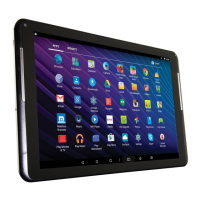


 To Next Page
 General