17
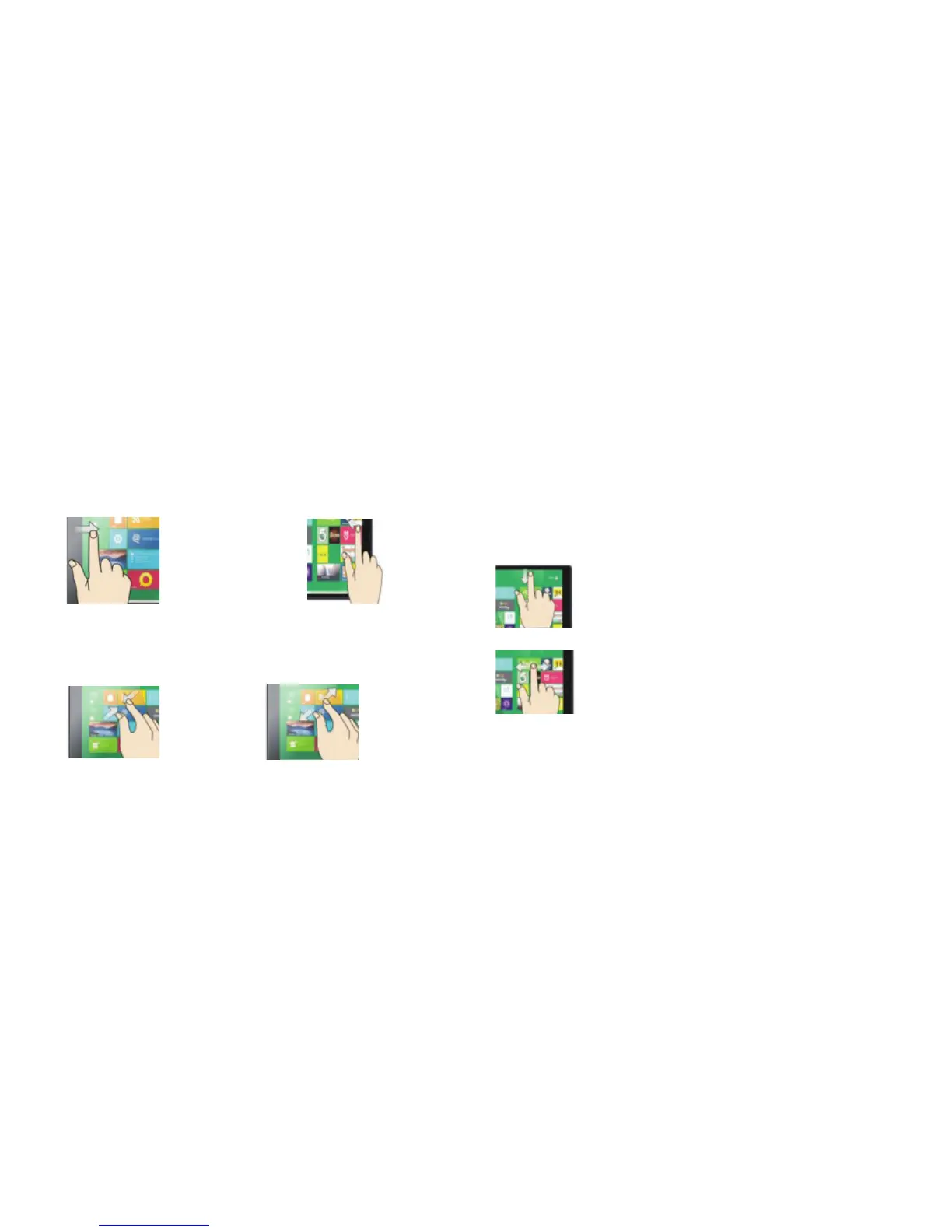
Pinch to Zoom: Some apps (such as Maps, Browser, and Gallery) allow you to
zoom in and out by placing two fingers on the screen at once. Spread fingers
apart to zoom in or pinch together to zoom out.
Swipe downward from the top edge to reduce the size of an
active window. Move it to one area then open a second app to
view both windows side by side.
Swipe finger side to side and up and down to move images.
16
Common Finger Gestures
Swipe right from the left edge to access open apps.
Swipe right from the left edge: View all apps that are currently open. Tap to enlarge
to full screen.
Swipe left from the right edge: Most information about your device can be found
through the Action Center. View alerts, notifications, tablet settings, etc.
Pinch & Zoom Enlarge
Swipe left from the right edge for Search,
Share, and Settings.





 To Next Page