5 | Page www.LMIR.us Click Here to Get Back to the Table Of Contents
Button or Click the Red “X” Button 1 Time) For Example, If You Hold Down the Select
Button in Kodi You Can Add Things to Your “Favourites”. If You Hold Down the Select
Button on Your Home Screen, You Can Move Around Your Apps. If You Hold Down the
Select Button in Cyberflix, It will Play the Movie or TV Show Episode.
2. Hold Down the Home Button (the Button with The Circle) to Go to Your Home Screen.
This Is How You Get Out of You App Launchers. Click the Back Button to Get Out of the
Screen Capture Menu if That Pops Up. You Can Also Double click the Home Button to
Scroll Through Your Recently Used Apps. Press the Down Button and then Select “Dismiss”
to Close Out Your TV Launcher Applications and Return to the Home Screen. You Can Also
Dismiss Kodi If It Freezes Up and Force Close Unresponsive Apps by Clicking “Dismiss”.
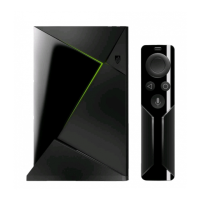
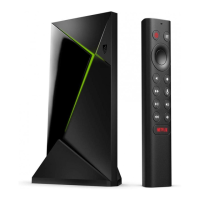
3. Pay Special Attention to the Volume Slider on Your Remote and Controller (the Strip in
the Center of the Remote from the Mic Button Down). You Can Tap on this Strip to Pause
and Play the Movie. If You Tap the Volume Slider 3-4 Times it Activates Your Mouse Toggle
Click Your Home Button to Deactivate the Mouse Toggle. If this is Your First Time Using
Your Mouse Toggle, Locate Your Mouse Toggle App and Click Here.
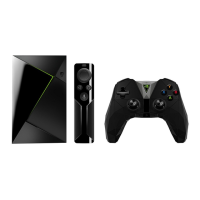
Have an NVIDIA Gaming Remote?
Use Your Right Joystick to Pull Up Your Mouse Toggle in Certain Applications (This Controls
the Volume in Kodi) and Pay Special Attention to the Back, Play, and Home Buttons Facing
Up At You at (Between Your 2 Joysticks). The “X” Button is Your Menu Button. You Can
Also Click the Right Joystick to Pull Up Your Options. Click Your Right Joystick If Your TV
Guide Freezes Up or Addon Locks Up when You Are Searching For Movies. Then Click
“Settings” It Works 80% of the Time.
How to Update Your Build
Update Your Build Whenever It Pops Up on Your Screen. Build Updates are Super Simple
and Very Important. The Updates Install All the Latest Addons and Delete All the Outdated
Addons in Just 3 Clicks. Click Here for a Quick Video Walkthrough or Continue Reading
Below. It Actually Walks You Through What to Click on Step 1, Just Read Your Screen. After
That, Just Pay Attention to the Colors. Try Not to Click the Option in Red or It Will Cancel
Out the Update.
1. Click “Fresh Install” In the Bottom Left Corner. (This Will Look Different but It’s The Same
Exact Process.


 To Next Page
 Loading...