Page 6 of 22
Gauge Configuration
The set-Up of the Tank Gauge system using Interface lead and he software on a PC / Laptop.
Latest version of the software is V1.0.0.16
Tank Gauge adjustments can be made with the T4020 Configuration software.
This needs to be loaded on to Service Laptop or an Office PC.
1
st
Issue that will nearly always catch you out. If the gauges are set in ‘Modbus’ mode, or if they are in
Standard. To talk to the gauge with the configurator software, the gauge needs to be in Standard mode.
If it is not, disconnect the power lead (24vdc supply), and hold down the front middle alarm button (for 3
seconds) and reconnect power. (Front display will change to ‘Standard’. (Cycle power again when finished.)
2
nd
Issue, the comms lead will not talk to the tank gauge. “USB Serial Com Port”
This is the port you require to set the configurator, this is achieved by following the instructions for the Device
Manager below. This shows Windows 10, but if you have a different version of windows as long, as you can
access the device manager and find the com port number there shouldn’t be an issue.
IF YOU HAVE ANY ISSUES WITH SETTING UP / ACCESSING THE DEVICE MANAGER
PLEASE REFER TO DOCUMENT PD02/0003 – DEVICE MANAGER CONFIGURATION.
This is available from the OLE website as a downloadable .pdf
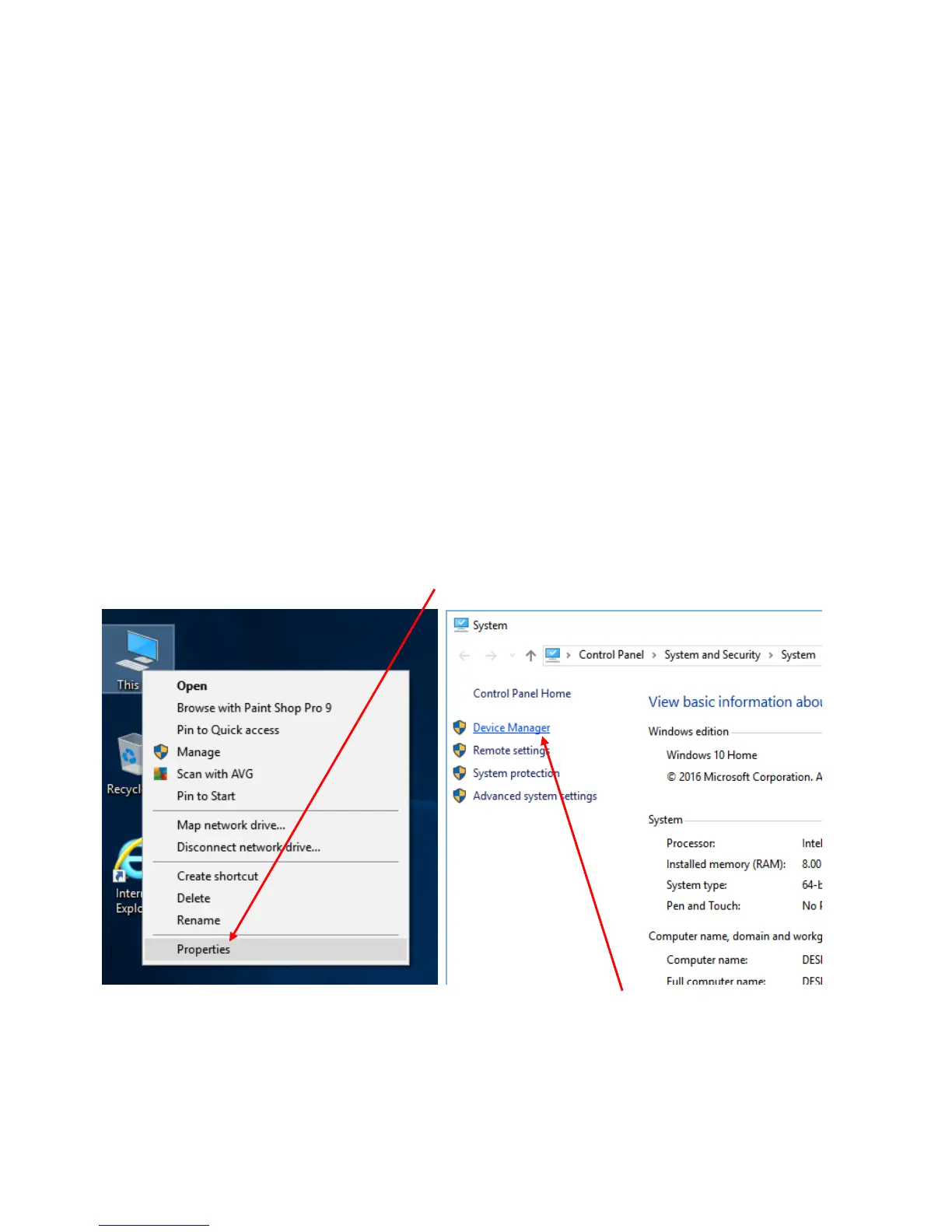
Windows Setup (Windows 10) / Device Manager.
Left click on the This PC icon. Scroll down and click on the Properties tab.
This will open the Control Panel / System and Security / System page. Click on the Device Manager Icon.
This will bring up the device manager page.



 To Next Page