EasyManua.ls Logo

Oberheim XK - Selecting A Zone; Selecting A Patch Number

Oberheim XK
41 pages
Print Icon
To Next Page IconTo Next Page
To Previous Page IconTo Previous Page
Loading...
ZONES
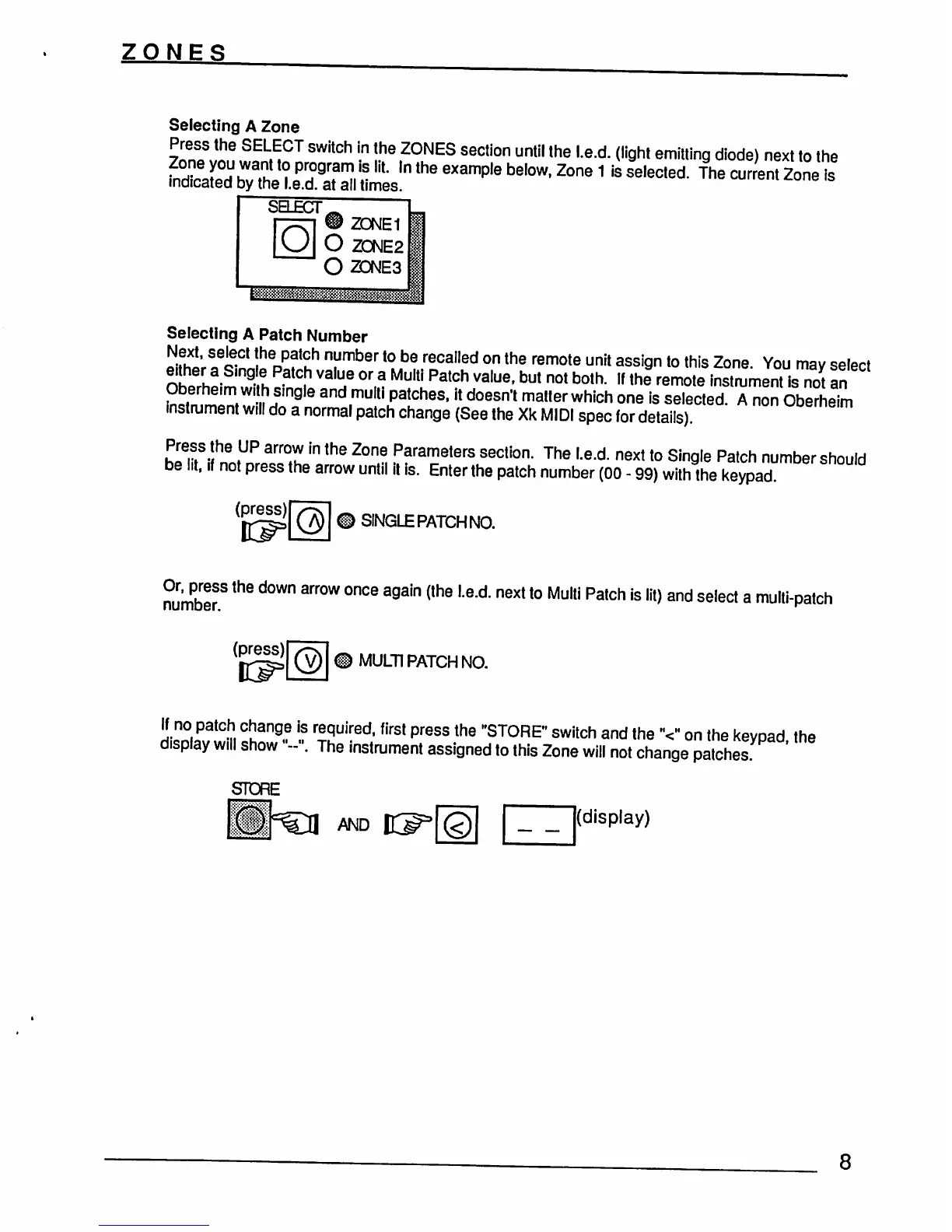
Selecting
A
Zone
Press
the
SELECT
switch
in
the
ZONES
section
until
the
I.e.d. (light
emitting
diode)
next
to
the
Sm^HWilL111
the
example
below'Zone
1 is
selected
The
Jent
2one
ls
SELECT
O
ZONE1
O
ZONE2
O20NE3
Selecting
A
Patch
Number
Je,
reCa"ed
°n
the
remote
unit
ass|9n
t0
this
Zone-
You
may
select
2Elim2£
.
f
M
Multl
Patch
value'but
not
both-
lf
the
remot*
instrument
is
not
an
Oberheim
with
single
and
multl
patches,
it
doesn't
matter
which
one
is
selected.
A
non
Oberheim
instrument
will
do
a
normal
patch
change
(See
the
Xk
MIDI
spec
for
details).
UDe™im
Press
the
UP
arrow
in
the
Zone
Parameters
section.
The
I.e.d.
next
to
Single
Patch
number
should
be
lit,
if
not
press
the
arrow
until
it
is.
Enter
the
patch
number
(00
-
99)
with the
keypad
(press)
SINGLE
PATCH
NO.
ln
(the
Le'd
next
t0
Multi
Patch
is
lft)
and
select
a
multi-patch
(press)
MULTI
PATCH
NO.
If
no
patch
change
is
required,
first
press
the
"STORE"
switch
and
the
V
on
the
keypad
the
display
w,ll
show
•-".
The
instrument
assigned
to
this
Zone
will
not
change
patches
STORE
E
AND
(display)
8