EasyManua.ls Logo

Oberheim XK - Selecting A MIDI Channel; Setting The Voice Limit For Voice Spill-Over

Oberheim XK
41 pages
Print Icon
To Next Page IconTo Next Page
To Previous Page IconTo Previous Page
Loading...
ZONES
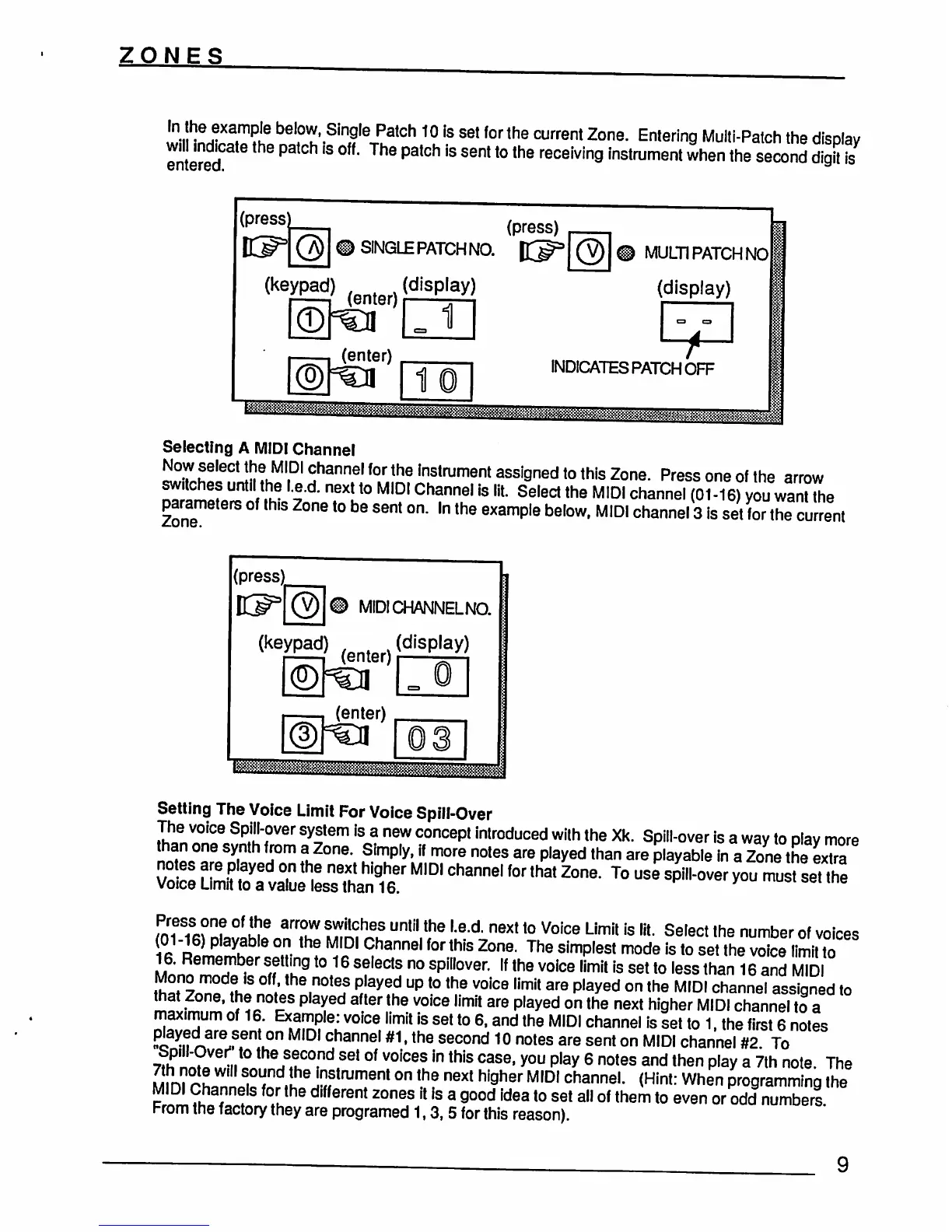
In
the
example
below,
Single
Patch
10
Is
set
for
the
current
Zone.
Entering
Multi-Patch
the
display
w^hndicate
the
patch
Is
off.
The
patch
is
sent
to
the
receiving
instrument
when
the
second
digilis
(press
SINGLE
PATCH
NO.
(press)
(keypad)
(enter)(diSplay)
1
MULTI
PATCH
NO
(display)
(enter)
t
INDICATES
PATCH
OFF
Selecting
A
MIDI
Channel
Now
feet
the
MIDI
channel
for
the
instrument
assigned
to
this
Zone.
Press
one
of
the
arrow
^m!f.UntV^
'td
ReXtKt0
MIDI
Channel
ls
ljt
Select
the
MIDI
channel
(01-16°you
wamL
parameters
of
th.s
Zone
to
be
sent
on.
In
the
example
below,
MIDI
channel
3
is
set
for
the
current
Setting
The
Voice
Limit
For
Voice
Spill-Over
/ah
««
.
OfSe
arrow
swjtches
until
the
l.e.d.
next
to
Voice
Limit
is
lit.
Select
the
number
of
voices
01-16)
playable
on
the
MIDI
Channel
for
this
Zone.
The
simplest
mode
is
to
set!meTvote?
Hmit
to
16.
Remember
setting
to
16
selects
no
spillover.
If
the
voice
limit
is
set
to
less
than
16
and
MIDI
Mono mode
is
off
the
notes
played
up
to
the
voice
limit
are
played
on
the
MIDI
channel
assigned
to
that
Zone,
the
notes
played
after
the
voice
limit
are
played
on
the
next
higher
MIDI
channel
to
a
maximum
of
16.
Example:
voice
limit
is
set
to
6,
and
the
MIDI
channel
is
set
to
1,
the
first
6
notes
played
are
sent
on
MIDI
channel
#1,
the
second
10
notes
are
sent
on
MIDI
channel
#2
To
Spill-Over"
to
the
second
set
of
voices
in
this
case,
you
play
6
notes
and
then
play
a
7th
note
The
Min?rhrlS|c^d,hheJ^StrUment
°n
lhf
next
higher
MIDI
channel-
(Hint:
When
programming
the
MIDI
Channels
for
the
different
zones
it
is
a
good
idea
to
set
all
of
them
to
even
or
odd
numbers
From
the
factory
they
are
programed
1,3,
5
for
this
reason).