OWNER'S GUIDE
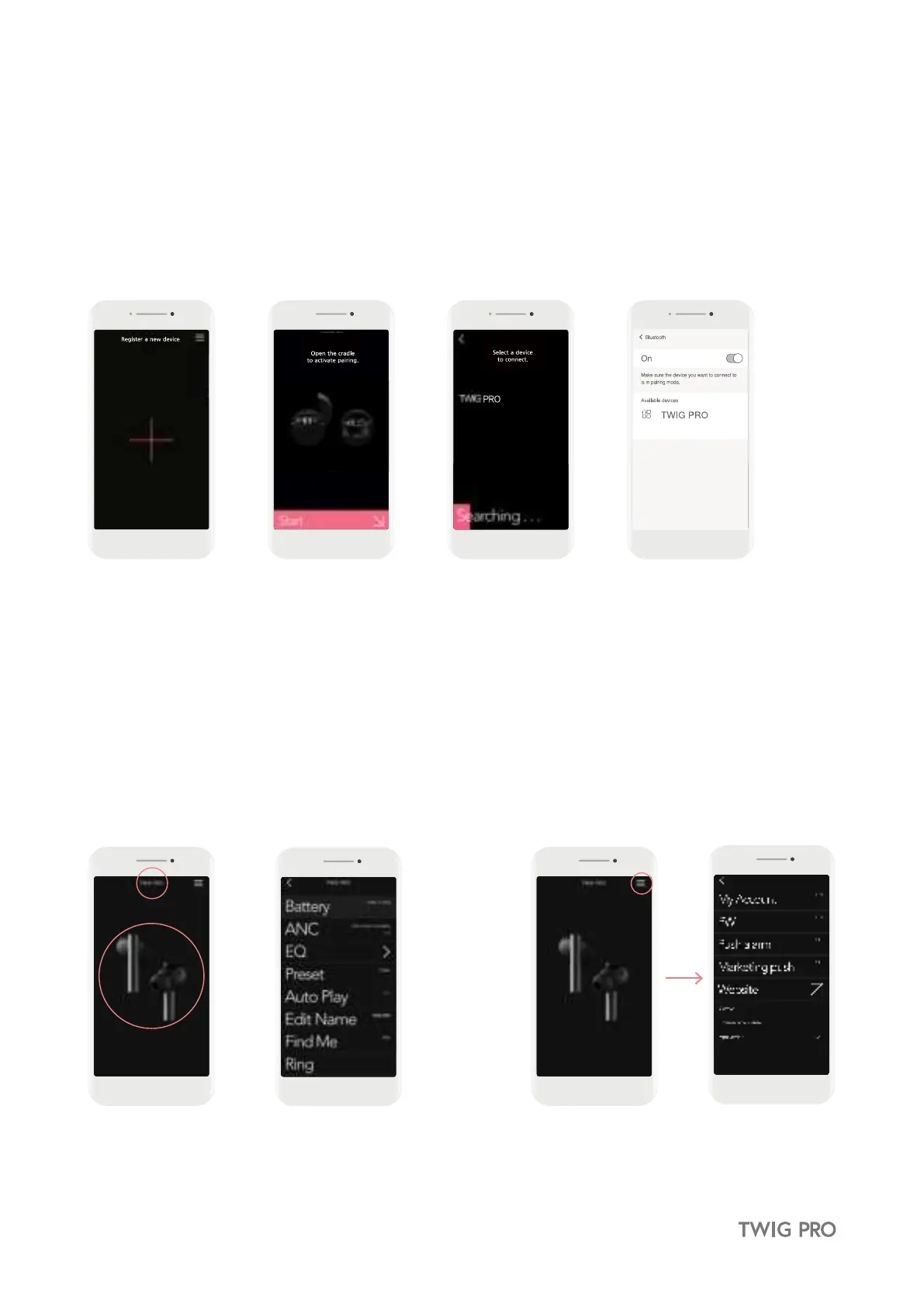
Main Screen Main ScreenTWIG Menu Screen APP settings Screen
C
13.2 Register your TWIG
① To connect your TWIG PRO to the APP, place both earbuds in the case. Leave the case open and add
the device through the app.
※ If there is a already registered TWIG product, swipe left to see a new registration page.
② Follow the guide to open the case and touch ‘START’ at the bottom of the screen.
③ If your TWIG PRO appears in the search device list, select it to continue the pairing process.
④ Go to the Bluetooth settings of the connected device and complete the device connection.
13.3 How to use the ODDICT APP
A The name of the connected TWIG PRO device will be displayed. When registering for the first time, it will be marked
as ‘TWIG’ and can be later modified in the ODDICT APP.
B If you tap the TWIG PRO image, you will be taken to the TWIG PRO menu screen.
C Moves to the APP settings screen.
A
B


 To Next Page